

Studies
If your workspace runs a study, participants take part directly from the Afterglow mobile app: they join, sign any outstanding consent documents, answer scheduled questionnaires over time, and can withdraw whenever they choose. This page is written for participants taking part in a study, and for the admins and coaches who support them.
A study is a structured research programme that delivers a set of questionnaires to participants on a schedule over a defined period. Participants answer questions as they are delivered, and the responses help researchers understand the participant group over time.
Joining a study
Section titled “Joining a study”A participant joins a study by redeeming an access code when they register or sign in. The code attaches them to the correct study and, where one is used, the correct group.
The day a participant redeems their code is day 1. From that point, the study clock and all reminders are anchored to that participant’s own start date and timezone — so two people who join on different days each follow their own schedule.
A few things to keep in mind:
- A participant can enrol in a given study only once.
- A participant may be assigned to a specific group (sometimes called an arm), which can affect which questionnaires they receive.
Signing the consent documents
Section titled “Signing the consent documents”Before a study enrollment becomes active, the participant must have signed all of the workspace’s active documents — including any consent form or participant information sheet the workspace has set up. These are the same documents every member of the workspace signs, not a separate set owned by the study, and they are shown on the document-signing screen. A participant who has already signed every active document moves straight to an active study with no further prompt.
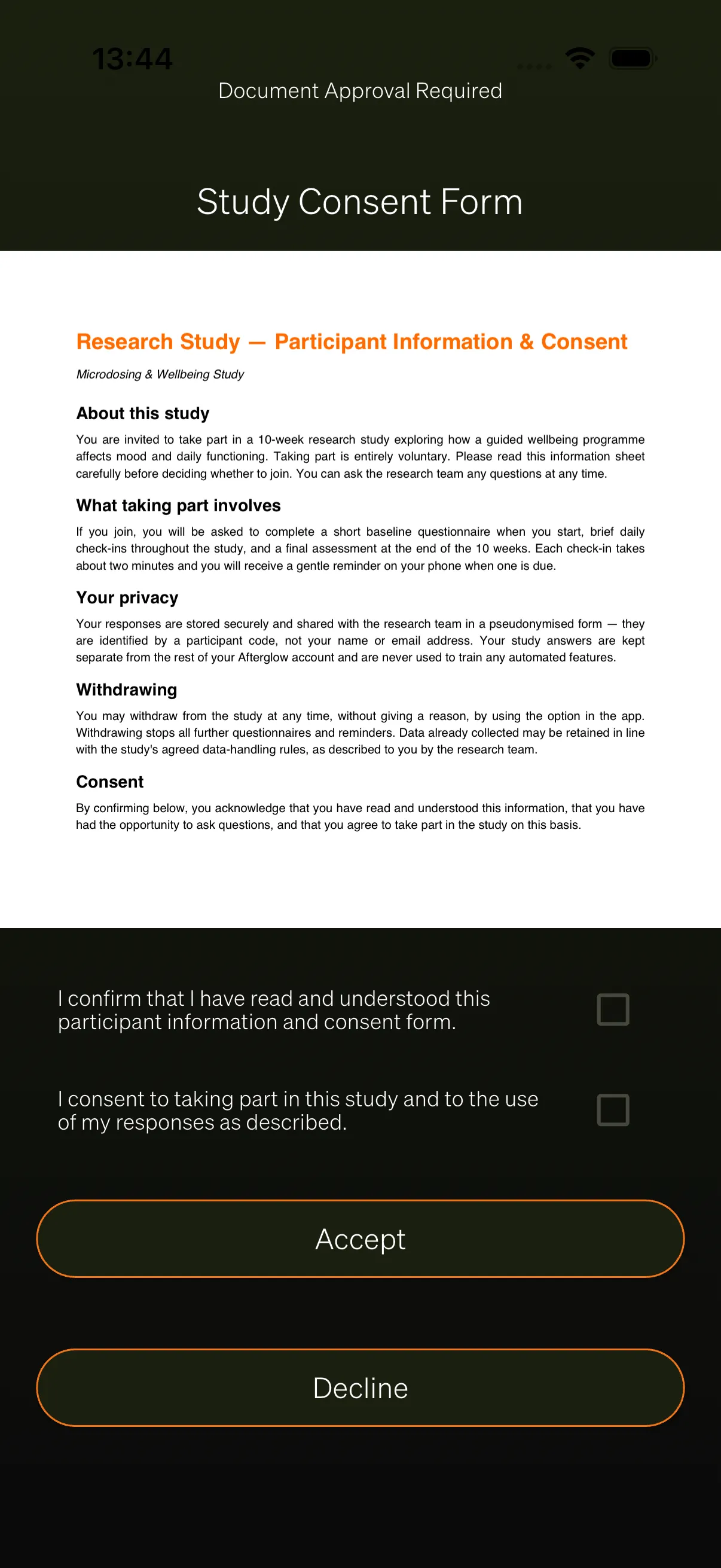
The signing flow works like this:
- Documents are shown one at a time. When there is more than one, a progress line reads “X of Y” so the participant knows how many remain.
- The full document is displayed on screen for the participant to read.
- A read-confirmation checkbox confirms they have read the document.
- A separate consent checkbox confirms they agree to take part.
- Accept becomes available only once the document has finished loading.
If the participant taps Accept without ticking a required box, the app prompts them to confirm they have read the document and to give their consent. The alternative is Decline. Because consent is required to take part, declining on the signing screen starts deleting the account they just created — after a separate confirmation prompt — rather than simply skipping enrolment, so a participant who is unsure should not tap Decline.
Only after all the workspace’s active documents are signed does the study enrollment become active, and questionnaires and reminders begin.
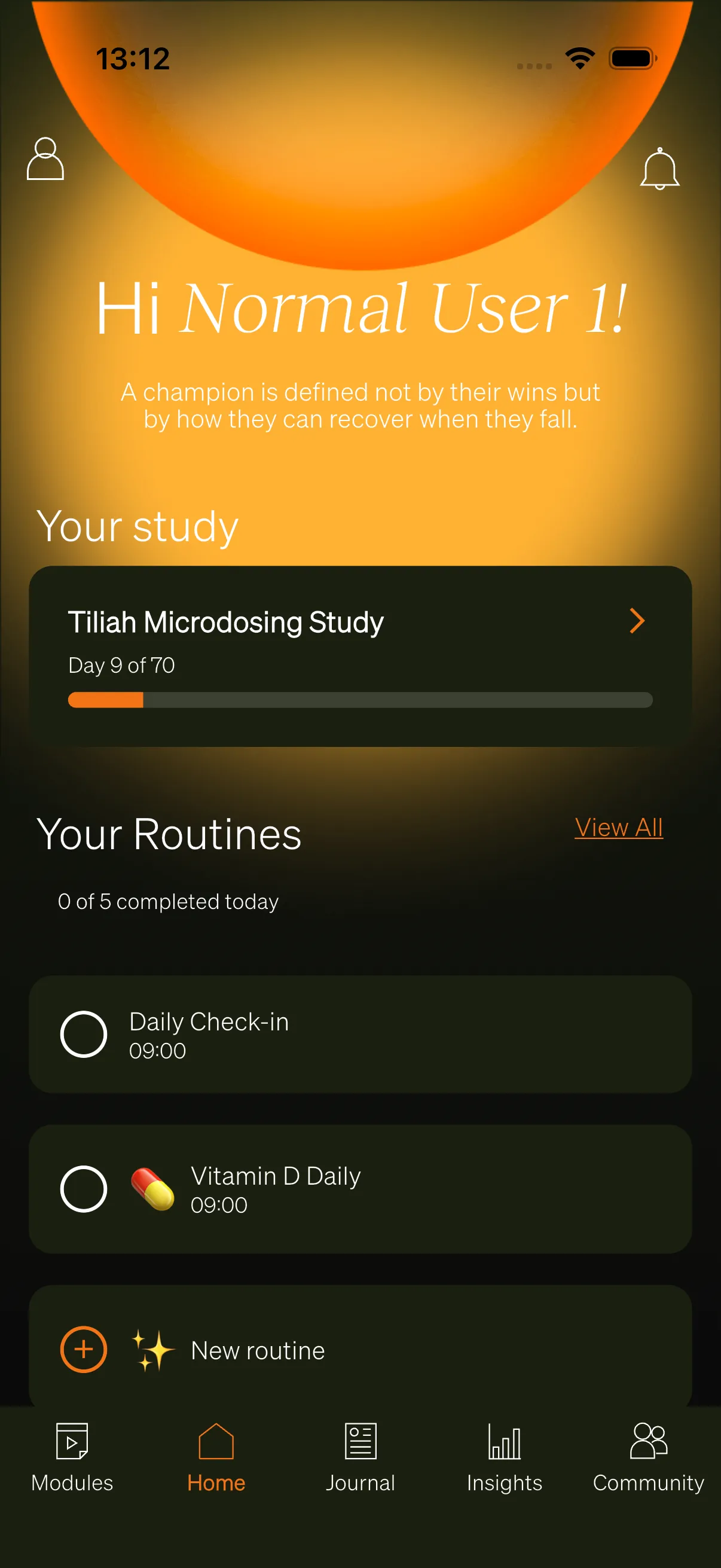
The “Your study” card on Home
Section titled “The “Your study” card on Home”Once a participant is enrolled, a Your study card appears on the Home tab. It shows the study name and the participant’s progress as “Day X of N”, with a progress bar.
Tapping the card opens the full Study area. The card is hidden for anyone who is not taking part in a study.
The Study surface
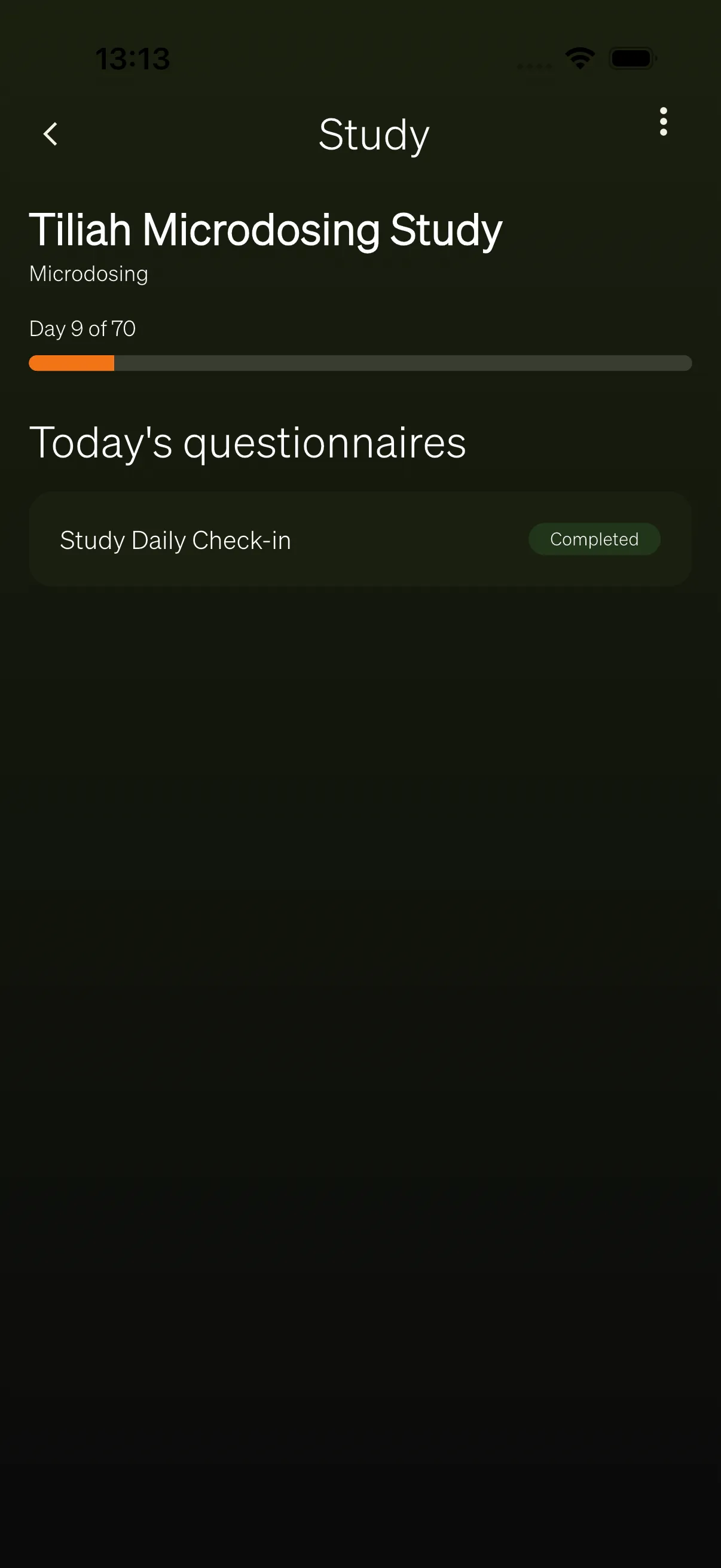
Section titled “The Study surface”The Study area gives the participant everything they need in one place:
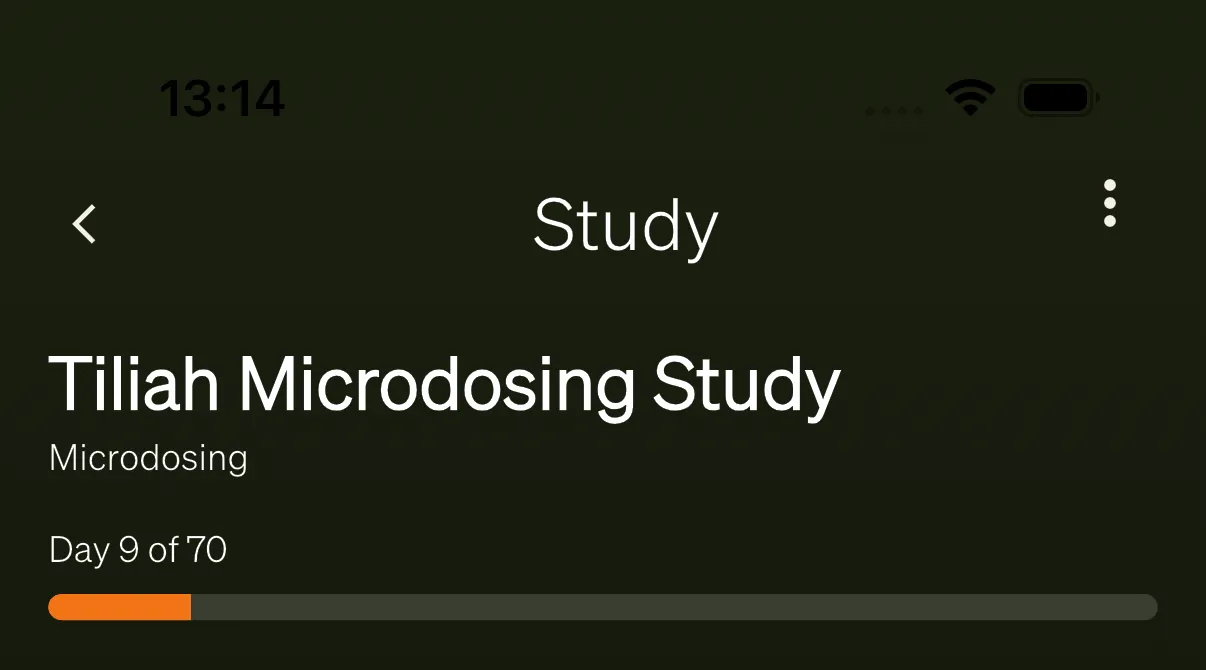
- Header — The study name and, if the participant has been assigned to one, the group name.
- Progress header — Reads “Day X of N” with a progress bar showing how far through the study they are.
- Today’s questionnaires — A list of the questionnaires available to answer.
- More menu (⋮) — Top-right, with the option to withdraw from the study.
- Final assessment banner — When the study reaches its end, a prominent Final assessment ready banner appears here.
When nothing is scheduled, the participant sees a “no questionnaires right now” message instead of a list — this is normal between scheduled deliveries.
Completing scheduled questionnaires
Section titled “Completing scheduled questionnaires”Questionnaires are delivered on a cadence set by the researcher — for example, daily or twice a week. Each row in Today’s questionnaires shows the questionnaire name, a status chip, and a forward arrow when it can be answered right now.
Rows that can be answered open the questionnaire when tapped. Rows that are already completed, missed, or not yet due are read-only.
Some questionnaires are links to an external questionnaire or web page. Their row shows an open-link icon instead of the arrow. Tapping it opens the page in the phone’s browser, and the questionnaire is marked Completed as soon as it is tapped. If the link can’t be opened, the app says so, but the questionnaire still counts as completed.
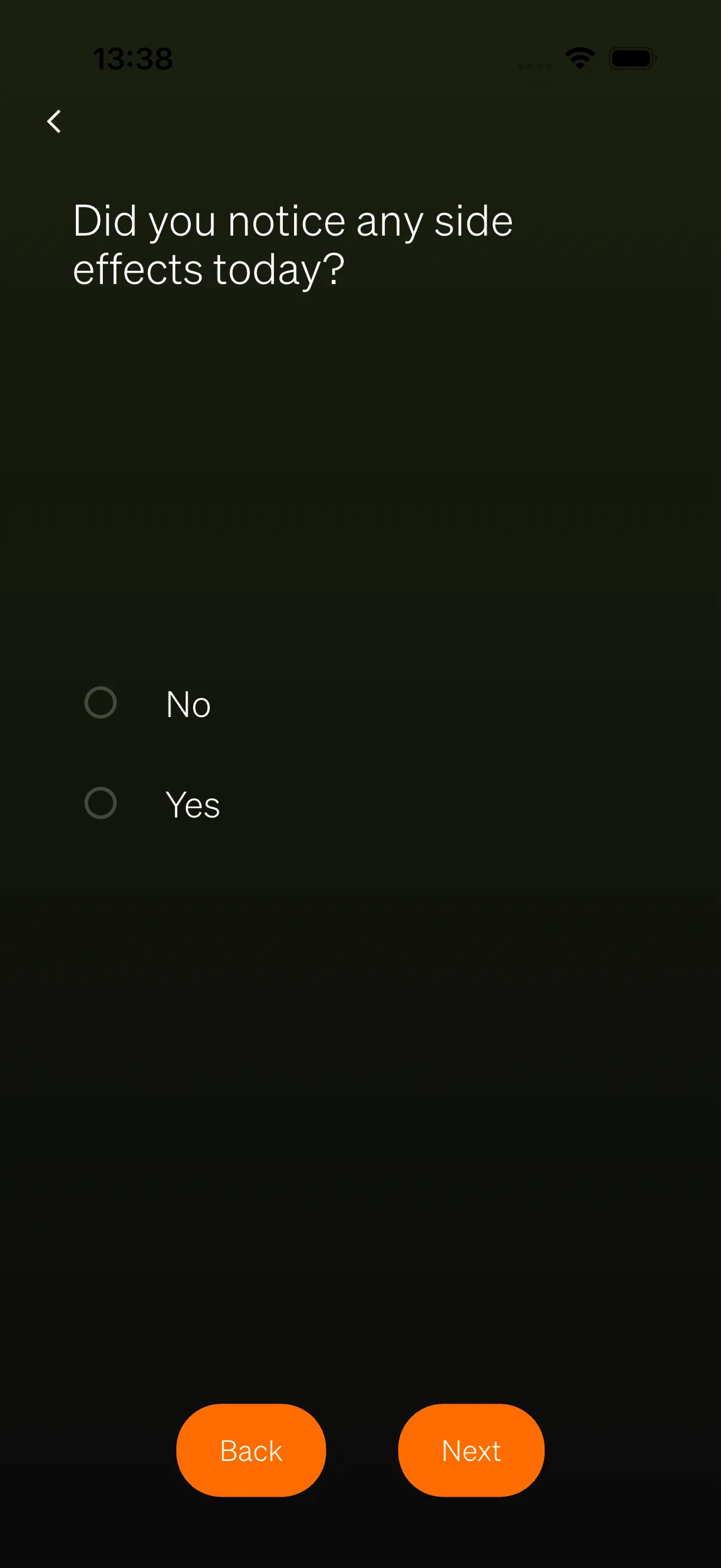
Inside a questionnaire, questions are shown one at a time:
- Use Back and Next to move between questions.
- The last question shows Submit instead of Next.
- A question must be answered before the participant can move on.
- On submit, the questionnaire is marked complete and the Study area refreshes.
Questions can use a few different answer types:
- Single choice — Pick one option from a list.
- Multiple choice — Pick one or more options.
- Scale or slider — Choose a value along a range.
- Free writing — Type an open answer in their own words.
Conditional questions
Section titled “Conditional questions”Some questions only appear depending on earlier answers. For example, answering “yes” to one question may reveal a few follow-up questions, while answering “no” hides them.
Questions that do not apply to a participant are skipped automatically and are never counted against them. These may show as “Not applicable”. The participant does not need to do anything — the app handles this for them.
Question and questionnaire statuses
Section titled “Question and questionnaire statuses”Each questionnaire and question shows a status chip so participants always know where they stand:
- Pending — Ready and waiting to be answered.
- Completed — Answered and submitted.
- Missed — The window to answer has passed.
- Unanswered — Delivered to the participant but not yet answered.
- Not delivered — Not yet sent to the participant.
- Skipped — Passed over as part of the flow.
- Not applicable — Did not apply to this participant, based on their earlier answers.
Missed questionnaires cannot be back-filled. A questionnaire can only be answered within its window, which by default runs until the end of the participant’s local day.
Reminders
Section titled “Reminders”Participants are reminded when a questionnaire is due. Reminders arrive as device notifications, anchored to the participant’s own timezone.
Tapping a reminder opens that questionnaire. For a link questionnaire, or if the questionnaire can no longer be answered, the reminder opens the Study area instead.
Reminders stop automatically when the study ends or when the participant withdraws.
Final assessment
Section titled “Final assessment”When a study reaches its end, a Final assessment ready banner appears in the Study area, and the participant receives a notification.
Tapping the banner opens the final questionnaire(s). Completing them finishes the study. Recurring reminders stop once the study has ended.
Withdrawing from a study
Section titled “Withdrawing from a study”A participant can leave a study at any time:
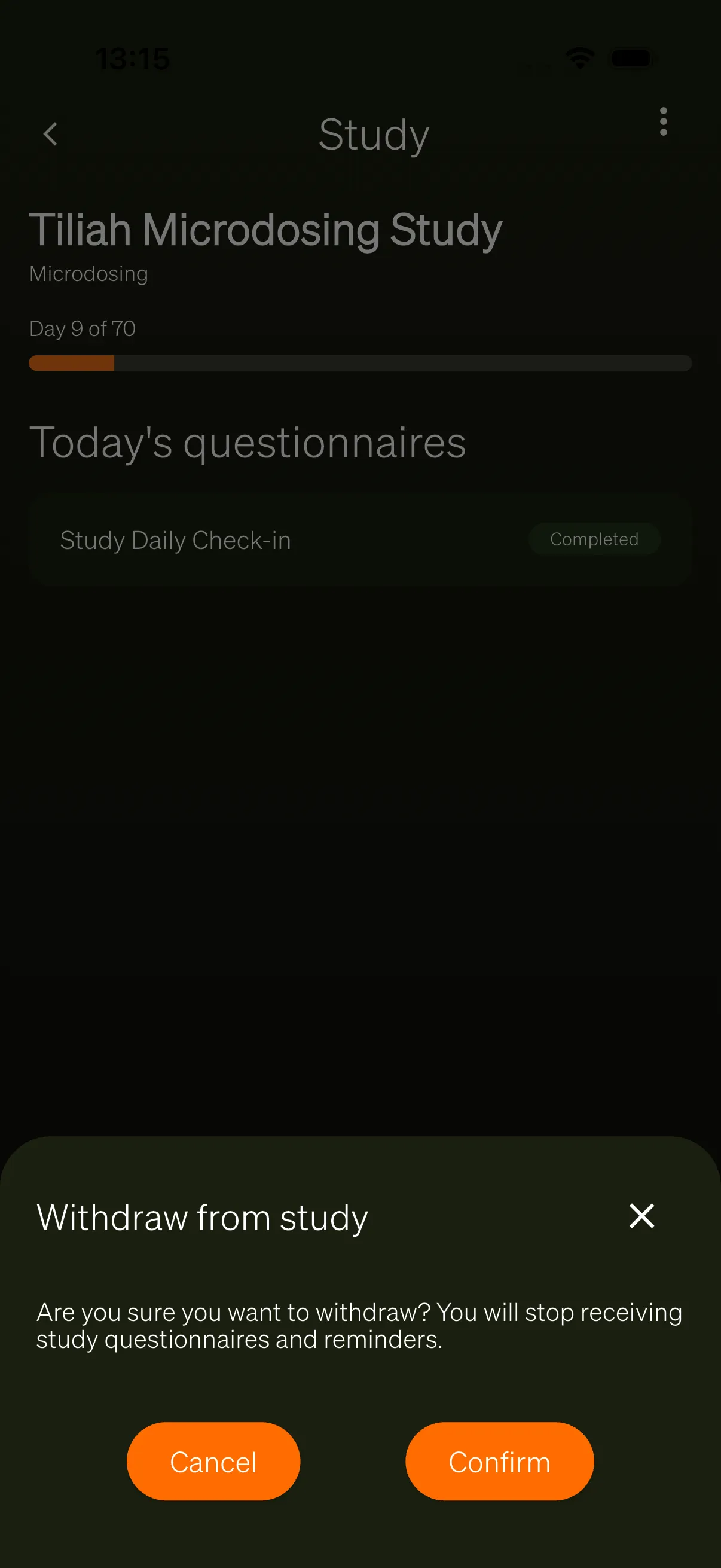
- Tap the More menu (⋮) at the top-right of the Study area.
- Confirm in the Withdraw from study dialog, which warns that reminders and questionnaires will stop.
On confirming, reminders are cancelled immediately, the participant returns to Home, and a confirmation message is shown.
A researcher can also withdraw a participant. When that happens, the app stops reminders the next time it syncs.