

Coaches
The Coaches section lets you approve and manage coaching professionals, review the services and integrations they have set up, and oversee bookings across your workspace.
Coach list
Section titled “Coach list”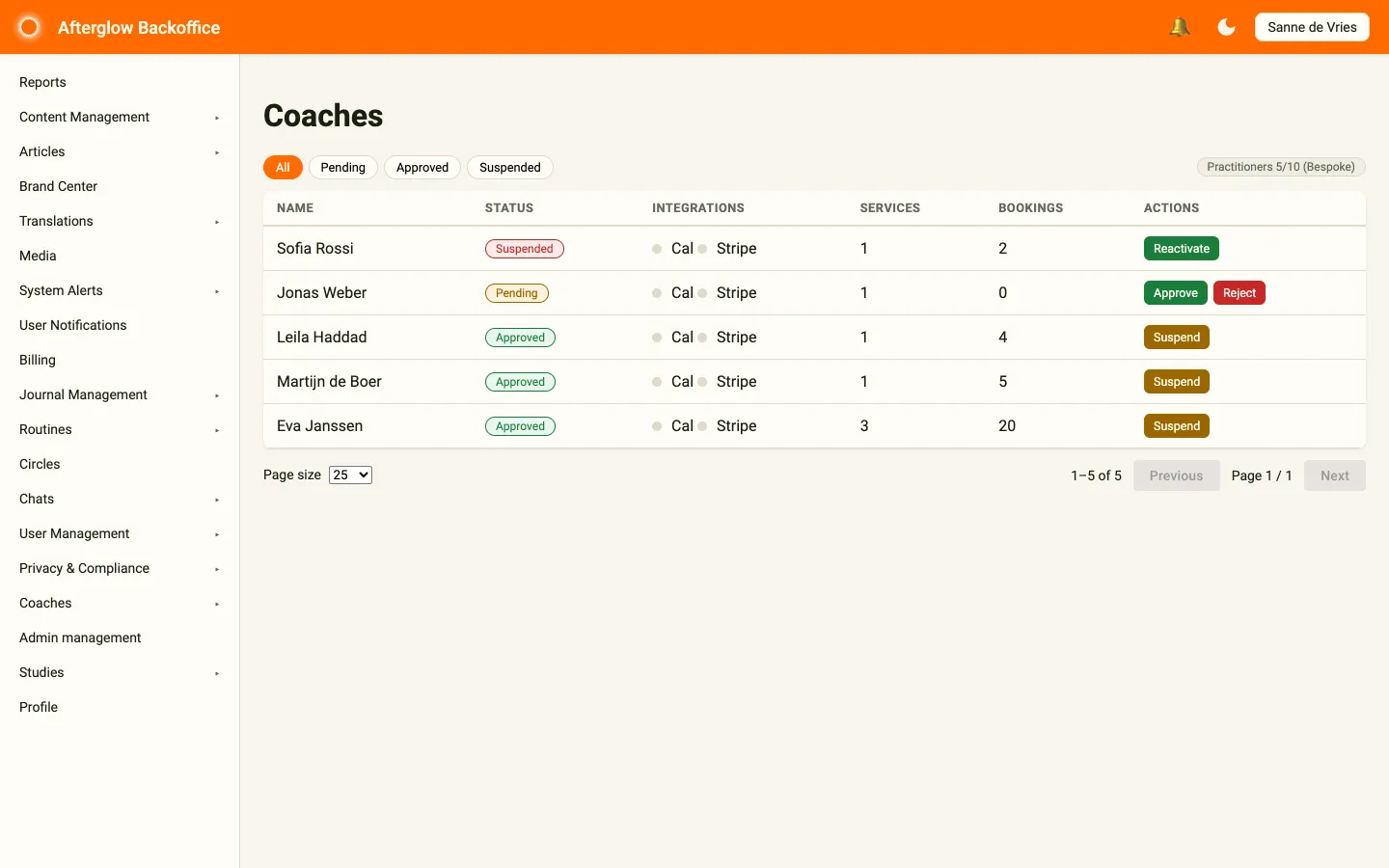
Open the list from the sidebar by selecting Coaches > All Coaches. A badge next to All Coaches shows how many coaches are waiting for approval.
The coach list displays all coaches in a table. Each row shows:
- Name — the coach’s display name.
- Status — a badge indicating Pending, Approved, or Suspended.
- Integrations — status dots for Cal (calendar) and Stripe (payments), coloured green when connected.
- Services — the number of active services the coach offers.
- Bookings — the total number of bookings for the coach.
Use the filter chips at the top of the page to narrow the list to All, Pending, Approved, or Suspended coaches. The chip on the right shows how many practitioner seats are in use on your plan (for example, Practitioners 5/10).
Quick actions
Section titled “Quick actions”The Actions column shows buttons that match the coach’s current status:
- Pending coaches can be approved (Approve) or rejected (Reject).
- Approved coaches can be suspended (Suspend).
- Suspended coaches can be reactivated (Reactivate).
Click anywhere else on a row to open the coach detail page.
Status workflow
Section titled “Status workflow”Coaches follow a defined status lifecycle:
- A new coach profile starts as Pending.
- A pending coach can be Approved or Rejected. Rejection requires a reason, which is visible to the coach.
- An approved coach can be Suspended. Suspension requires a reason. A suspended coach’s services can no longer be booked.
- A suspended coach can be Reactivated, returning them to Approved status.
Before a coach can be approved or reactivated, the system checks that all prerequisites are met (for example, required integrations). If anything is missing, the detail page lists the missing requirements and the Approve or Reactivate button stays disabled.
Coach detail page
Section titled “Coach detail page”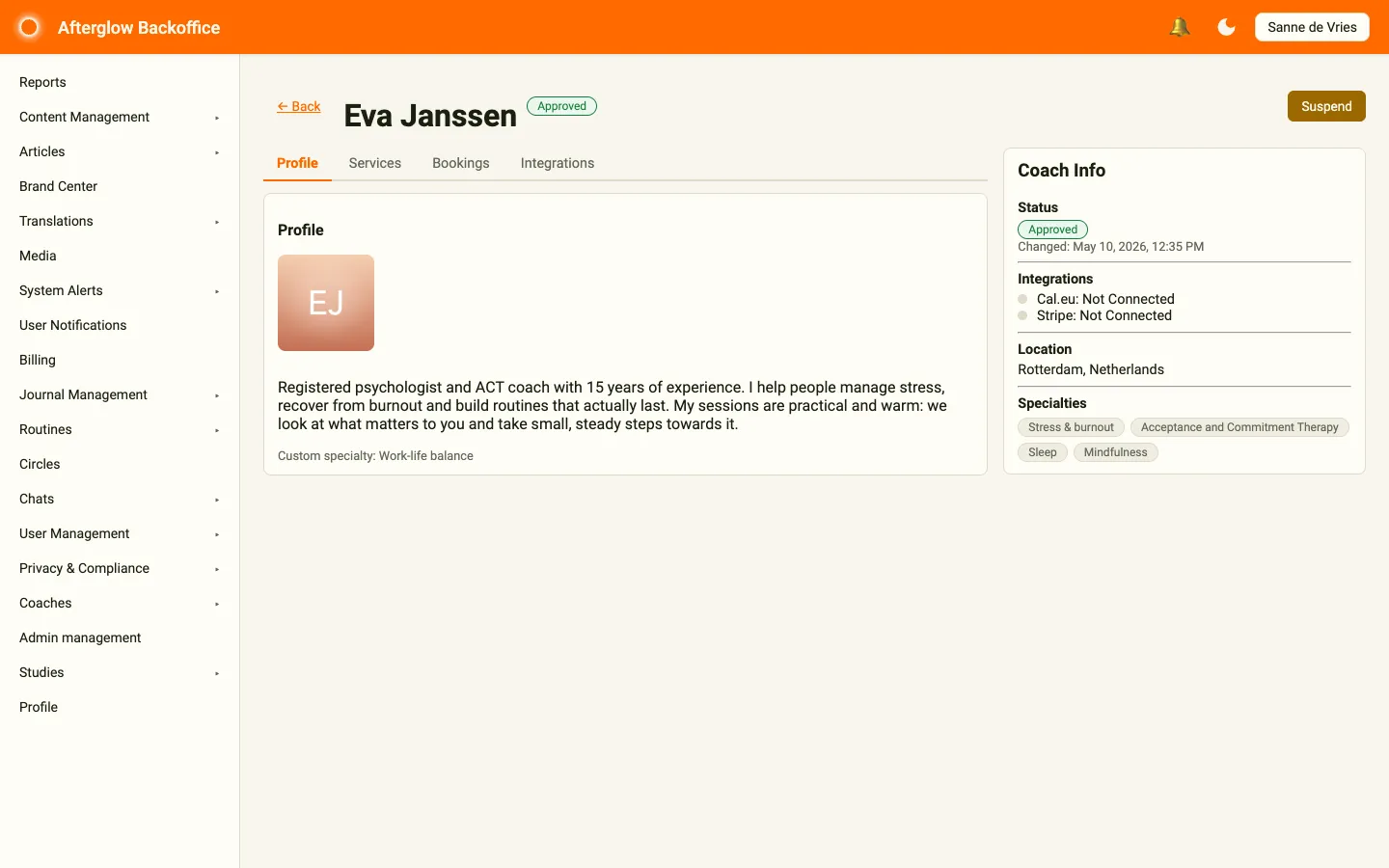
Click a coach row to open the detail page. The page header shows the coach’s name and status badge, along with the status action buttons for the current workflow state. Click Back to return to the list.
The detail page has four tabs and a Coach Info card. The tabs give you a read-only view of the coach’s setup: coaches manage their own profile, services and integrations in Practice.
Coach Info card
Section titled “Coach Info card”The card on the right shows:
- Status — the current status badge and when it last changed. Hover the info icon next to the badge to see the reason for a rejection or suspension.
- Integrations — whether Cal.eu and Stripe are connected.
- Location — the coach’s city and country.
- Specialties — the specialties the coach selected.
Profile
Section titled “Profile”The Profile tab shows the coach’s profile picture, bio, and custom specialty (if they entered one).
Services
Section titled “Services”The Services tab lists all services the coach offers. Each row shows the name, type (Online or In Person), price, duration, and whether the service is Active or Inactive. Services that only premium users can book are marked Premium only.
Bookings
Section titled “Bookings”The Bookings tab lists all bookings for this coach, including:
- Scheduled — the date and time of the session.
- Service — which service was booked.
- Duration — session length in minutes.
- Status — Pending, Confirmed, Completed, Cancelled, or No Show.
- Price — the booking price.
To cancel a booking, use the All Bookings page.
Integrations
Section titled “Integrations”The Integrations tab shows the live status of the coach’s two external connections:
- Cal.eu Integration — Connected or Not Connected. For a connected calendar you also see the Webhook Status (Configured, Misconfigured, or Not Configured) and any missing calendar events.
- Stripe Connect — Connected, Action Required, or Not Connected. For a connected account you see whether charges and payouts are enabled and whether the account details have been submitted. If Stripe needs more information, the outstanding requirements are listed.
All Bookings page
Section titled “All Bookings page”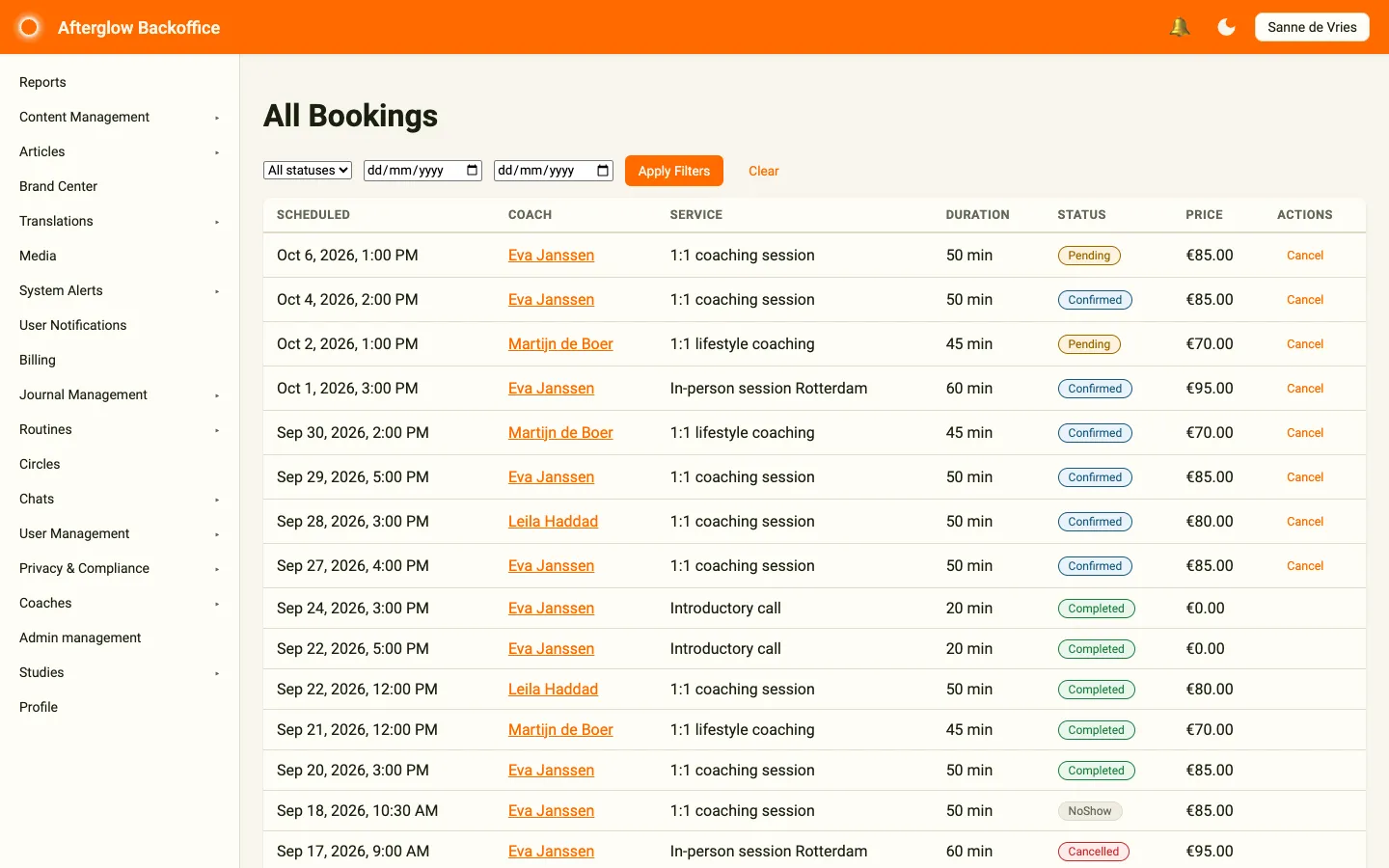
The All Bookings page (in the sidebar under Coaches > Bookings) shows bookings across all coaches. You can filter by:
- Status — select a specific booking status, or All statuses.
- From / To — pick a date range to narrow results.
Click Apply Filters to update the list, or Clear to reset all filters. Each booking row shows the scheduled time, coach name (linked to their detail page), service, duration, status, and price.
Cancelling a booking
Section titled “Cancelling a booking”Pending or confirmed bookings have a Cancel action:
- Click Cancel on the booking row.
- Enter a Cancellation Reason.
- Click Cancel Booking.
Related topics
Section titled “Related topics”- Coaching — How the coaching system works end-to-end.