

Privacy & Compliance
The Privacy & Compliance area lets administrators review, approve, and track every privacy request raised in the workspace — both data exports and account erasures. It is the central place for handling user rights under GDPR (Article 15 — right of access, and Article 17 — right to erasure).
When to use this area
Section titled “When to use this area”Use Privacy & Compliance when:
- A user emails or messages you asking for a copy of their data.
- A user asks to delete their account or be “forgotten” from the platform.
- A coach files a privacy request on behalf of a client and needs your approval.
- You need to demonstrate, during an audit, what privacy requests have been processed and when.
For day-to-day user troubleshooting (resetting passwords, deactivating accounts, changing email addresses), keep using User Management instead — that page handles operational changes, not legal data-rights requests.
Pages in this area
Section titled “Pages in this area”Open Privacy & Compliance in the sidebar. It contains the Requests page and, for SystemAdmin users, the Compliance Dashboard. A number badge next to Requests shows how many requests are still open.
Requests
Section titled “Requests”The GDPR Requests page is the triage view. It lists privacy requests in the workspace, with filters for Status, Type (Export or Erasure), User search (name or email), and a From / To date range. The status filter starts on Active, which shows every request that is still open — including those awaiting confirmation. Choose All to include completed, cancelled, and failed requests.
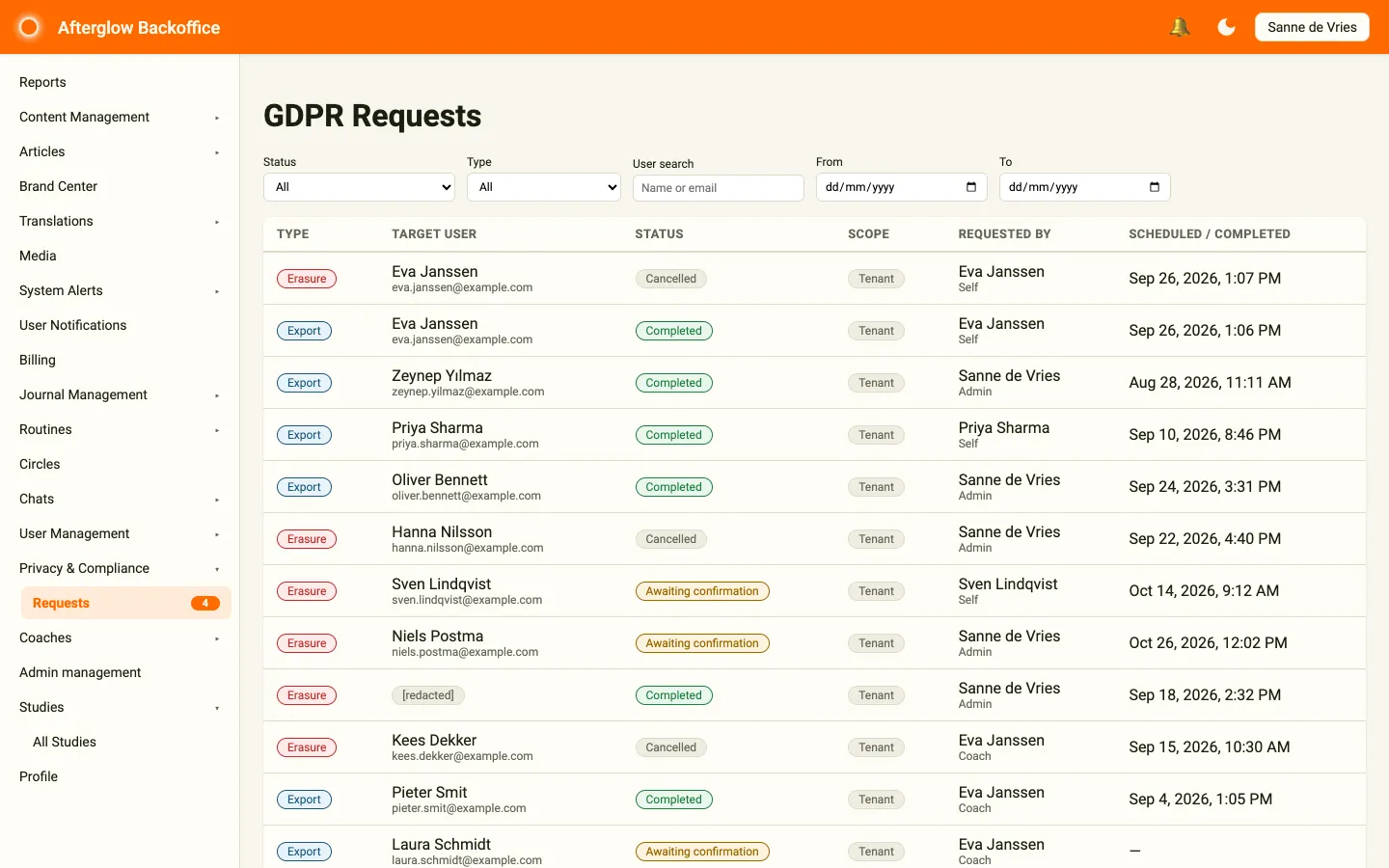
Each row shows:
- Type — Export or Erasure.
- Target user — The user the request is for. After an erasure has finished, the user is shown as [redacted].
- Status — The current status (see Status meanings).
- Scope — Tenant for this workspace only, or Global for an erasure across all workspaces.
- Requested by — Who filed it, with their role: Self (the user themselves), Coach, or Admin.
- Scheduled / completed — When the request finished, or when a pending erasure is scheduled to run.
SystemAdmin users also see a Tenant column and summary cards with the totals for the last 30 days.
Click any row to open the request detail page.
Request detail
Section titled “Request detail”The request detail page is where you act on a request. The top card shows the target user, who requested it, the scheduled and completed dates, and the workspace. Below it, the Lifecycle timeline and the Audit log list every step the request went through.
The action buttons depend on the request’s status:
- Approve coach proposal — For a request a coach filed that is Awaiting confirmation.
- Cancel request — For a request that is Pending or Awaiting confirmation. You must enter a reason, which is stored in the audit log.
- Download bundle — For a completed export whose file has not expired yet.
- Retry erasure — For an erasure that has Failed.
See Handling data export requests and Handling data erasure requests for step-by-step walkthroughs.
Compliance Dashboard
Section titled “Compliance Dashboard”The Compliance Dashboard (SystemAdmin only) summarises privacy activity across all workspaces for the last 7 days, 30 days, 90 days, or 12 months: total requests, exports versus erasures, mean completion time, and failures and retries. A Tenant breakdown table lists each workspace’s pending, in-progress, completed, and failed requests, with View requests → to open that workspace’s requests. It is the page to share with auditors or your DPO when they ask “how is the platform handling data subject requests?”.
Status meanings
Section titled “Status meanings”Every privacy request moves through a fixed set of statuses. Knowing what each one means tells you whether something is waiting on you, the platform, or the user.
| Status | What it means | Who acts next |
|---|---|---|
| Awaiting confirmation | A coach proposed the request and it waits for your approval (an approved coach erasure also keeps this status until it runs), or an erasure is in its 30-day cancellation window (the Scheduled / completed column shows when it will run). | Admin (coach proposals) or nobody — the erasure runs on its scheduled date unless it is cancelled |
| Pending | The request is waiting to start and will begin automatically. | Platform |
| In progress | The platform is preparing the export bundle or running the erasure. | Platform |
| Completed | The request has finished successfully. For exports, the download is ready. | None |
| Cancelled | The request was cancelled before it ran. | None |
| Failed | The platform could not complete the request. The detail page shows the reason. | Admin |
Finding a request for a specific user
Section titled “Finding a request for a specific user”There are two routes:
- On the Requests page, type the user’s name or email into User search.
- From User Management, open the user’s profile and select the Privacy tab. Its Request history lists every privacy request filed for that user, with a View link into the request detail page.
The Privacy tab on the user profile is the fastest way to answer the question “has this user already asked for an export this month?” before you start a new one.
How requests get created
Section titled “How requests get created”Privacy requests can come from three places:
- The user themselves — through the mobile app or, for coaches and admins, through their own account privacy page in the Practice app.
- A coach — for one of their clients, from the Privacy tab on the client detail panel. Coach-filed requests always land as Awaiting confirmation and need your approval before the platform does anything.
- An admin — from the Privacy tab on the user’s profile in User Management, using Generate data export or Erase user data.
For the legal context behind why some data is kept after an erasure and why audit logs exist, see Data retention and privacy.