

Articles
The Articles section lets you create standalone content pieces that live outside the module hierarchy. Articles are ideal for blog posts, knowledge base entries, or any content that does not belong in a structured learning path.
Article overview
Section titled “Article overview”Expand Articles in the sidebar and click Articles to open the overview. It displays all articles as cards in a grid layout, with page controls below the grid.
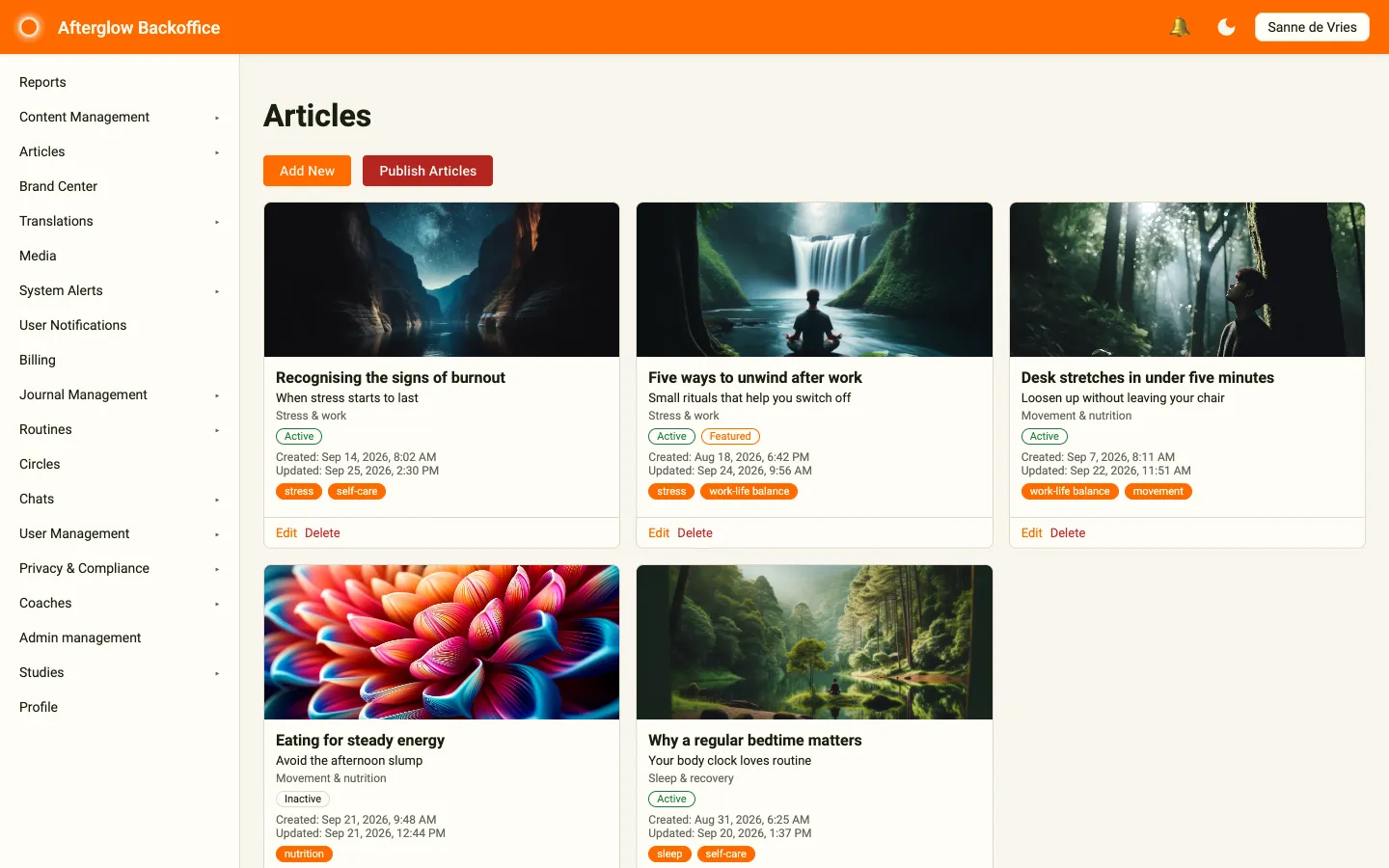
Each card shows:
- The article’s cover image (or a placeholder if none is set).
- Title and subtitle.
- The assigned topic, if any.
- Status badges — active/inactive, and a featured badge if applicable.
- Created and Updated dates.
- Tags displayed as chips along the bottom of the card.
From each card you can click Edit to open the article or Delete to permanently remove it. Click Add New to create an article.
Creating and editing articles
Section titled “Creating and editing articles”The article edit page provides the following fields:
- Image — Click Add Image (or Change Image) to upload a cover image from your computer.
- Title — The article headline (required, max 40 characters). Uses multilingual text.
- Subtitle — A short supporting line (max 80 characters). Uses multilingual text.
- Topic — Assign the article to a topic for categorization, or choose No topic. Click Edit next to the field to open the selected topic.
- Content — A rich text editor for the article body. You can embed media (images, video) directly into the content.
- Tags — Search existing tags or type a new one and press Enter to create it on the fly. Tags appear as removable chips.
- Is Active — Controls whether the article is visible to end users.
- Is Featured — Marks the article as featured. Only one article can be featured at a time; if another article is already featured, you are asked to confirm that it will be un-featured.
Click Save to store the article.
Topics
Section titled “Topics”Topics are categories that organize articles into broad subject areas. Manage topics from the Topics page under Articles in the sidebar. Topics are shown as cards; click Add New Topic to create one.
Each topic has:
- Name — Must be unique across all topics (max 50 characters). Uses multilingual text.
- Description — An optional summary of the topic (max 200 characters).
- Image — An optional cover image, uploaded from your computer.
- Sort Order — Controls the display order of topics.
- Is Active — Toggles visibility.
A topic cannot be deleted while it is still assigned to one or more articles.
Tags provide finer-grained classification for articles. Unlike topics, tags are created inline when editing an article — simply type a tag name and press Enter. If the tag does not already exist, it is created automatically.
Tags are shared across all articles, so once created, a tag will appear in the autocomplete suggestions for other articles.
Publishing
Section titled “Publishing”Article changes are not immediately visible to app users. After making edits, click the Publish Articles button on the overview or topics page to push your changes live. After you confirm, your changes become visible to all users.
Related topics
Section titled “Related topics”- Content Structure — How articles fit alongside modules and lessons.
- Multilingual text — Language tabs on titles, topic names, and similar fields.