

Studies
The Studies section lets administrators create time-boxed research studies, organize participants into groups, schedule questionnaires, and track how well participants keep up.
What a study is
Section titled “What a study is”A study is a time-boxed protocol with a name, a description, and a duration measured in weeks. Participants join the study and answer questionnaires on a set schedule as the weeks progress.
Participants are organized into groups, sometimes called arms, so you can compare how different sets of participants respond. For the full picture of how studies are structured, see Studies.
The Studies list
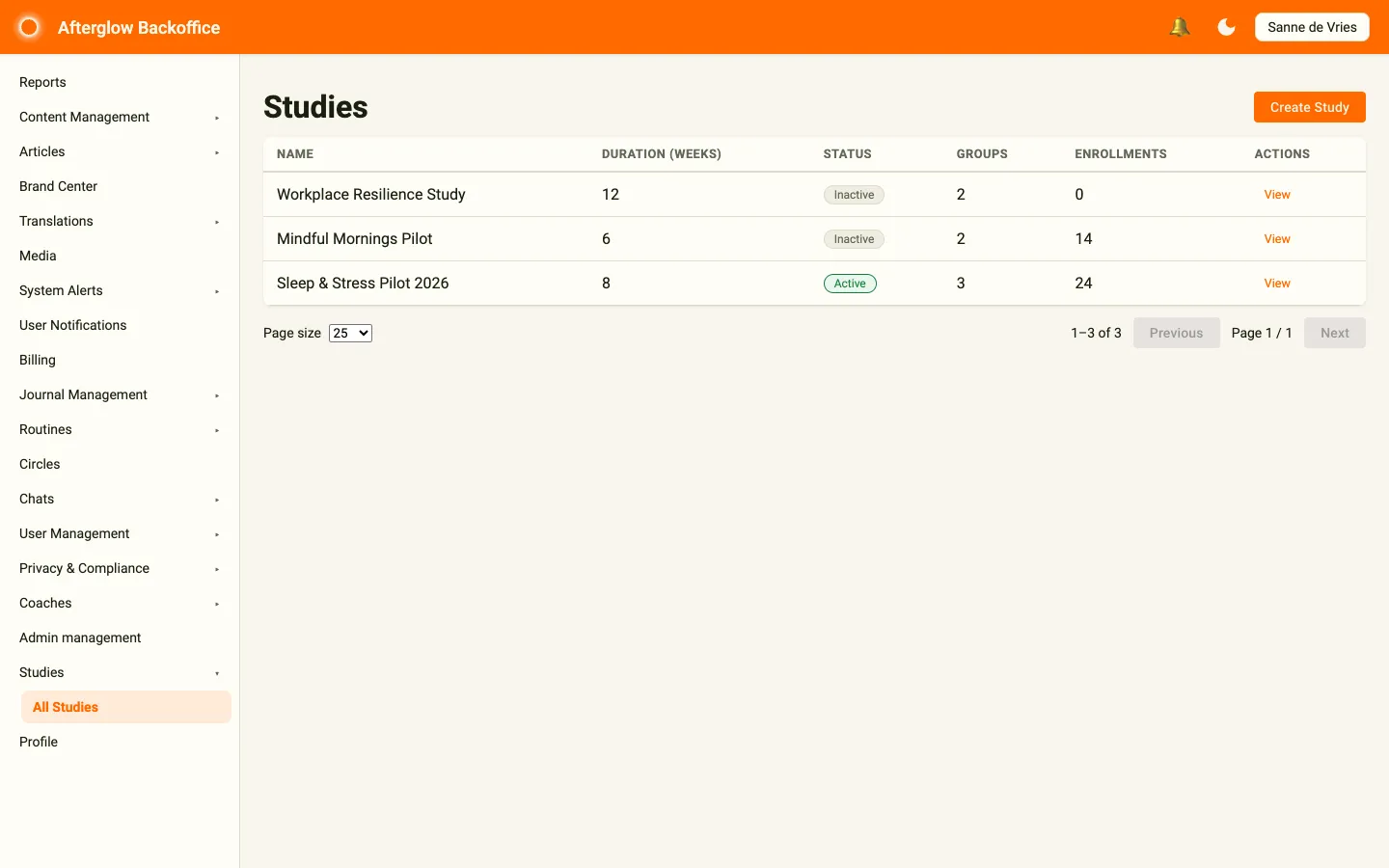
Section titled “The Studies list”Open Studies > All Studies in the sidebar. The Studies page lists every study in your workspace in a single table. Each row shows:
- Name — The study’s title.
- Duration (weeks) — How many weeks the protocol runs.
- Status — An Active or Inactive chip indicating whether the study can accept participants.
- Groups — The number of participant groups in the study.
- Enrollments — How many participants have joined.
- Actions — A View button that opens the study’s detail page.
Click any row to open that study. The Create Study button sits in the top-right corner of the page. Use the page-size selector and the Previous and Next buttons below the table when you have many studies.
Creating a study
Section titled “Creating a study”Click Create Study to open the creation dialog, then fill in the study’s core details.
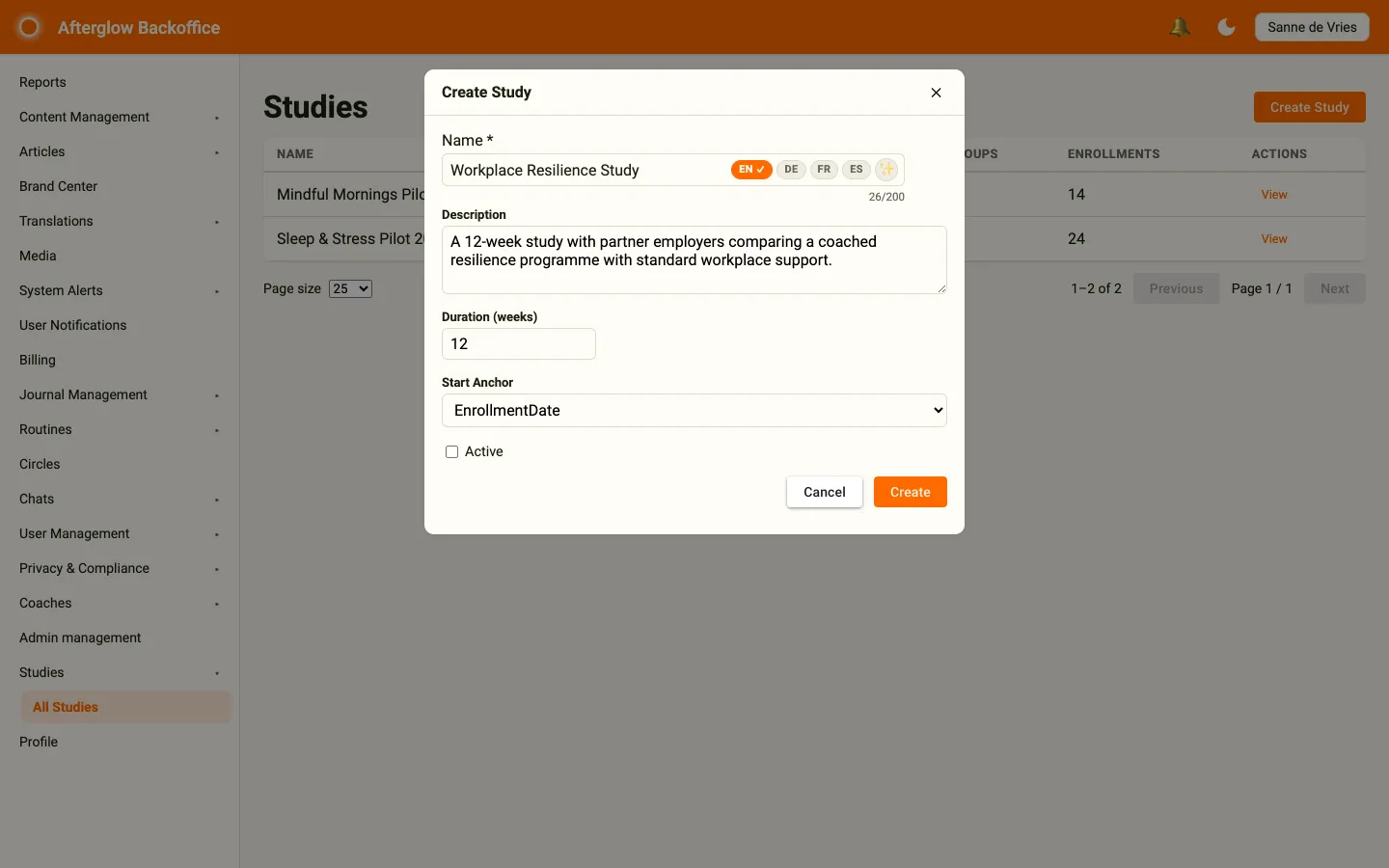
- Enter a Name for the study. This is required. The name uses multilingual text.
- Add a Description explaining the study’s purpose (optional).
- Set the Duration (weeks) — how many weeks the protocol runs.
- Choose a Start Anchor. This decides what counts as day 0 for each participant. Currently the only option is EnrollmentDate, meaning day 0 is the day the participant joins.
- Use the Active checkbox to control whether the study can accept participants. Leave it unchecked while you are still setting things up.
- Click Create to save.
The study detail page
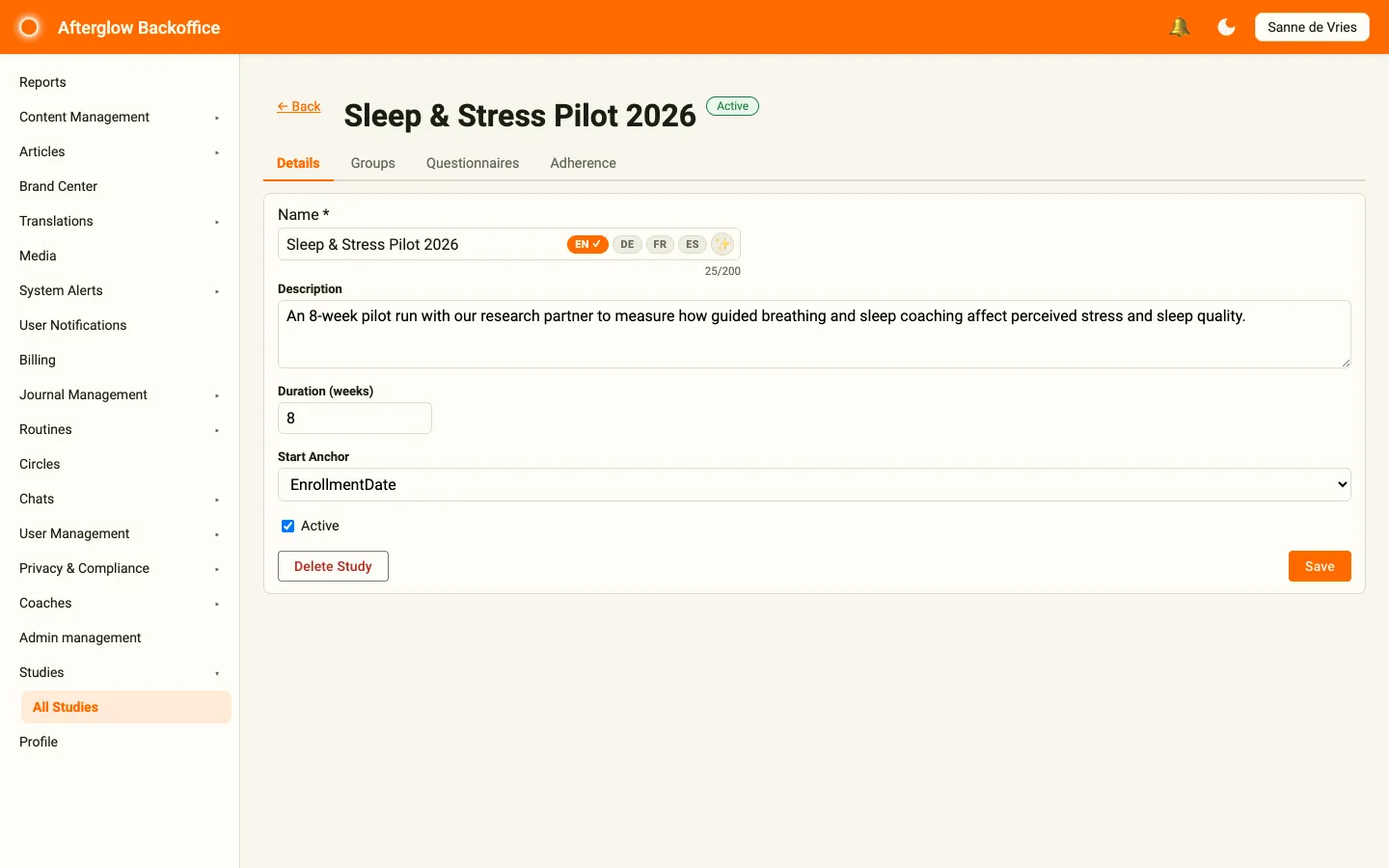
Section titled “The study detail page”Opening a study takes you to its detail page. The ← Back link returns you to the list, and an Active or Inactive chip next to the study name shows its current status. The page is organized into four tabs:
- Details — Edit the study’s core settings.
- Groups — Create and manage participant groups. See Groups.
- Questionnaires — Build and schedule the questionnaires participants answer. See Questionnaires.
- Adherence — Track participation and export results. See Adherence and export.
Editing and deleting a study
Section titled “Editing and deleting a study”The Details tab edits the same fields you set when creating the study. Make your changes and click Save to apply them.
To remove a study, click Delete Study. A confirmation dialog appears before the study is removed, and deletion is blocked once the study has enrolled participants.
Setting up participant consent
Section titled “Setting up participant consent”Studies reuse the existing tenant Documents feature for consent — there is no separate, study-specific consent form. Consent is handled at the workspace level: a participant’s enrollment stays pending until they have signed all of your workspace’s active documents, at which point every pending enrollment they have becomes active.
To require consent before participants can take part, upload your consent form or participant information sheet as a workspace document with read-confirmation and consent checkboxes enabled. See User Management for how to manage workspace documents. Document text uses multilingual text — fill at least the title and button texts in one language, and note that signed documents are locked.
Two consequences follow from this being workspace-wide rather than per-study:
- Any active workspace document must be signed before a study enrollment activates — not only the consent form. A new document you add later (for example, an updated privacy notice) will hold up study activation until participants sign it too.
- A participant who has already signed all your active documents before they enroll is activated immediately, with no further consent step. If you want every new participant to see a consent prompt, make sure the relevant document is active before recruiting them.
Next steps
Section titled “Next steps”- Groups — Organize participants into study arms.
- Questionnaires — Build and schedule the questions participants answer.
- Adherence and export — Track participation and export results.
- Studies — How studies work and how they fit together.
- Multilingual text — Language tabs on study names, group names, and consent documents.