

Trial & subscription
Every new Afterglow Practice workspace starts with a 21-day free trial of the plan you picked at sign-up. There’s no credit card required to start. You can use every feature on your chosen plan during the trial, and you decide whether to convert before the trial ends.
What you get during the trial
Section titled “What you get during the trial”- Full access to every feature on your selected plan.
- A pre-seeded Demo Patient sandbox client so you can experience the full coach-and-client flow without inviting real people.
- The ability to invite up to your plan’s client limit at any point.
- Email reminders at key milestones (7 days remaining, 3 days remaining, on the final day) so the trial doesn’t end without warning.
The welcome page
Section titled “The welcome page”Click Welcome in the sidebar to open your welcome page. It greets you by name and shows a single recommended next step, based on what you’ve done so far. The hero card walks you through onboarding in order:
- Verify your email so we can finish setup – Shown if you haven’t verified your email yet. Click Resend verification email to get a new link.
- Send Demo Patient your first homework – Once your email is verified, the welcome page nudges you to try the homework flow against the Demo Patient. This is the fastest way to see what a real client will experience.
- Waiting for your client to join – After you invite a real client, the welcome page suggests reviewing your settings while you wait for them to join.
- Your client is journaling — see what AI surfaces – Once a real client journals, See AI insights takes you to your clients so you can open the latest entry.
- You’re on the Starter plan (Starter only) – Once your real client is active, the page suggests upgrading to unlock AI insights, with a link to the Plan page.
You only ever see one hero card at a time — whichever is most relevant to your current onboarding state.
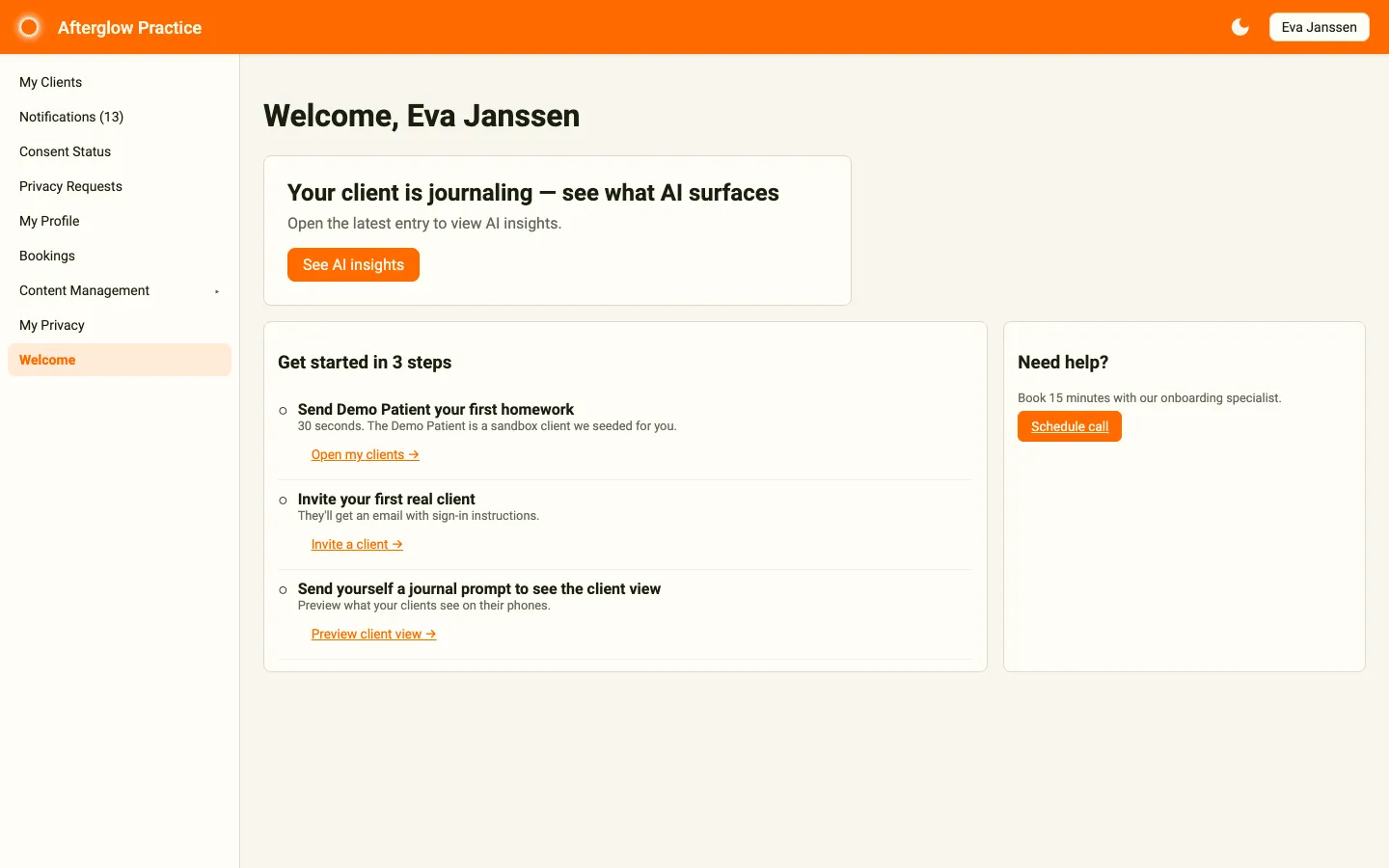
Below the hero card, a checklist matches the setup you picked at sign-up:
- Solo practitioner – Get started in 3 steps: send the Demo Patient your first homework, invite your first real client, and preview the client view. A Need help? card lets you book a 15-minute call with our onboarding specialist.
- Small practice – Get your practice set up: send the Demo Patient your first homework, invite your first coach, and schedule an onboarding call.
Managing your plan
Section titled “Managing your plan”Click Plan in the sidebar to open the Plan & billing page. This is where you continue after your trial, switch plans, cancel, and update your tax details.
Your current plan
Section titled “Your current plan”The Current plan card shows your plan name and a status message:
- During the trial – How many days are left, for example “12 days left in your trial.” The message turns amber with 3 or fewer days remaining and red on the final day.
- After the trial – “Your trial has ended. Add a payment method to reactivate your practice.”
- On a paid plan – “Your subscription is active.”
- After a failed payment – “Your last payment failed. Please update your payment method.”
Continuing after your trial
Section titled “Continuing after your trial”During the trial, the card shows Continue after your trial. Click Add payment method to continue after your trial to open the secure Stripe billing portal and add a card. You won’t be charged until the trial ends.
If your trial has already ended, the card shows Reactivate your practice with an Add payment method to reactivate button instead.
Changing or cancelling your plan
Section titled “Changing or cancelling your plan”Once a payment method is on file, or your subscription is active, the card shows Manage subscription. Click the Manage subscription button to open the Stripe billing portal, where you can update your card, switch plans, or cancel. A cancellation takes effect at the end of the current billing cycle. Your data is preserved during the cancellation grace period (see Trial lifecycle for what happens to expired workspaces).
Need a custom plan? Use the Contact us or book a call links under the button.
Tax details
Section titled “Tax details”If you’re a registered business, click Edit tax details to set or update your VAT ID.
What happens when the trial ends
Section titled “What happens when the trial ends”If you don’t add a payment method before the trial’s last day:
- The workspace moves into a trial-expired state.
- Existing clients stay safe — nothing is deleted during the grace period.
- The Plan page shows Reactivate your practice. Add a payment method to pick up where you left off.
If you need more time to evaluate, contact sales@afterglow.ag — they can extend your trial by 14 days, even after it has expired. An expired practice is reactivated when the extension is granted.
Related topics
Section titled “Related topics”- Sign up for Afterglow Practice — how to create the workspace and start the trial.
- Trial lifecycle — the full state machine of a Practice workspace.
- Billing — invoices, billing details, and contacts.