

Admin management
Admin Management lets you control who has administrative access to your workspace’s Backoffice and what they can do within it.
Who has access?
Section titled “Who has access?”Only users with the Admin role can access Admin Management. This ensures that administrative access is controlled by a trusted group of people. Open it from the sidebar by selecting Admin management.
Page layout
Section titled “Page layout”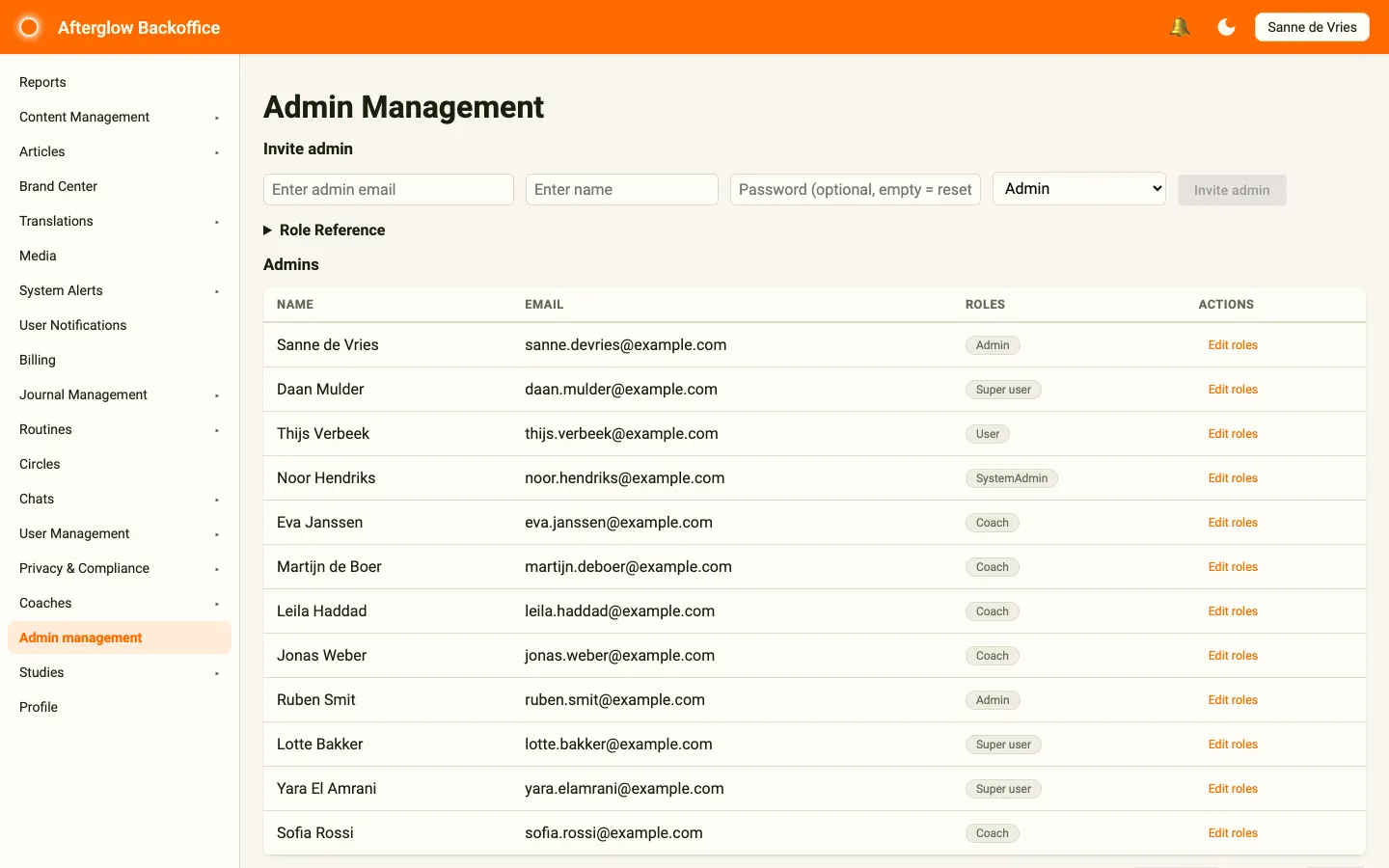
The Admin Management page has three sections:
- Invite admin — Add a new administrator to your workspace.
- Role Reference — A collapsible panel explaining what each role grants.
- Admins — A table listing all current administrators and their roles.
Available roles
Section titled “Available roles”Each administrator can have one or more of the following roles:
| Role | Access | Description |
|---|---|---|
| Admin | Backoffice + Practice | Full workspace management. Can manage content, users, coaches, admin accounts, and access Practice. |
| Super user | Backoffice + partial Practice | Content and user management. Can manage content, media, translations, user accounts, and system alerts. In Practice, can manage content and the practice’s administration pages, but has no coaching access. |
| Coach | Practice | Practice access. Can manage clients, view coaching data, and handle bookings. |
The table can also show other roles an account already has, such as User for someone who also uses the mobile app. These roles can’t be assigned from this page.
Inviting a new admin
Section titled “Inviting a new admin”To add a new administrator to your workspace:
- Enter their email address.
- Enter their name.
- Optionally set a password. If you leave this blank, the person receives a password reset email to set their own.
- Select a role from the dropdown: Admin, Super user, or Coach.
- Click Invite admin.
The person receives an invitation email with instructions to sign in.
Viewing current admins
Section titled “Viewing current admins”The Admins table lists all administrators for your workspace. Each row shows:
- Name — The administrator’s display name.
- Email — Their email address.
- Roles — One or more role badges showing their current assignments.
- Actions — An Edit roles button to change their roles.
Use the page size selector and the Previous / Next buttons at the bottom to move through larger lists.
Editing admin roles
Section titled “Editing admin roles”To change an administrator’s role assignments:
- Click Edit roles in the Actions column for the administrator you want to update.
- In the dialog, check or uncheck roles to adjust their access.
- Click Save.
At least one role must remain selected. You cannot remove all roles from an administrator.
Related topics
Section titled “Related topics”- Roles and Permissions — A detailed explanation of all platform roles.
- User Roles — A quick role comparison for new users.
- Backoffice Overview — An overview of all Backoffice feature areas.