

Routines
Routines help users build consistent habits by tracking daily activities such as medication, exercises, and mindfulness practices. Users can create routines with flexible scheduling, mark them as complete, and track their progress over time with streaks and a calendar view.
Routines page
Section titled “Routines page”The Routines page is organized into three tabs: Today, All, and Calendar. Users can switch between tabs to see different views of their routines. A floating action button at the bottom-right corner lets users create a new routine from any tab.
Today tab
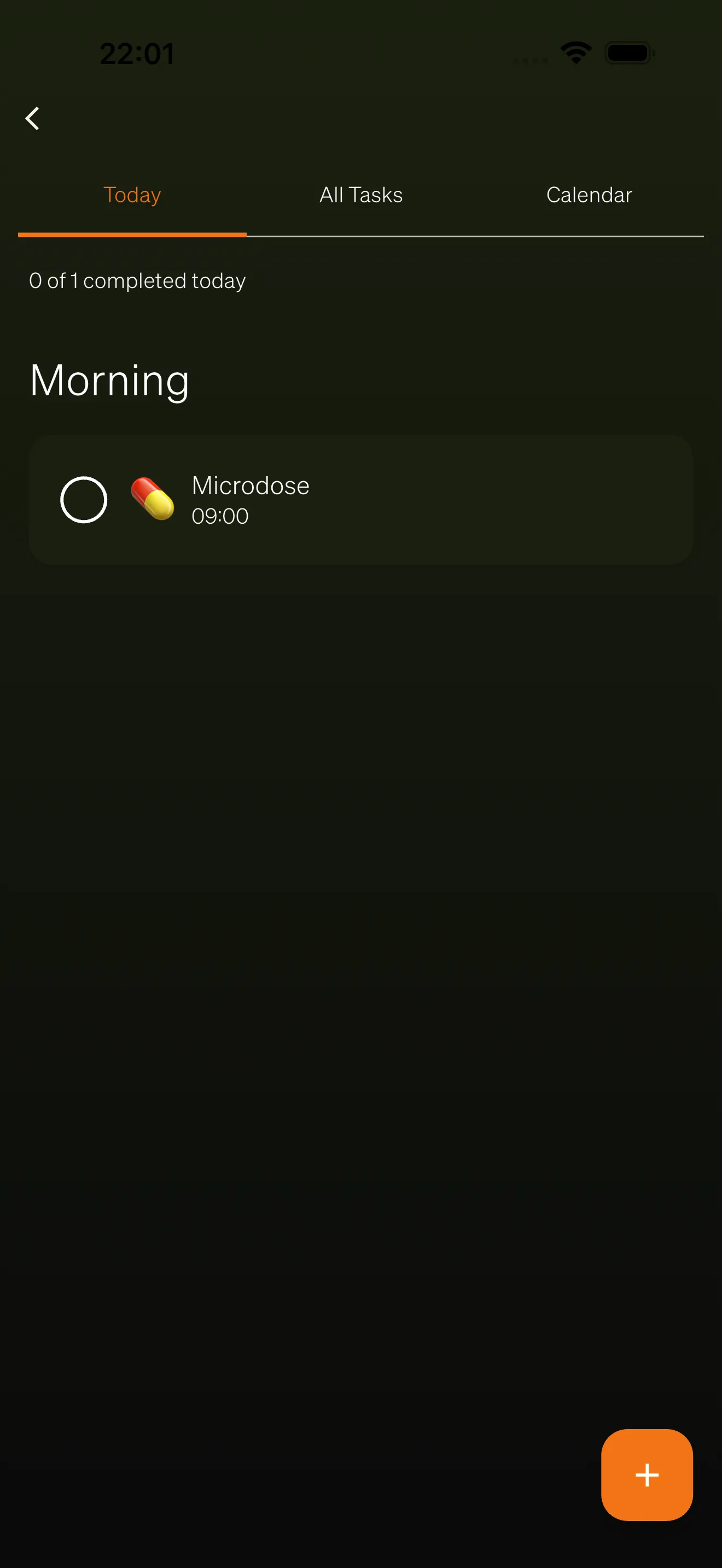
Section titled “Today tab”The Today tab shows all routine occurrences scheduled for the current day. Occurrences are grouped by time of day:
- Morning — Routines scheduled before 12:00
- Afternoon — Routines scheduled between 12:00 and 17:59
- Evening — Routines scheduled at 18:00 or later
A progress bar at the top displays how many of today’s occurrences have been completed out of the total (for example, “3/7 completed”).
Each routine row shows the routine icon, name, scheduled time, and current streak count. Users can mark a routine as complete or skip it directly from this view.
If no routines are scheduled for today, an empty state prompts the user to create their first routine.
All tab
Section titled “All tab”The All tab displays every routine the user has created, regardless of today’s schedule. Each routine card shows:
- Icon and name — The routine’s chosen icon and title
- Frequency — How often the routine repeats (daily, weekly, monthly, or custom)
- Streak badge — A flame icon with the current streak count, shown when the streak is 3 days or more
- Today’s progress — A progress bar showing how many of today’s occurrences are completed
Tapping a routine card opens the routine detail page.
Calendar tab
Section titled “Calendar tab”The Calendar tab provides a monthly view of routine activity. Users can navigate between months using the left and right arrows.
Each day on the calendar displays a small colored dot indicating completion status:
- Green dot — All routines for that day were completed
- Orange dot — Some routines were completed, but not all
- Grey dot — No routines were completed for that day
Tapping a day shows the list of routine occurrences for that date below the calendar, with the same complete and skip actions available as on the Today tab.
Creating a routine
Section titled “Creating a routine”Users create routines through a guided multi-step wizard that opens when they tap the floating action button.
Step 1: Choose a template
Section titled “Step 1: Choose a template”If your workspace has routine templates configured, users first select a template. Templates provide pre-filled settings such as a name, icon, frequency, and default schedule. Users can choose a template as a starting point or proceed to create a fully custom routine.
If no templates are available, this step is skipped and users go directly to the configuration form.
Step 2: Configure the routine
Section titled “Step 2: Configure the routine”The configuration form includes the following fields:
- Name — A required label for the routine (for example, “Morning meditation” or “Take vitamins”)
- Icon — An emoji icon to visually identify the routine
- Substance — Shown only for medication-type templates. Lets users select a substance from a predefined list.
- Dosage — Shown only when a substance is selected. Users enter an amount and select a unit (mg, g, ml, tablets, drops, capsules, and others).
- Frequency — How often the routine repeats: Daily, Weekly (with specific day selection), Monthly, Every X days, or a custom on/off cycle
- Times per day — Users can add multiple scheduled times for routines that occur more than once a day
- Start date — When the routine begins
- End date — Optional. If set, the routine stops generating occurrences after this date.
- Reminders — A toggle to enable push notification reminders for the routine
Step 3: Preview and create
Section titled “Step 3: Preview and create”The final step shows a summary of all configured settings. Users can review their choices and go back to make changes, or confirm to create the routine.
Completing and skipping routines
Section titled “Completing and skipping routines”Users interact with routine occurrences in two ways:
- Complete — Marks the occurrence as done.
- Skip — Opens a dialog where users can optionally add a note explaining why they skipped (for example, “Feeling unwell”). Skipping an occurrence does not count toward the streak.
Both actions are available from the Today tab, the Calendar tab, and the Home tab routines section.
Routine detail page
Section titled “Routine detail page”Tapping a routine from the All tab or any occurrence row opens the detail page. This page shows:
- Routine name and icon — Displayed prominently at the top
- Paused indicator — Shown if the routine is currently paused
- Details card — Frequency, times per day, start date, and end date
- Today’s progress — A progress bar for the current day’s occurrences
- Statistics — Four stat cards showing:
- Current streak (consecutive days with all occurrences completed)
- Longest streak (historical best)
- Completion rate (percentage of all occurrences completed)
- Total completed (lifetime count)
From the detail page, users can:
- Edit the routine (name, icon, frequency, scheduled times, and reminders)
- Pause the routine for a set period, which stops generating occurrences temporarily
- Resume a paused routine
- Delete the routine permanently (requires confirmation)
Streaks
Section titled “Streaks”Streaks motivate users by tracking consecutive days of completion. A streak increments for each day where all scheduled occurrences are completed. Skipping any occurrence breaks the streak.
Streak badges with a flame icon appear on routine cards and rows when the current streak reaches 3 days or more. The routine detail page shows the full streak statistics including current streak, longest streak, and overall completion rate.
Home tab integration
Section titled “Home tab integration”When Routines are enabled, a dedicated routines section appears on the Home tab. This section includes:
- Progress bar — Shows overall completion for today (for example, “2/5 completed”)
- Pending routines — Up to two upcoming routine occurrences that have not yet been completed, with complete and skip actions
- Add routine shortcut — A quick link to create a new routine
Tapping “View all” navigates to the full Routines page. If no routines exist yet, an empty state card encourages the user to create their first routine.