

Profile & Settings
The profile screen lets users manage their personal information, preferences, and account settings.
Accessing the profile
Section titled “Accessing the profile”Users can open their profile in two ways:
- Profile icon — Tap the profile icon in the top navigation bar from any screen.
- Bottom tab — When the Community feature is disabled, the profile appears as the fifth tab in the bottom navigation bar.
Profile menu
Section titled “Profile menu”The profile screen displays the user’s profile picture and username at the top, followed by a list of menu options.
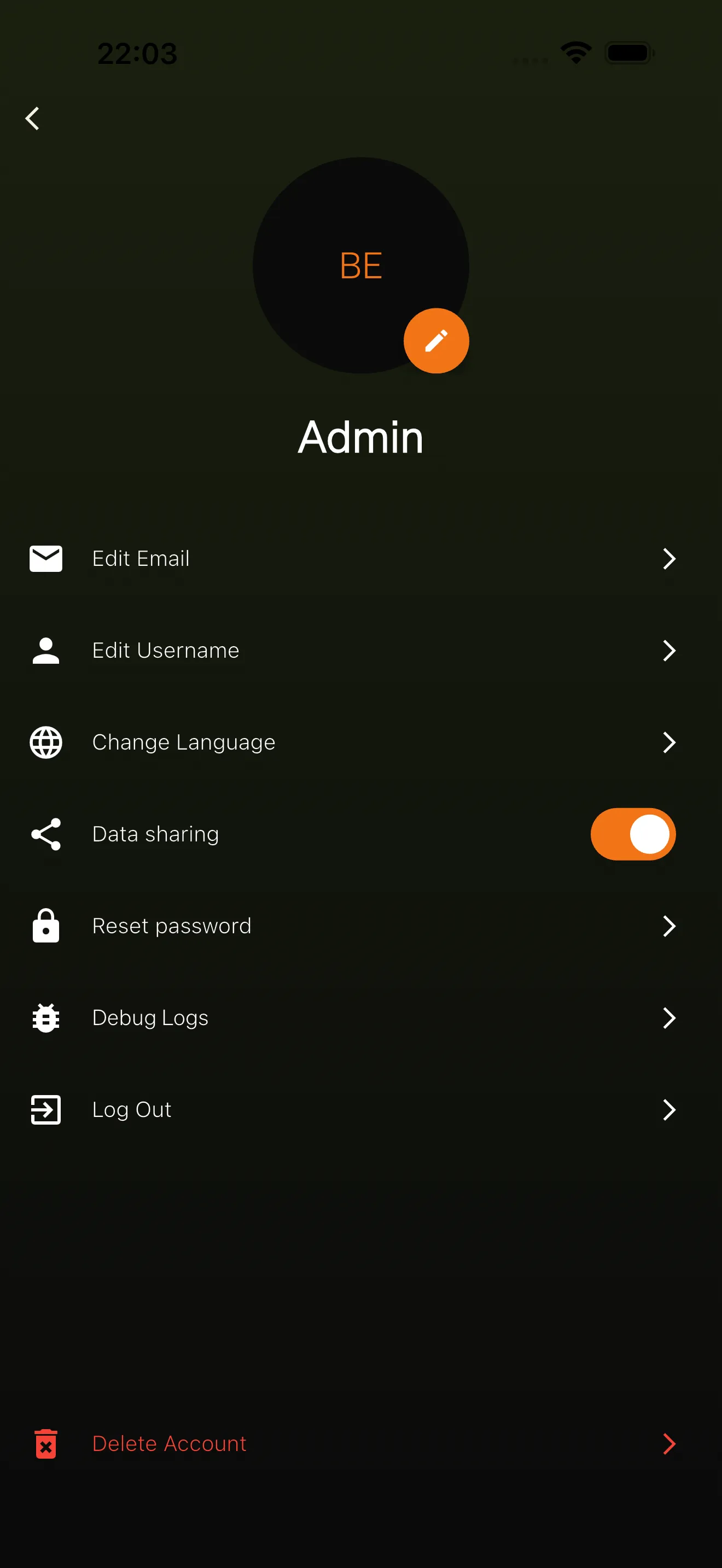
The menu includes the following items:
- Edit Email — Change the account email address.
- Edit Username — Change the display name.
- Change Language — Select a preferred language from the available options (English, German, Spanish, French).
- Data Sharing — Toggle consent for sharing data with coaches (visible only when coaching features are enabled).
- Reset Password — Set a new password for the account.
- Logout — Sign out of the app.
- Delete Account — Permanently delete the account and all associated data. This option is displayed separately at the bottom of the screen in red.
Edit email
Section titled “Edit email”The edit email page lets users change the email address linked to their account. The current email is pre-filled in the form. The app validates that the new value is a properly formatted email address before saving.
Edit username
Section titled “Edit username”The edit username page lets users update their display name. The current username is pre-filled. The username must be at least 3 characters long.
Change language
Section titled “Change language”Tapping Change Language opens a scroll picker where users can choose from the supported languages: English, German, Spanish, and French. The selected language applies immediately to all text in the app.
Data sharing
Section titled “Data sharing”When the coaching feature is enabled for the workspace, a Data Sharing toggle appears in the profile menu. This controls whether the user consents to sharing their data with assigned coaches.
Turning the toggle on allows coaches to view the user’s activity and progress. Turning it off revokes that access. For more details about the coaching relationship and consent model, see Coaching.
Reset password
Section titled “Reset password”The reset password page lets users set a new password. Both the new password and a confirmation field must match, and the password must be at least 12 characters long.
Profile picture
Section titled “Profile picture”The profile picture is displayed as a circular avatar at the top of the profile screen. Tapping the edit icon on the avatar opens the device’s photo gallery, allowing the user to select a new image. The selected image is automatically resized and uploaded.
If no profile picture has been set, the user’s initials are displayed instead.
Logout and delete account
Section titled “Logout and delete account”- Logout signs the user out and returns them to the login screen.
- Delete Account permanently removes the user’s account and all associated data. The app asks for confirmation before proceeding. This action cannot be undone.
New user onboarding
Section titled “New user onboarding”When a user signs in for the first time, they go through a guided onboarding flow before reaching the main app. The steps are:
- Document signing — The user reviews and accepts any required documents (such as terms of service or privacy policies). Documents are displayed as PDFs with checkboxes for consent and read confirmation. Declining a required document results in account deletion.
- Username and profile picture — The user enters a display name and optionally selects a profile picture from their device gallery.
- Age and gender — The user provides their age and gender using picker controls. This demographic information helps personalize the experience.
- Data sharing consent — If the coaching feature is enabled, the user is guided through a multi-step consent flow that explains what data will be shared with coaches and asks for explicit agreement.
After completing onboarding, the user is taken to the home screen.