

Overview
The Afterglow mobile app is how end users interact with the platform on their phones. This section helps administrators understand what their users see and experience so they can better support them and configure features through the Backoffice.
Main navigation
Section titled “Main navigation”The app uses a bottom tab bar with five primary sections. Users can tap any tab to switch between areas instantly.
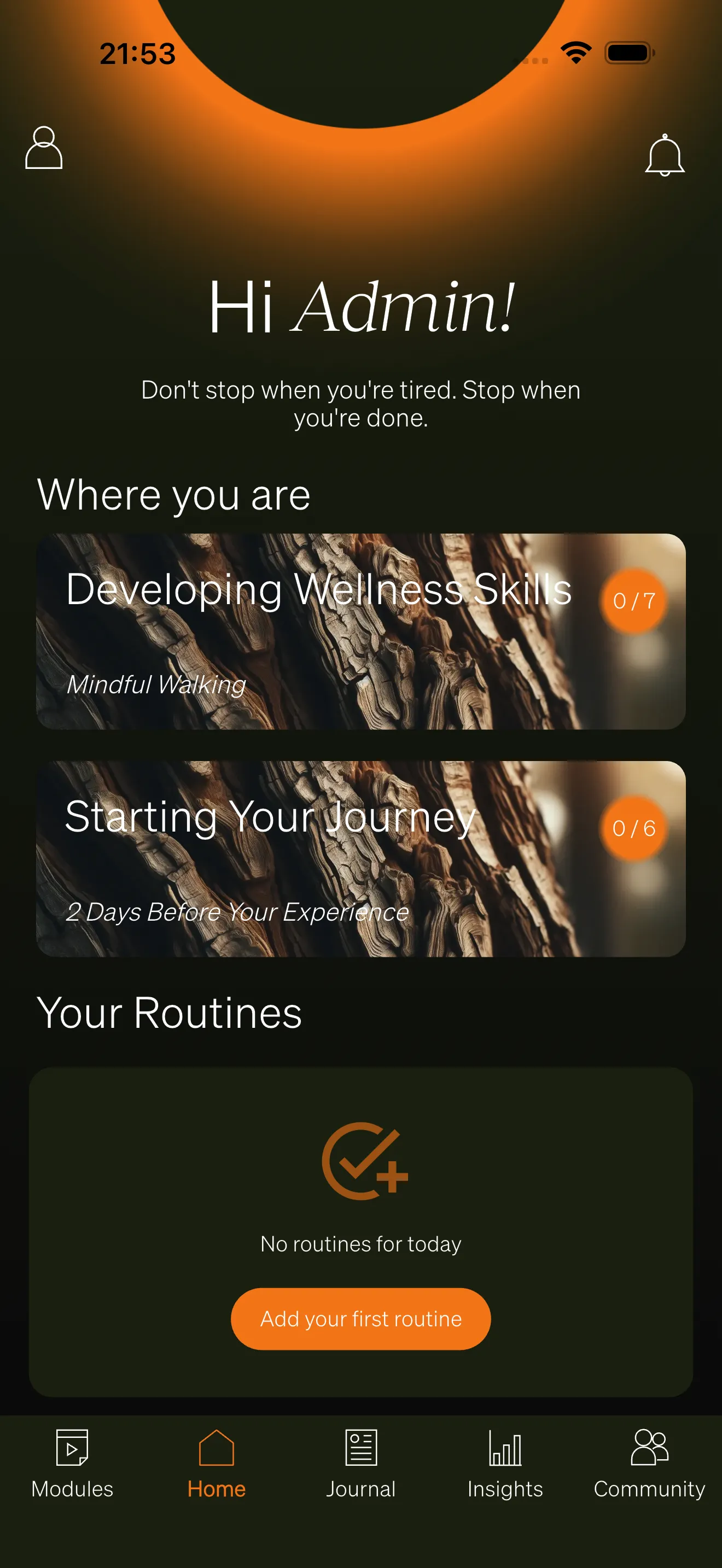
- Content — Browse learning modules and lessons organized by category. Users can work through structured content step by step, complete exercises, and track their progress.
- Home — The main dashboard. Shows a personalized greeting, content progression cards, the latest journal prompt, routine reminders, and recent community messages. This is the default screen users see when they open the app.
- Journal — Start or continue AI-powered journal conversations. Users chat with an AI assistant that helps them reflect, and the app analyzes emotions over time.
- Insights — View personal analytics and visualizations. Includes emotion tracking charts based on journal entries, and survey result visualizations when available.
- Community / Profile — When community features are enabled, this tab shows articles, circles, chats, coaches, and bookings. When community features are disabled, this tab shows the user profile and settings instead.
Additional screens
Section titled “Additional screens”Several screens are accessible through buttons and links within the app but do not appear in the bottom tab bar:
- Routines — Accessible from the Home dashboard. Users can browse routine templates, create personal routines, track completions, and view streaks.
- Coaches — Accessible from the Community tab. Users can browse available coaches, view their profiles and specialties, and book sessions.
- Circles — Accessible from the Community tab. Users can join groups, participate in group chats, and access circle-specific articles.
- Notifications — Accessible via the bell icon on the Home screen. Users receive notifications about new content, journal prompts, chat messages, and booking updates.
- Profile and settings — When the Community tab is active, users can access their profile from a button on the Home screen. From Profile, users can edit their email, username, language preference, password, and data sharing settings.
Feature visibility
Section titled “Feature visibility”Not all features are visible to every user. Visibility depends on the features configured for your workspace in the Backoffice:
- Chat — Enables one-to-one messaging and chat overviews.
- Articles — Enables article browsing, topics, and comments.
- Circles — Enables group circles with shared content and group chats.
- Coaches — Enables coach profiles, bookings, and session management.
- Routines — Enables routine templates and personal routine tracking.
When a feature is disabled, the related sections and navigation elements are hidden from users automatically.
Platform support
Section titled “Platform support”The Afterglow mobile app is available on both iOS and Android. The experience is consistent across platforms, with the same features and navigation on both.