

Notifications
Notifications keep users informed about new content, community activity, coaching updates, routine reminders, and journal check-ins. Afterglow delivers notifications both through the device notification system and inside the app itself.
Push notifications
Section titled “Push notifications”Push notifications are delivered to the user’s device even when the app is not open. They appear in the device’s notification tray like any other system notification.
When a user taps a push notification, the app opens and navigates directly to the relevant screen. For example, tapping a booking confirmation notification opens the booking details page, and tapping a journal reminder opens the most recent journal conversation.
In-app notifications
Section titled “In-app notifications”When the app is open, new notifications appear in two ways:
- Toast popup — A brief overlay slides down from the top of the screen when a new notification arrives in real time. The popup shows the notification title and a preview of the message. It automatically disappears after a few seconds, or the user can swipe it upward to dismiss it. Tapping the popup opens the full notification.
- Bell icon badge — The notification bell icon in the app header displays a small indicator dot when there are unread notifications. Tapping the bell opens the notifications overview.
Notifications are delivered instantly while the app is open, so they appear without the user needing to refresh.
Notifications overview
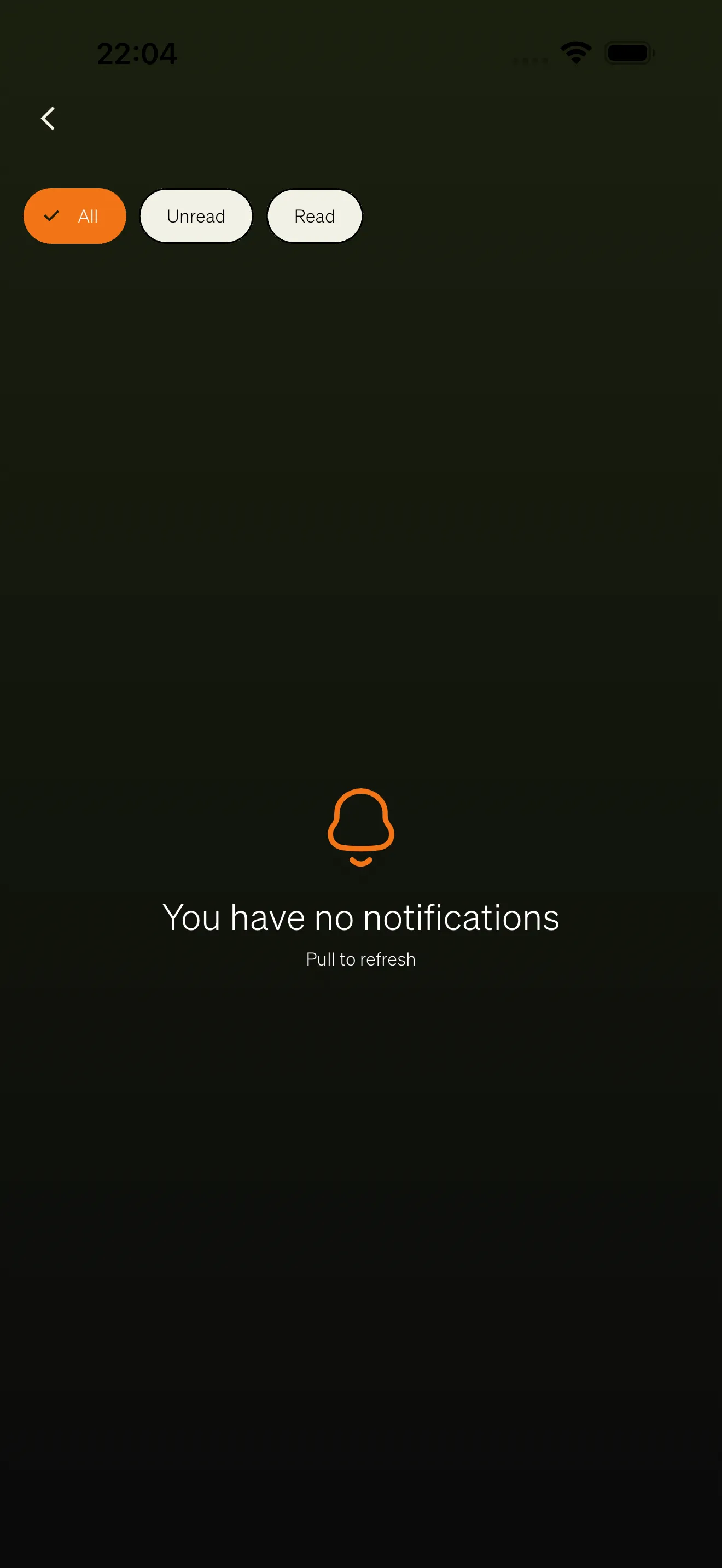
Section titled “Notifications overview”The notifications overview is a scrollable list of all notifications the user has received. Users open it by tapping the bell icon in the app header.
Filter chips
Section titled “Filter chips”At the top of the list, three filter chips let users narrow what they see:
- All — Shows every notification.
- Unread — Shows only notifications the user has not opened yet.
- Read — Shows only notifications the user has already viewed.
The active filter is highlighted in the workspace’s brand color.
Mark all as read
Section titled “Mark all as read”When there are unread notifications, a Mark All Read button appears next to the filter chips. Tapping it marks every notification as read at once.
Notification list
Section titled “Notification list”Each notification in the list shows:
- Title — Displayed in bold for unread notifications and in regular weight for read ones.
- Message preview — Up to two lines of the notification message.
- Unread indicator — A small colored dot next to unread notifications.
- Action arrow — A chevron icon appears on notifications that link to another screen.
Unread notifications have a subtle highlighted background to make them stand out.
Swipe to delete
Section titled “Swipe to delete”Users can delete a notification by swiping it from right to left. A red delete icon appears behind the notification. A confirmation dialog asks the user to confirm before the notification is permanently removed.
Pull to refresh
Section titled “Pull to refresh”Users can pull down on the list to refresh and load the latest notifications from the server.
Notification detail
Section titled “Notification detail”Tapping a notification in the list opens the full detail view. The notification is automatically marked as read when opened.
The detail view shows:
- Title — The full notification title.
- Message — The complete notification message.
- Media attachment — If the notification includes media (an image, video, or audio file), it is displayed below the message. Images display inline, videos include playback controls, and audio files show a player.
- Action buttons — Some notifications include action buttons. A primary confirm button and an optional cancel button allow the user to respond directly. Tapping confirm can navigate the user to a related screen in the app (for example, opening a specific piece of content or a booking page).
Notification types
Section titled “Notification types”Afterglow sends notifications across several categories:
- Content updates — Alerts when new modules, lessons, or articles are published or when existing content is updated.
- Journal reminders — Scheduled reminders encouraging users to write a journal entry. A reminder is sent in the evening, with a follow-up after three days of inactivity.
- Routine reminders — Reminders tied to the user’s active routines. These can be configured as once daily or per scheduled occurrence, depending on the routine’s settings.
- Community activity — Notifications about activity in circles, chat messages, and other community interactions.
- Coaching notifications — Updates related to coaching sessions, including booking confirmations, cancellations, and appointment reminders.
- System announcements — Platform-wide messages sent by administrators through User Notifications in the Backoffice. These can include custom titles, messages, media attachments, and action buttons.
Notification channels
Section titled “Notification channels”On the device level, Afterglow registers separate notification channels so users can control which types of notifications they receive through their device settings:
- Content notifications — For content-related alerts.
- Journal notifications — For journal reminders and check-ins.
- Routine reminders — For routine-related alerts.
Users can enable or disable each channel independently in their device’s notification settings.