

Journal
The Journal is an AI-powered conversational feature where users reflect on their thoughts and feelings through guided conversations with AI assistants. Users access it from the Journal tab in the mobile app.
Journal tab
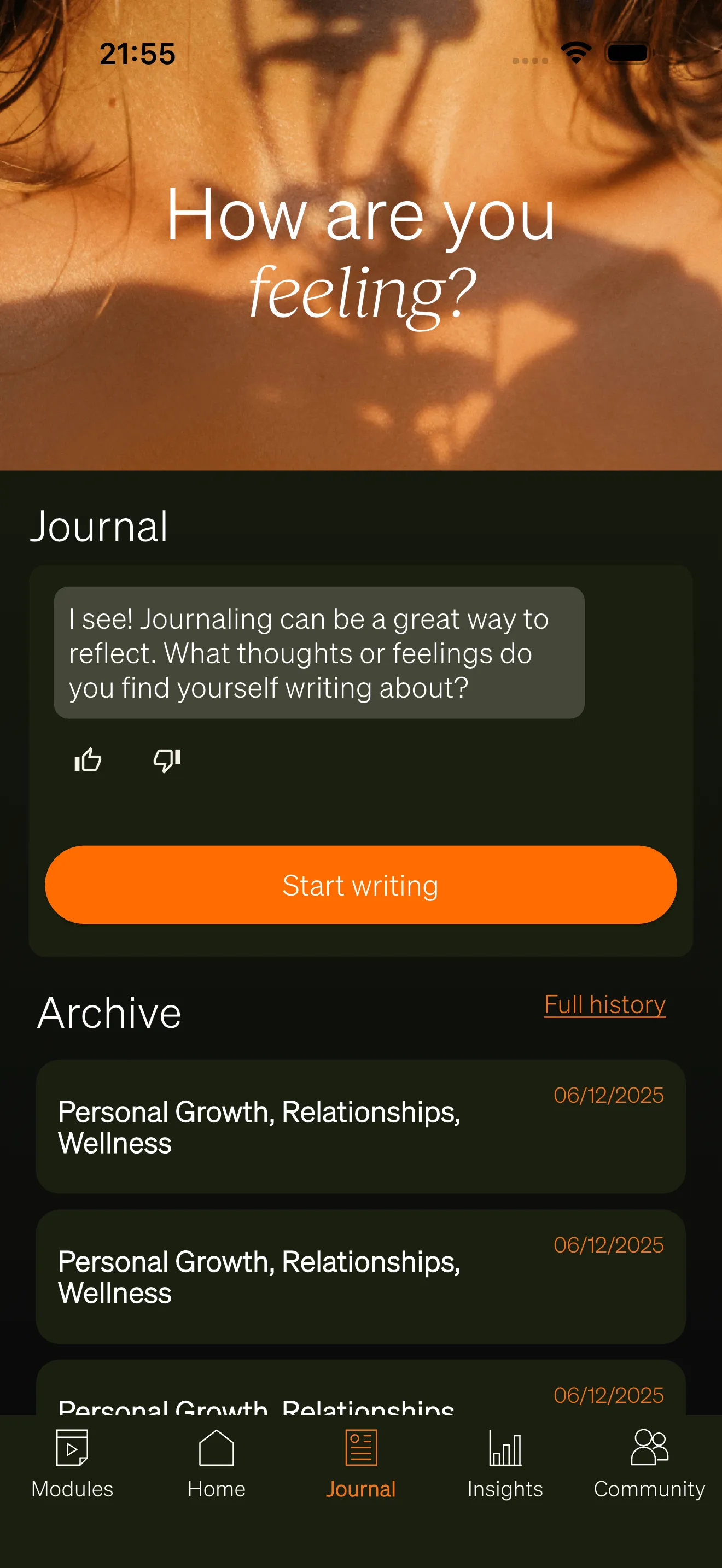
Section titled “Journal tab”The Journal tab is the landing screen for the journaling experience. It displays:
- Banner — A branded header image at the top of the screen, customized through your Brand Center settings.
- Prompt card — A preview of the latest assistant message from the most recent conversation. Users tap the button on the card to open or continue the conversation.
- Archive preview — The three most recent past conversations, shown below the prompt card with contextual themes and a timestamp. A “Full History” link opens the complete archive.
Starting a conversation
Section titled “Starting a conversation”Each workspace always has at least one active journal conversation for the user. When a user opens the Journal tab, they see the prompt card with the latest assistant message from their current conversation. They can:
- Type a message — Enter text in the message field and tap the send button.
- Continue from the prompt — Tap the button on the prompt card to open the full conversation view and respond from there.
The first time a user accesses the Journal, the system creates an initial conversation with the default AI assistant.
AI assistants
Section titled “AI assistants”Users can choose from different AI assistants, each configured with a unique personality, tone, and focus area. If your workspace has multiple assistants enabled, a dropdown selector appears at the top of the conversation view.
- Each assistant has a name and description visible to users.
- One assistant is marked as the default and is automatically selected for new conversations.
- Users can switch assistants at any time during an active conversation using the dropdown.
Admins configure assistants in the Backoffice under Journal Management.
Conversation experience
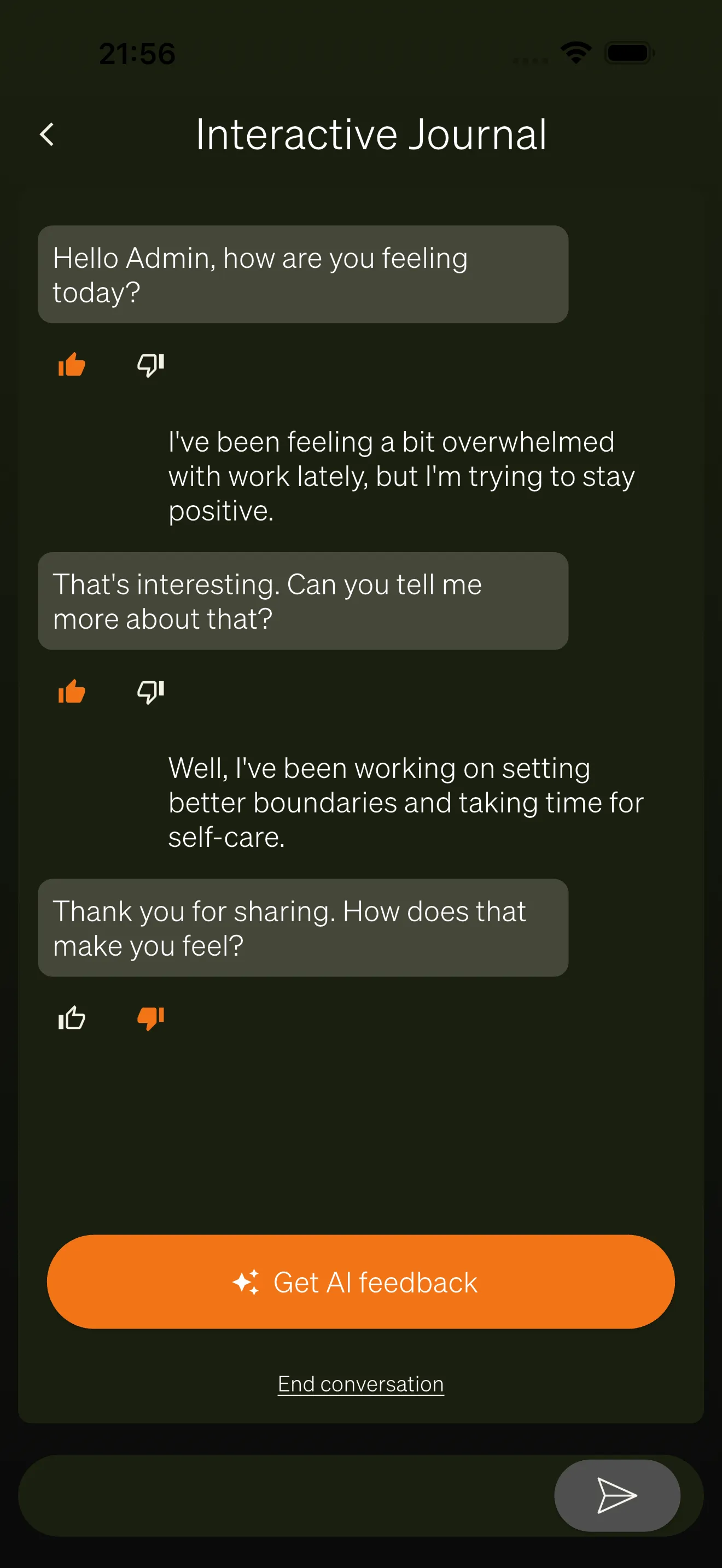
Section titled “Conversation experience”The conversation view shows the full message history between the user and the AI assistant.
- Message bubbles — User messages appear on the right, assistant messages on the left. Each side has a distinct color based on your workspace’s branding.
- Real-time streaming — AI responses stream in as they are generated, so users see the text appear progressively rather than waiting for a complete response.
- Rating buttons — Each assistant message has thumbs-up and thumbs-down buttons beneath it. Users can rate responses to provide feedback on the assistant’s quality.
- Message input — A text field at the bottom of the screen lets users type and send messages. A loading indicator replaces the send button while a response is being generated.
Answer modes
Section titled “Answer modes”How the assistant responds depends on the answer mode configured by the admin:
| Mode | What the user sees |
|---|---|
| Automatic | The assistant responds to every message the user sends. |
| Manual Request | The user must tap a “Request Response” button to get an AI reply. |
| None | No AI responses are generated. The journal works as a freeform writing space. |
Ending a conversation
Section titled “Ending a conversation”At the bottom of an active conversation, users see an End Conversation link. Tapping it opens a confirmation dialog. Once confirmed, the conversation is closed and no further messages can be sent. The conversation remains accessible in the archive for review.
Journal archive
Section titled “Journal archive”The archive lists all past conversations in reverse chronological order. Each row displays:
- Contextual themes — Keywords extracted from the conversation’s AI analysis (up to three themes per entry).
- Date — A relative time indicator showing when the conversation took place.
Users tap a row to reopen the conversation and review the full message history. If the conversation has not been ended, they can continue it.
Insights tab
Section titled “Insights tab”The Insights tab provides visual analytics based on journal data. It appears as a separate tab in the app’s bottom navigation.
Emotion tracking
Section titled “Emotion tracking”The Insights tab displays an emotion chart built from AI analysis of journal entries. The chart tracks six emotions over the user’s most recent conversations:
- Joy
- Sadness
- Anger
- Fear
- Disgust
- Surprise
Each emotion is plotted as a line on a spline chart, allowing users to see emotional patterns and trends over time.
Journal summary
Section titled “Journal summary”Below the emotion chart, a summary section displays an AI-generated overview of the user’s recent journaling activity, highlighting key themes and observations.
Survey results
Section titled “Survey results”When survey visualizations are available, the Insights tab shows a second tab with charts generated from survey responses. This includes bar charts, line charts, pie charts, and other visualization types configured by admins.
Home tab integration
Section titled “Home tab integration”The Home tab includes a journal section that shows the prompt card from the user’s most recent conversation. This gives users quick access to continue journaling without navigating to the Journal tab first.