

Content
Content is the primary learning experience in the Afterglow app. Users browse modules organized by category, work through lessons, and track their progress.
Content hierarchy
Section titled “Content hierarchy”Content in Afterglow is organized into four levels:
- Categories — Top-level groupings that appear as rows on the Content tab. Each category has a title, optional subtitle, and contains one or more modules.
- Modules — Collections of related lessons. Each module has a title, subtitle, optional intro text, and a cover image. A progress indicator shows how many lessons the user has completed.
- Lessons — Individual learning units within a module. Each lesson contains one or more steps that the user navigates through sequentially.
- Steps — The smallest content unit. Each step has a specific type that determines how it is displayed (see Step types below).
Content tab
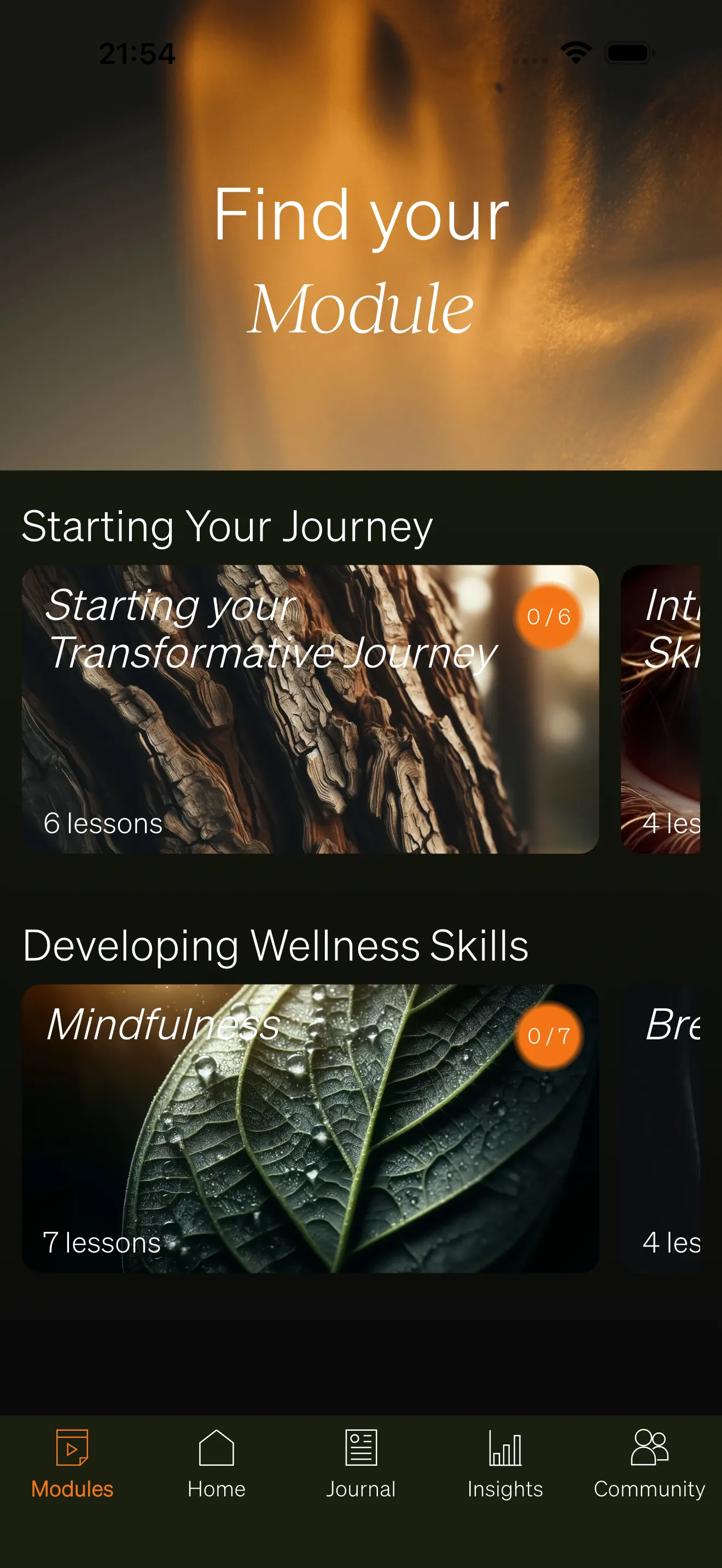
Section titled “Content tab”The Content tab is the main entry point for browsing learning content. It displays all categories as horizontal, scrollable rows of module cards.
Each module card shows:
- The module’s cover image as background
- The module title and subtitle
- A progress indicator (e.g. “2 / 5”) showing completed versus total lessons
- The number of lessons (if the module contains more than one)
When all lessons in a module are completed, the progress indicator changes to a checkmark.
Tapping a module card opens the module page. If a module contains only one lesson and the user has access, tapping the card opens that lesson directly.
Module page
Section titled “Module page”The module page shows the module title, optional intro text, and a list of lesson cards sorted by their configured order.
Each lesson card displays:
- The lesson’s cover image as background
- The lesson title and subtitle
- Checkmark icon — The user has completed this lesson.
- Star icon — The lesson requires a premium subscription.
- Lock icon — The lesson is blocked by an availability rule.
Tapping an available lesson opens it. Tapping a locked or premium-gated lesson shows a message explaining why it is unavailable.
Lesson experience
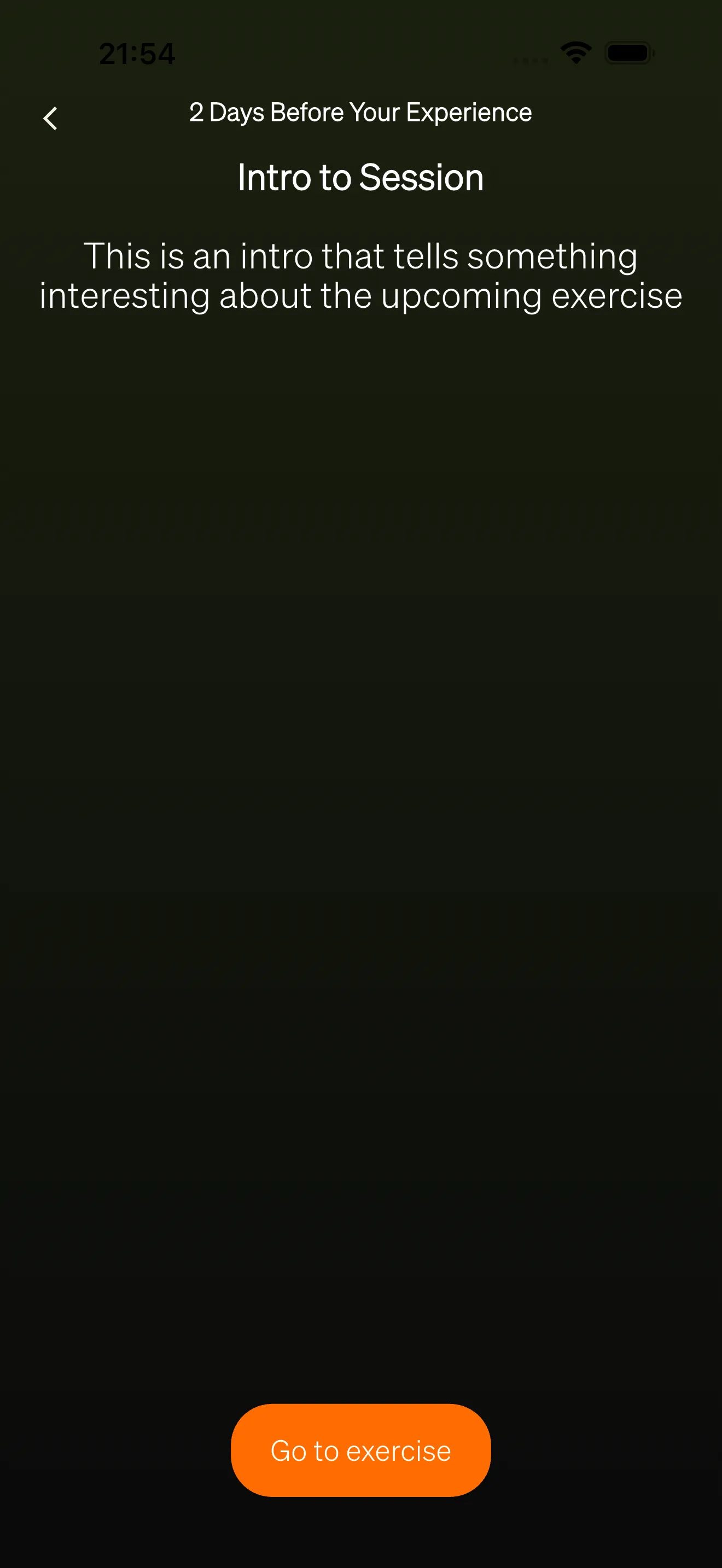
Section titled “Lesson experience”A lesson presents its steps one at a time with back and next navigation controls at the bottom of the screen. The lesson title is displayed at the top.
Step types
Section titled “Step types”Each step uses one of three types:
- Informational — Displays text content. The user can read at their own pace and move to the next step immediately.
- Exercise — Presents media content such as audio or video, optionally with text and a transcript. Audio exercises include a built-in player with play/pause controls and a time indicator. Video exercises play inline. Background images can be configured to display behind the content.
- Survey — Presents one or more questions that the user must answer before continuing. Questions appear one at a time within the step.
Survey answer formats
Section titled “Survey answer formats”Survey steps support several answer formats:
- Open-ended — A free text input field.
- Scale — A slider with configurable minimum and maximum values.
- Rating scale (5-point or 7-point) — A predefined agree-to-disagree scale for rating questions.
- Multiple choice (single) — Radio buttons where the user selects one option.
- Multiple choice (multiple) — Checkboxes where the user selects one or more options.
The user must answer the current question before moving to the next. If they try to skip a question, a prompt reminds them to provide an answer.
Completing a lesson
Section titled “Completing a lesson”When the user reaches the final step and taps the next button, the lesson is marked as complete. Some lessons may be configured to complete on an earlier step. Completing a lesson updates the module’s progress indicator and the “Where You Are” section on the Home tab.
Users can revisit and complete a lesson multiple times. Each completion is tracked.
Progress tracking
Section titled “Progress tracking”The app tracks which lessons each user has completed.
- Module progress indicator — A circular badge on each module card shows how many lessons are done (e.g. “3 / 6”). A checkmark appears when all lessons are complete.
- Lesson checkmark — Completed lessons display a checkmark icon on their card.
- Where You Are section — The Home tab shows up to two cards highlighting the user’s next available lesson across categories. This helps users pick up where they left off without navigating through the Content tab.
Availability rules
Section titled “Availability rules”Not all content is immediately accessible. Admins can configure availability rules that control when lessons become available to users. When a lesson is locked, users see a grey overlay and a lock icon on the lesson card.
The following rule types are supported:
- Previous lesson completed — The preceding lesson in the same module must be completed first. An optional delay in days can be added, meaning the user must wait a set number of days after completing the previous lesson.
- Registration time — The user must have been registered for a minimum number of days before the lesson unlocks.
- Specific lesson completed — A specific lesson (in any module) must be completed first. An optional delay in days can also be configured.
- Manual activation — The lesson requires manual activation by an admin. Until activated for the user, the lesson remains locked.
Premium content
Section titled “Premium content”Lessons can be marked as premium. Users without a premium subscription see a star icon on the lesson card and cannot open it. When tapped, a message explains that the content requires a premium subscription.
Premium checks happen before availability rules. A premium lesson that also has availability rules shows the star icon rather than the lock icon.