

Coaching
The coaching feature connects users with professional coaches for personalized guidance and support. Users can browse available coaches, view their profiles, book sessions, and manage their bookings directly from the app.
Coaches directory
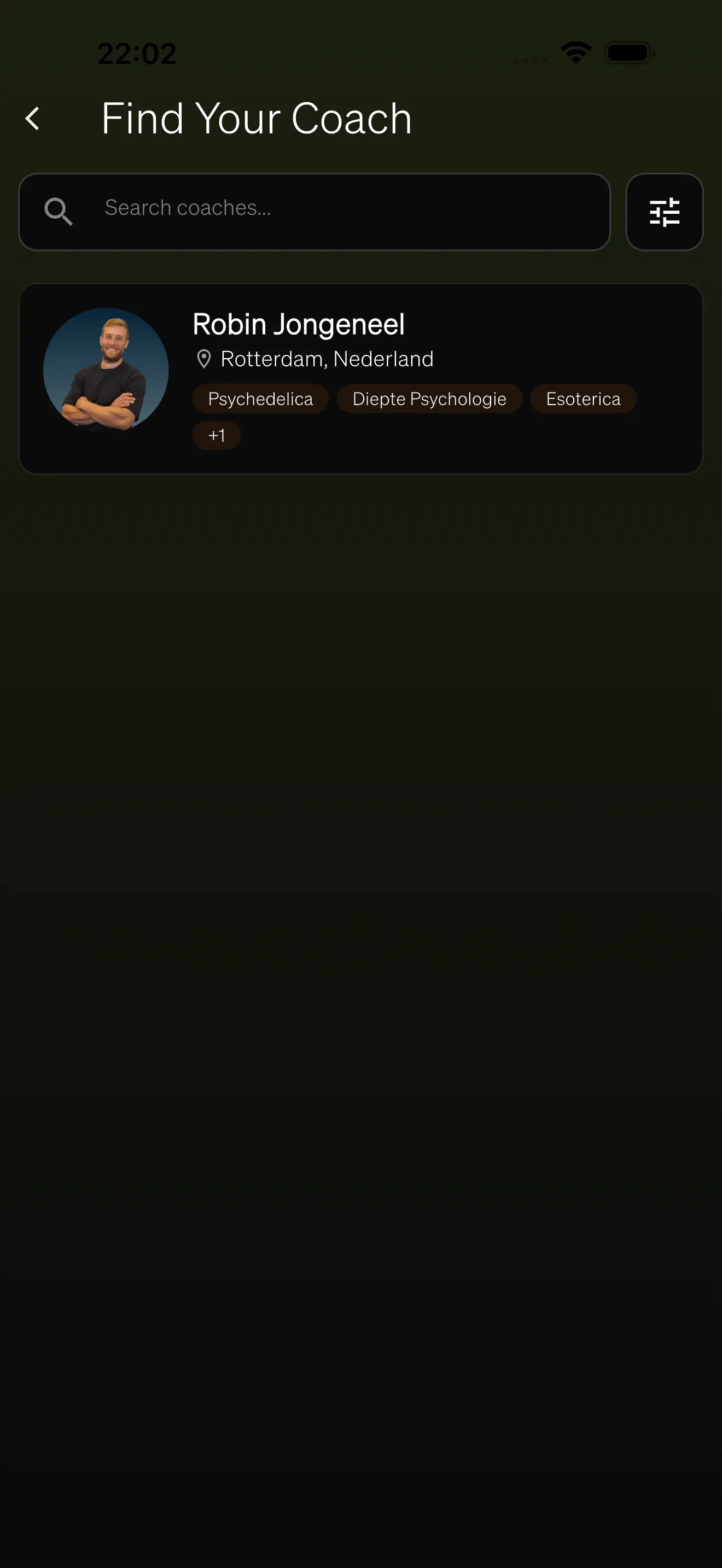
Section titled “Coaches directory”The coaches directory is a searchable list of all approved coaches for your organization. Each coach appears as a card showing their profile picture, display name, specialties, and location (city and country).
Searching and filtering
Section titled “Searching and filtering”Users can narrow down the list of coaches using:
- Search — Type a name to find a specific coach.
- Specialty filter — Select one or more specialties to show only coaches with matching expertise.
- Location filter — Enter a city or country to find coaches in a specific area.
Active filters can be cleared at any time by opening the filter sheet and tapping Reset.
The list supports infinite scrolling. As the user scrolls down, more coaches load automatically.
Coach profile
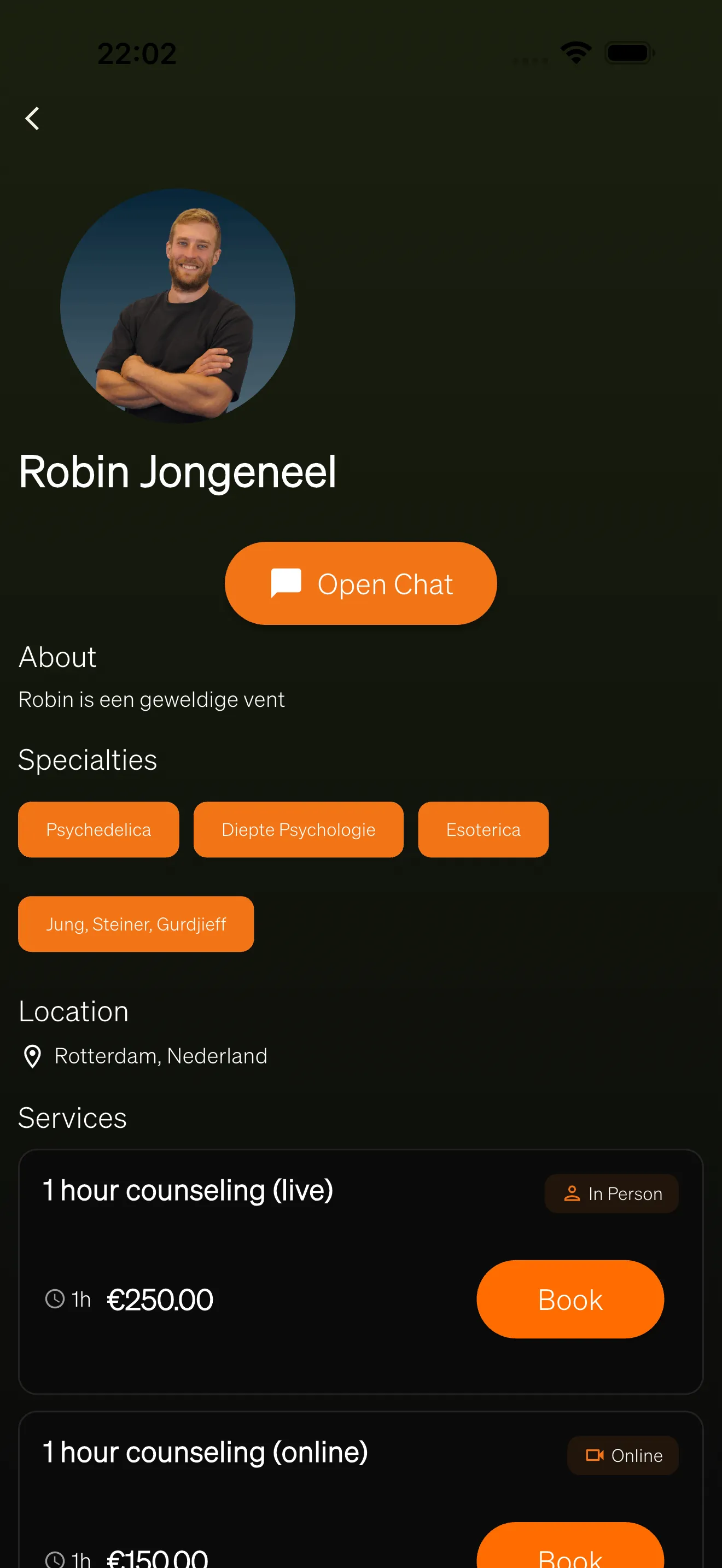
Section titled “Coach profile”Tapping a coach card opens the full coach profile page. This page displays:
- Profile picture and name — The coach’s photo and display name.
- Bio — A personal introduction from the coach.
- Specialties — Tags indicating the coach’s areas of expertise (e.g., mindfulness, stress management). Up to three specialties show on the card, with a count for any additional ones.
- Location — The coach’s city and country.
- Available services — A list of services the coach offers, each with pricing and session details.
Services
Section titled “Services”Each coach defines one or more services that users can book. A service card shows:
- Service name and description — What the session covers.
- Service type — Either “Online” (video call) or “In Person” (face-to-face meeting).
- Duration — The length of the session in minutes.
- Price — The cost of the session in euros.
- Premium badge — Some services may be restricted to premium users only. Non-premium users see a note explaining the restriction and cannot book those services.
Tapping Book on a service card starts the booking flow.
Booking a session
Section titled “Booking a session”The booking flow guides users through selecting a date, time, and confirming their session.
- Select a date — An availability calendar shows the next 14 days. Only dates with available time slots are selectable.
- Select a time slot — After choosing a date, available time slots appear in a grid. Tap a slot to select it.
- Add notes (optional) — A text field allows the user to include a message for the coach about what they want to discuss.
- Proceed to payment — Tapping the proceed button creates the booking and opens the Stripe checkout page in an external browser. The user completes payment there.
- Confirmation — After a successful payment, the app shows a confirmation screen with the booking date, time, and next steps.
My Bookings
Section titled “My Bookings”The My Bookings page shows all sessions a user has booked. It is organized into two tabs:
- Upcoming — Sessions that have not yet taken place. Users can tap a booking to view its details.
- Past — Sessions that have already occurred. Users can review past booking details.
Both tabs support pull-to-refresh to load the latest data.
Booking details
Section titled “Booking details”Tapping a booking opens the detail view, which shows:
- Coach name — Who the session is with.
- Service name — The type of session booked.
- Date and time — When the session takes place, displayed in the user’s local timezone.
- Price — The amount paid.
- Status — The current state of the booking (e.g., confirmed, cancelled, pending payment).
Cancelling a booking
Section titled “Cancelling a booking”Users can cancel an upcoming booking from the booking detail page. The cancellation flow:
- Tap the cancel option on the booking detail screen.
- A bottom sheet appears with a warning about the cancellation.
- Optionally enter a reason for cancelling.
- Confirm the cancellation or tap Keep booking to go back.
Completing payment
Section titled “Completing payment”If a booking was created but payment was not completed, the booking detail page shows a Pay Now button. Tapping it reopens the Stripe checkout page so the user can finish their payment.
Payments
Section titled “Payments”All coaching payments are processed through Stripe. When a user books a session, the app creates the booking and then redirects to a Stripe-hosted checkout page in an external browser. Prices are displayed in euros on service cards and booking details.
Data sharing consent
Section titled “Data sharing consent”Before a coach can access any of a user’s data (such as journal entries or insights), the user must explicitly grant consent through a multi-step data sharing flow.
How the consent flow works
Section titled “How the consent flow works”- Privacy overview — The user sees an explanation of what data sharing means, with two key points: what the coach will be able to see, and that consent can be revoked at any time.
- Agreement review — The user reads the full consent document. A scroll indicator encourages them to read the entire document before continuing.
- Confirm choice — The user sees a summary of the data types that will be shared. They must check an agreement checkbox before they can grant access. They can also choose to decline.
- Outcome — The user sees a success screen confirming data sharing is active, or a screen confirming they declined. In both cases, the user continues into the app.
Users can revoke their data sharing consent at any time through their profile settings. Revoking consent immediately removes the coach’s access to the user’s data.