

Workspace Setup
Setting up a new Afterglow workspace involves applying your branding, configuring translations, and inviting your team.
Prerequisites
Section titled “Prerequisites”Before you begin, make sure you have:
- An Admin account with access to the Backoffice.
Step 1 — Customize branding (optional)
Section titled “Step 1 — Customize branding (optional)”Branding is optional. If you skip this step, your workspace uses the default Afterglow styling. You can come back to this at any time.
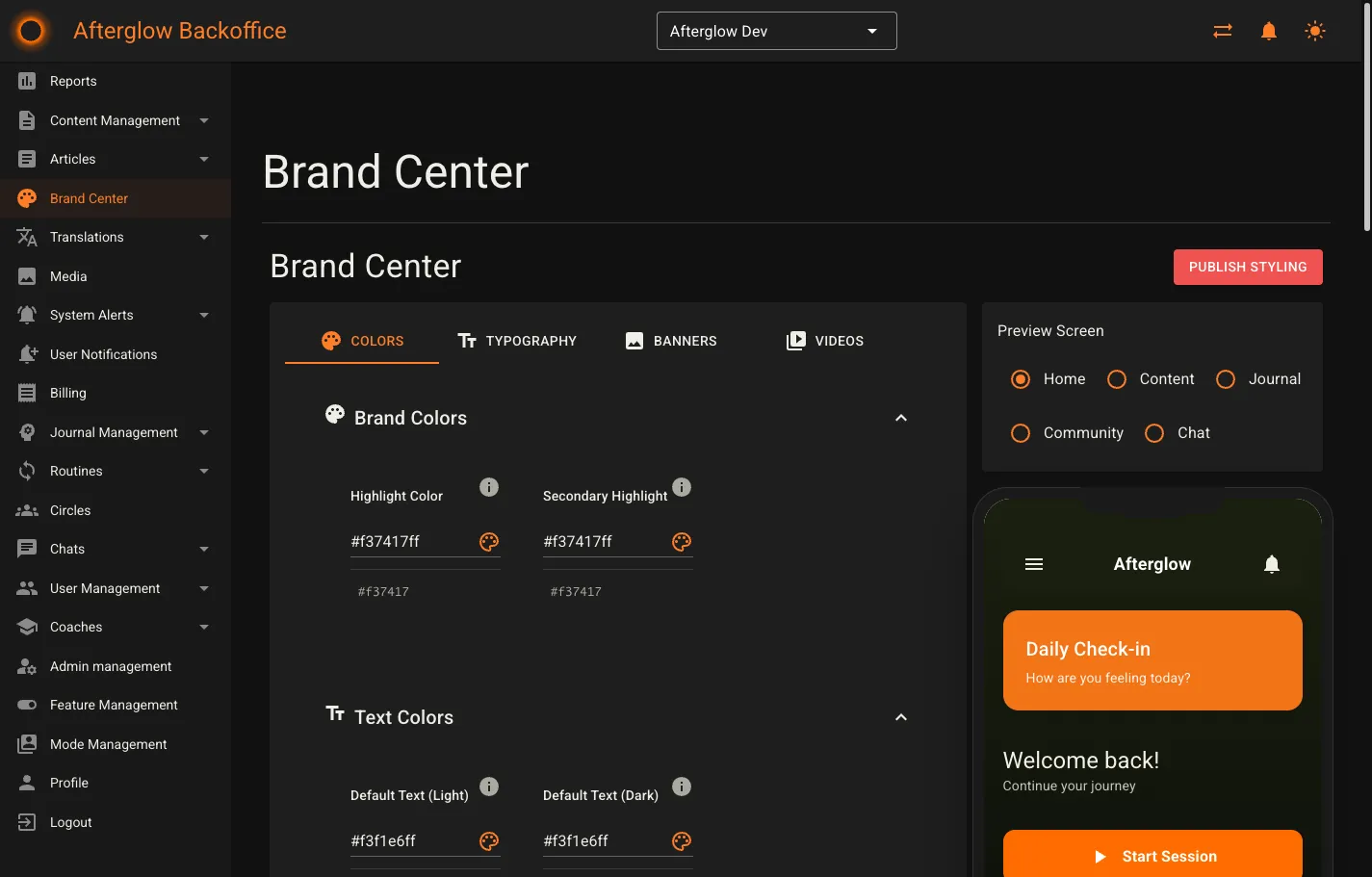
The Brand Center lets you customize the look and feel of your Afterglow app. It is organized into four tabs:
- Colors — Customize 19 color values including text colors, button colors, background colors, gradients, and accent colors. A live phone preview on the right shows your changes in real time.
- Typography — Choose font families for headings (H1 through H5), paragraphs, sub-paragraphs, and tiny text.
- Banners — Set banner images for the Home, Content, Journal, and Community sections of the app.
- Videos — Add workspace-specific videos that appear in the app.
After making changes, click Save to store your edits. The live phone preview in the Brand Center always reflects your saved changes, so you and other administrators can review them before going live. Mobile app users continue to see the previous styling until you click Publish.
For a full walkthrough of each tab, see Brand Center.
Step 2 — Configure translations (optional)
Section titled “Step 2 — Configure translations (optional)”Afterglow supports text customization so you can tailor the language used throughout the app to match your brand voice. The Translations section in the Backoffice lets you override default text strings and manage translation styling.
For full details, see Translations.
Step 3 — Invite administrators
Section titled “Step 3 — Invite administrators”Once your workspace is configured, invite team members to help manage it. Open the Admin Management page and fill in the invitation form:
- Enter the person’s email address and name.
- Optionally set a password — if you leave this empty, the person receives a password reset email.
- Select a role:
- Admin — Full workspace management including content, users, coaches, and admin accounts. Can also access the Coach Portal.
- Super user — Content and user management including media, translations, and system alerts.
- User — Mobile app access only. Creates a user account without Backoffice or Coach Portal access.
- Coach — Coach Portal access for managing clients, coaching data, and bookings.
- Click Invite admin to send the invitation.
For more on what each role can do, see Roles and Permissions.
Step 4 — Set up billing
Section titled “Step 4 — Set up billing”If your workspace uses paid features or subscriptions, configure billing details in the Billing section. This is where you manage invoices and payment settings.
For full details, see Billing.
Next steps
Section titled “Next steps”Your workspace is now set up and ready for content. Depending on your role, continue with one of these guides:
- First Steps: Admin — Learn how to create your first content modules and manage users.
- First Steps: Coach — Set up your coaching practice and start working with clients.