

My Practice
My Practice is where you manage everything about your coaching business on the platform — your profile, the services you offer, your bookings, and your integrations with external tools like Cal.eu and Stripe.
My Profile
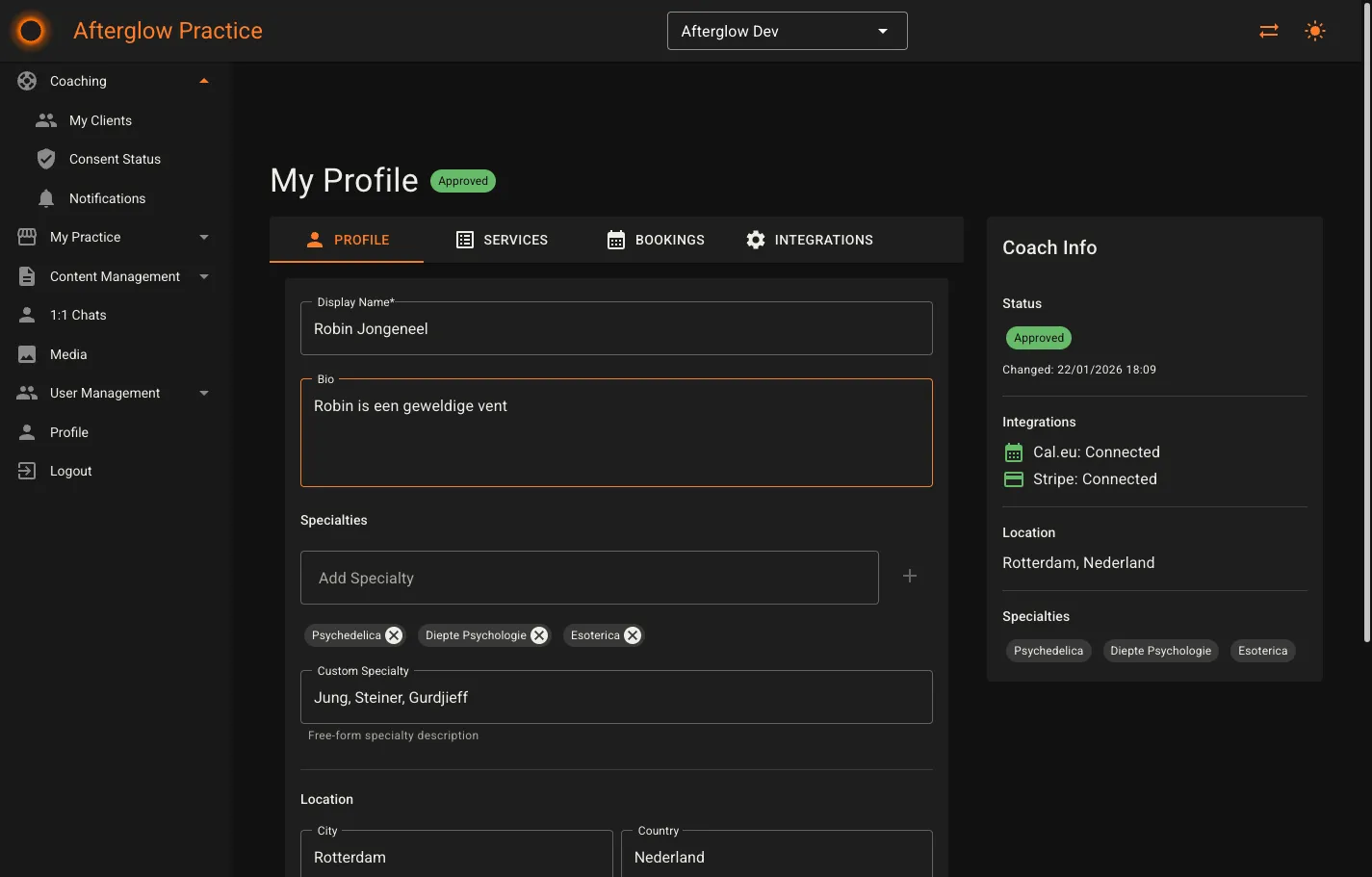
Section titled “My Profile”The My Profile page (/practice/profile) is the central hub for your coaching practice. It displays your name alongside a status badge and is organized into four tabs with a sidebar info card.
Status badge
Section titled “Status badge”Your profile shows a color-coded status badge that reflects your current approval state:
- Pending — Your profile is awaiting review by an administrator.
- Approved — You are visible to clients and can accept bookings.
- Suspended — Your profile has been temporarily disabled.
- Rejected — Your profile application was declined.
Only approved coaches appear in the coaching directory and can receive bookings.
Profile tab
Section titled “Profile tab”The Profile tab lets you edit your public-facing information:
- Display Name — Your name as it appears to clients (required).
- Bio — A free-text description of your background and approach.
- Specialties — Add tags that describe your areas of expertise (e.g. “nutrition”, “fitness”). Type a specialty and press Enter or click the add button to create a chip. Click the close icon on a chip to remove it.
- Custom Specialty — A free-form text field for describing a specialty that doesn’t fit into a single tag.
- Location — City and country fields so clients know where you are based.
- Profile Picture — Choose an existing image from the media library or upload a new one. Supported formats are JPG, PNG, GIF, and WebP (max 10 MB). Uploaded images are automatically compressed.
Click Save Changes to persist your edits, or Reset to discard unsaved changes.
Services tab
Section titled “Services tab”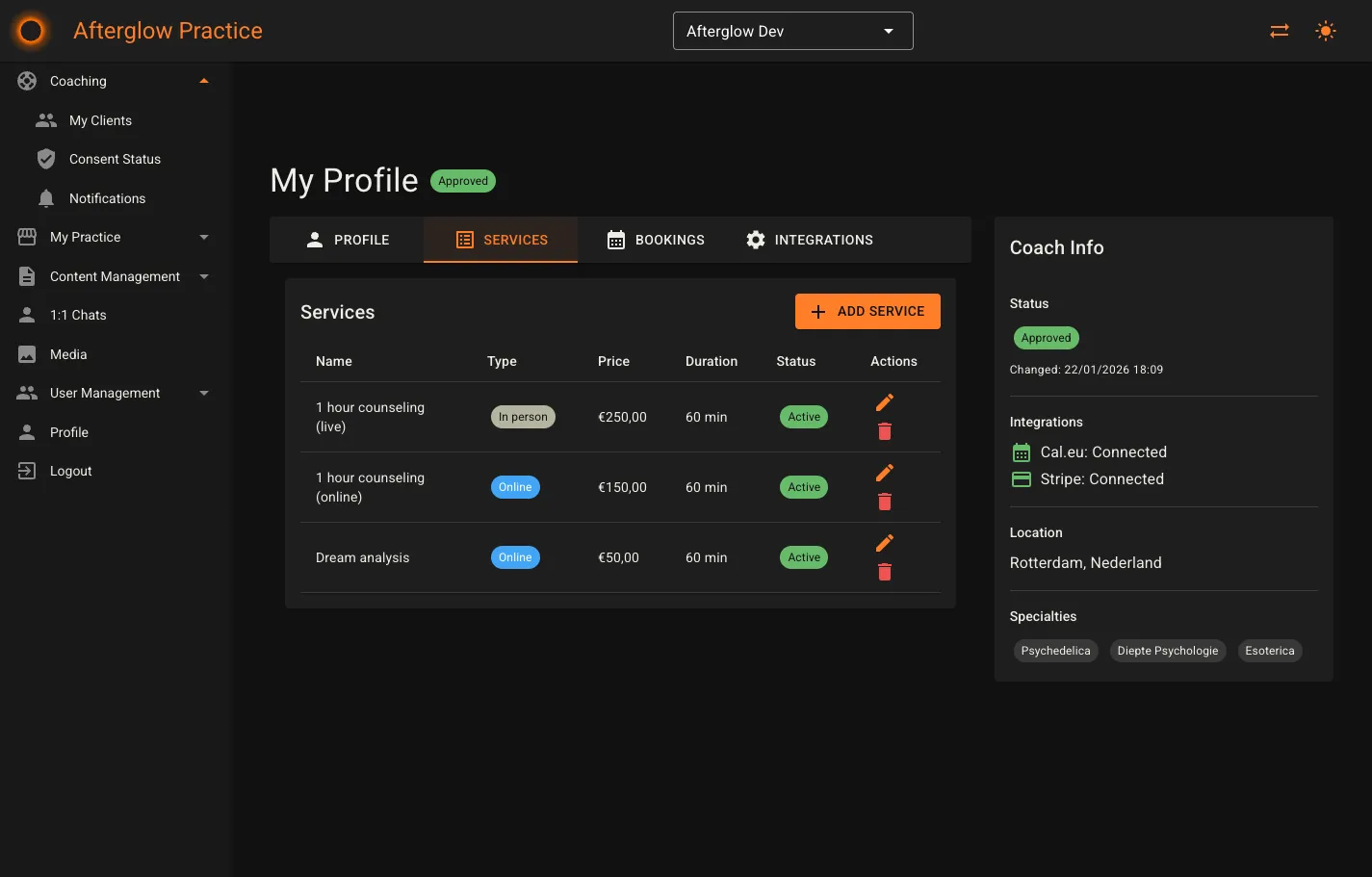
The Services tab shows all of your coaching services in a data grid with the following columns:
- Name — The service title.
- Type — Either “Online” or “In Person”, shown as a colored chip.
- Price — The price in EUR.
- Duration — Session length in minutes.
- Status — “Active” or “Inactive”.
- Actions — Edit and delete buttons.
Adding a service
Section titled “Adding a service”Click Add Service to open a dialog with these fields:
- Name — The service title (required).
- Description — A longer explanation of what the service includes.
- Price (EUR) — The session price. A minimum price may be enforced by your workspace administrator.
- Duration (minutes) — Session length, between 15 and 480 minutes in 15-minute increments.
- Service Type — Online or In Person.
- Premium users only — When enabled, only premium subscribers can book this service. This toggle only appears if the Premium Coach Services feature is enabled for your workspace.
- Cal.eu Integration — If you have a Cal.eu API key configured, you can toggle Auto-create Cal.eu event type to have the platform create a matching event type in Cal.eu automatically. If you turn this off, you can manually enter a Cal.eu Event Type ID and slug instead.
Editing a service
Section titled “Editing a service”Click the edit icon on any service row to open the Edit Service dialog. All fields from the creation dialog are available, plus:
- Active — Toggle the service on or off without deleting it.
- Cal.eu Event Type ID / Slug — Update the linked Cal.eu event type.
Deleting a service
Section titled “Deleting a service”Click the delete icon on a service row. If the service has existing bookings, it will be deactivated instead of permanently deleted.
Bookings tab
Section titled “Bookings tab”The Bookings tab within your profile shows a data grid of your bookings with these columns:
- Scheduled — Date and time of the session.
- Service — The name of the booked service.
- Duration — Session length in minutes.
- Status — A color-coded chip: Pending (yellow), Confirmed (blue), Completed (green), Cancelled (red), or NoShow (dark).
- Price — The booking price in EUR.
- Actions — A cancel button appears for bookings that are still Pending or Confirmed.
Cancelling a booking
Section titled “Cancelling a booking”Click the cancel button to open the Cancel Booking dialog. You must provide a cancellation reason before confirming. The client will be notified of the cancellation.
Integrations tab
Section titled “Integrations tab”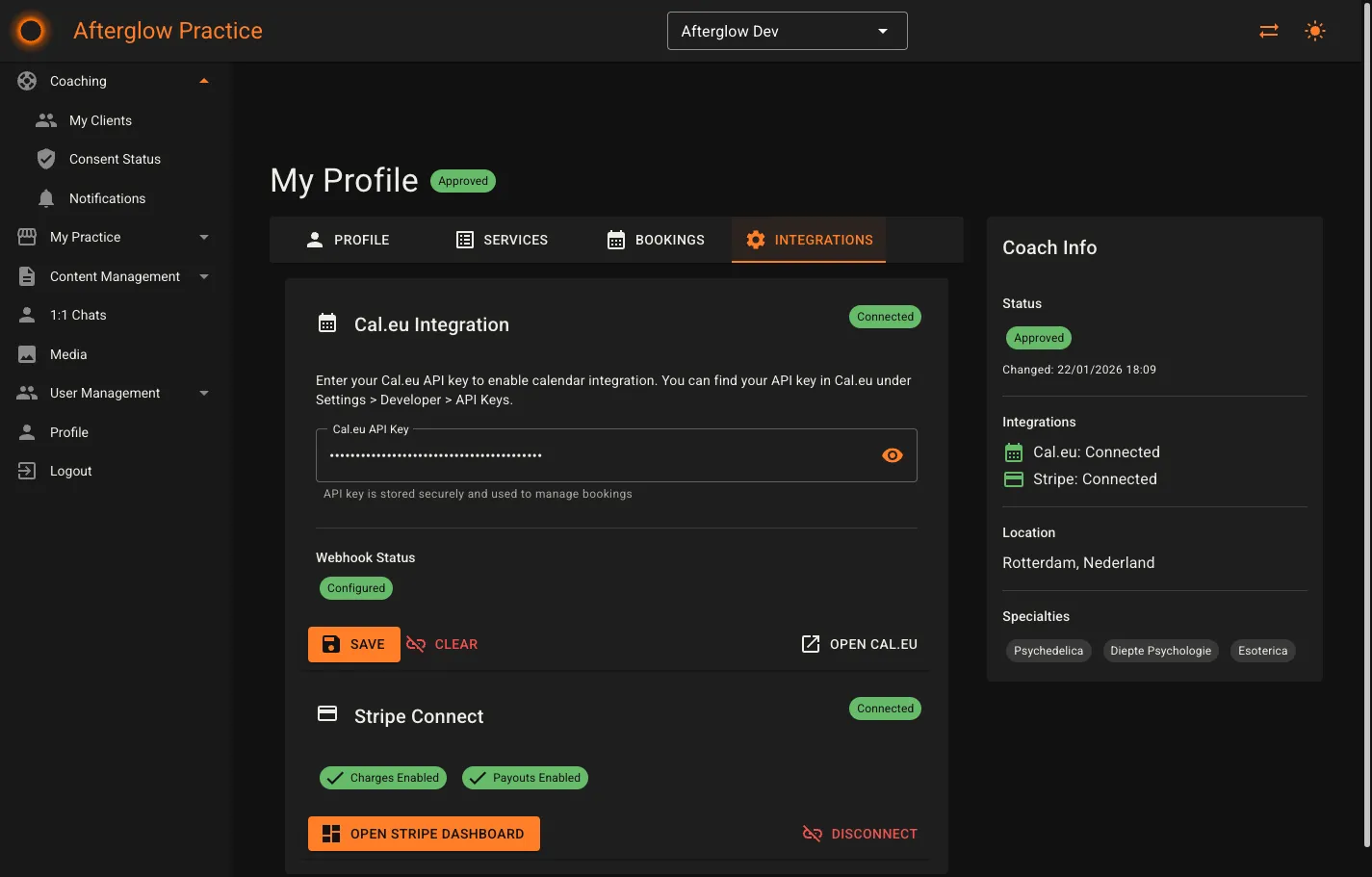
The Integrations tab contains two cards for connecting external services.
Cal.eu integration
Section titled “Cal.eu integration”Cal.eu handles scheduling and availability for your coaching sessions.
- API Key — Enter your Cal.eu API key (a unique code from Cal.eu that connects your calendar). Found in Cal.eu under Settings > Developer > API Keys. The key is stored securely and masked by default; click the visibility toggle to show or hide it.
- Save — Saves the API key.
- Clear — Removes the API key. Calendar integration will stop working until a new key is added.
- Open Cal.eu — Opens Cal.eu in a new browser tab.
Once connected, the card also shows:
- Calendar sync status — Indicates whether the sync is Configured, Misconfigured, or Not Configured. If triggers are missing, they are listed below the status chip.
- The buttons labeled Create Webhook / Update Webhook set up or repair the calendar sync so booking events (cancellations, reschedules, etc.) are kept up to date.
Stripe Connect
Section titled “Stripe Connect”Stripe Connect handles payment processing so you can receive payouts for coaching sessions.
- Start Onboarding — Creates a Stripe Express account and redirects you to Stripe’s onboarding flow, where you verify your identity and set up a bank account.
- Continue Onboarding — Appears if Stripe requires additional information from you. Clicking it returns you to the onboarding flow.
- Charges Enabled / Payouts Enabled — Once fully onboarded, two green chips confirm that your account can accept charges and receive payouts.
- Open Stripe Dashboard — Opens your Stripe Express dashboard in a new tab so you can review transactions and manage your account.
- Disconnect — Removes the Stripe account link. Payment processing will stop until a new account is connected.
Coach Info sidebar
Section titled “Coach Info sidebar”The sidebar card on the My Profile page provides a quick summary of your coaching practice:
- Status — Your current status badge with the reason and date of the last status change, if applicable.
- Integrations — Shows Cal.eu and Stripe connection status with color-coded icons (green for connected, grey for not connected).
- Location — Your city and country, or “Not specified” if not set.
- Specialties — Your specialty tags displayed as chips.
Bookings page
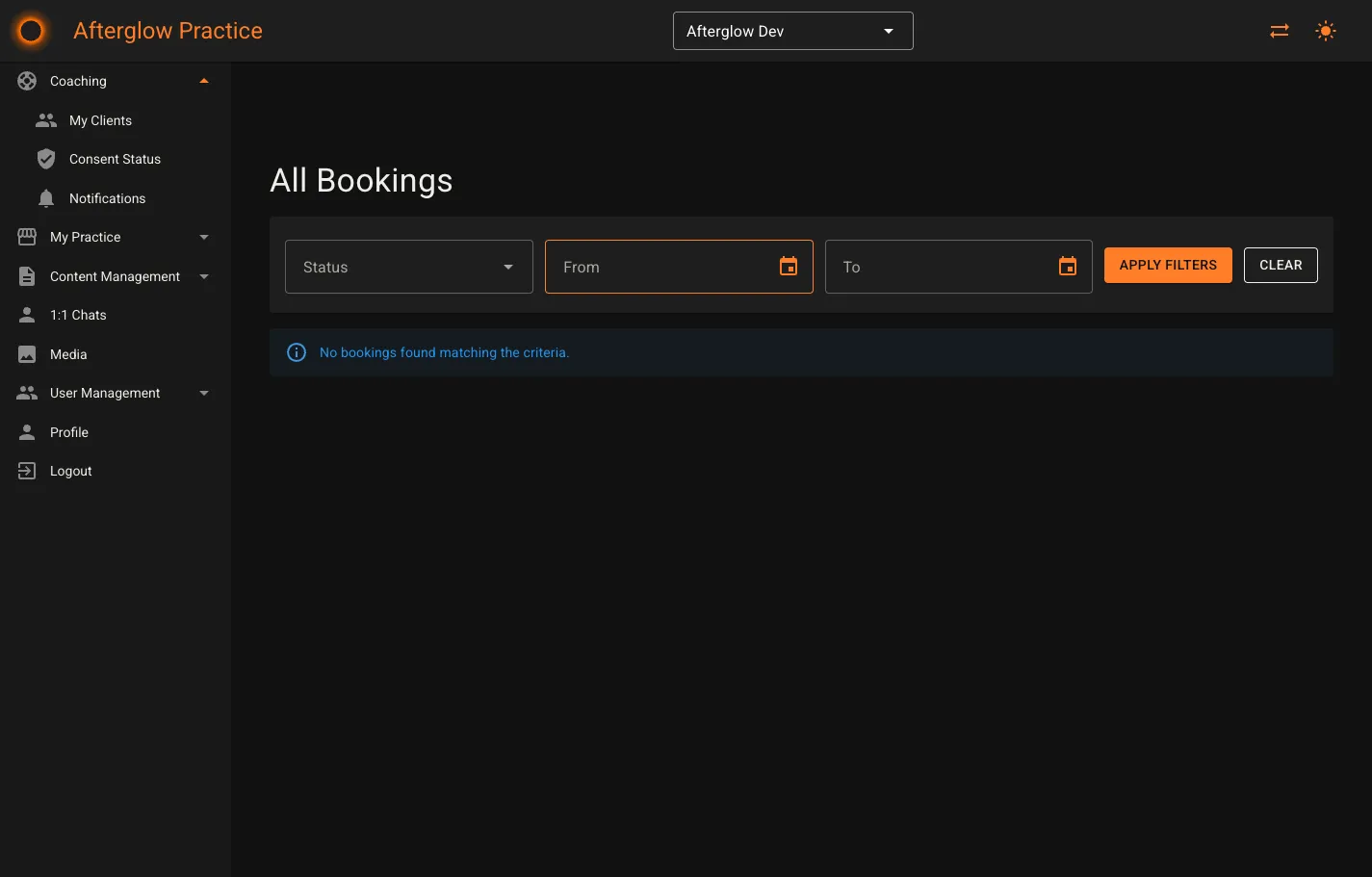
Section titled “Bookings page”The Bookings page (/practice/bookings) provides a focused view of bookings with filtering capabilities.
Filters
Section titled “Filters”A filter bar at the top of the page offers:
- Status — Filter by booking status (Pending, Confirmed, Completed, Cancelled, NoShow). Clearable.
- From / To — Date pickers to narrow results to a specific time range.
- Apply Filters — Applies the selected filters.
- Clear — Resets all filters and reloads the full list.
Role-based visibility
Section titled “Role-based visibility”- Coaches see only their own bookings. The page title reads “My Bookings”.
- Admins see bookings across all coaches. The page title reads “All Bookings” and an extra Coach column appears in the grid, linking to the coach’s detail page.
The data grid columns match those on the Bookings tab (scheduled time, service, duration, status, price, actions), with the addition of the Coach column for admins.
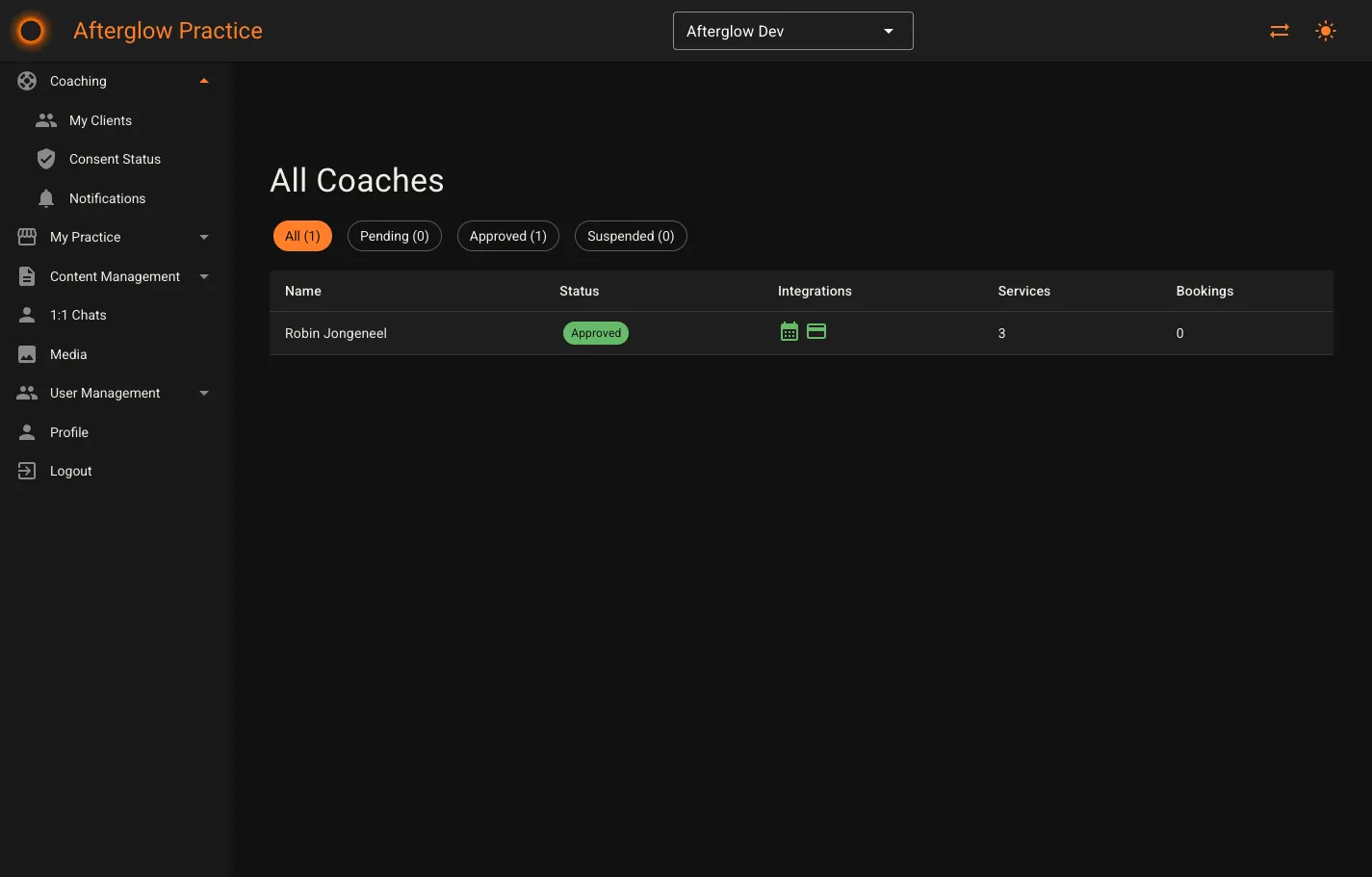
All Coaches page
Section titled “All Coaches page”The All Coaches page (/practice/coaches) is available to the Admin role only. It provides an overview of every coach on the platform.
Status filter chips
Section titled “Status filter chips”A row of chips at the top lets you filter coaches by status. Each chip shows the count of coaches in that state:
- All — Shows every coach.
- Pending — Coaches awaiting approval.
- Approved — Active coaches.
- Suspended — Temporarily disabled coaches.
Coaches grid
Section titled “Coaches grid”The data grid displays one row per coach with these columns:
- Name — The coach’s display name.
- Status — A color-coded status badge.
- Integrations — Icons indicating whether Cal.eu and Stripe are connected (green) or not (grey).
- Services — The number of active services.
- Bookings — The total number of bookings.
Click any row to navigate to the coach’s detail page, which shows the same tabbed interface as My Profile (Profile, Services, Bookings, Integrations) along with the sidebar info card.
Related topics
Section titled “Related topics”- Coaching — How the coaching marketplace works, including services, bookings, consent, and payments.
- Practice Overview — Introduction to Practice and the consent model.
- Coaches (Backoffice) — Managing coaches from the administrator’s perspective.