

Coaching
The Coaching section is your central hub for managing client relationships, monitoring progress, and staying on top of engagement across your client base.
My Clients
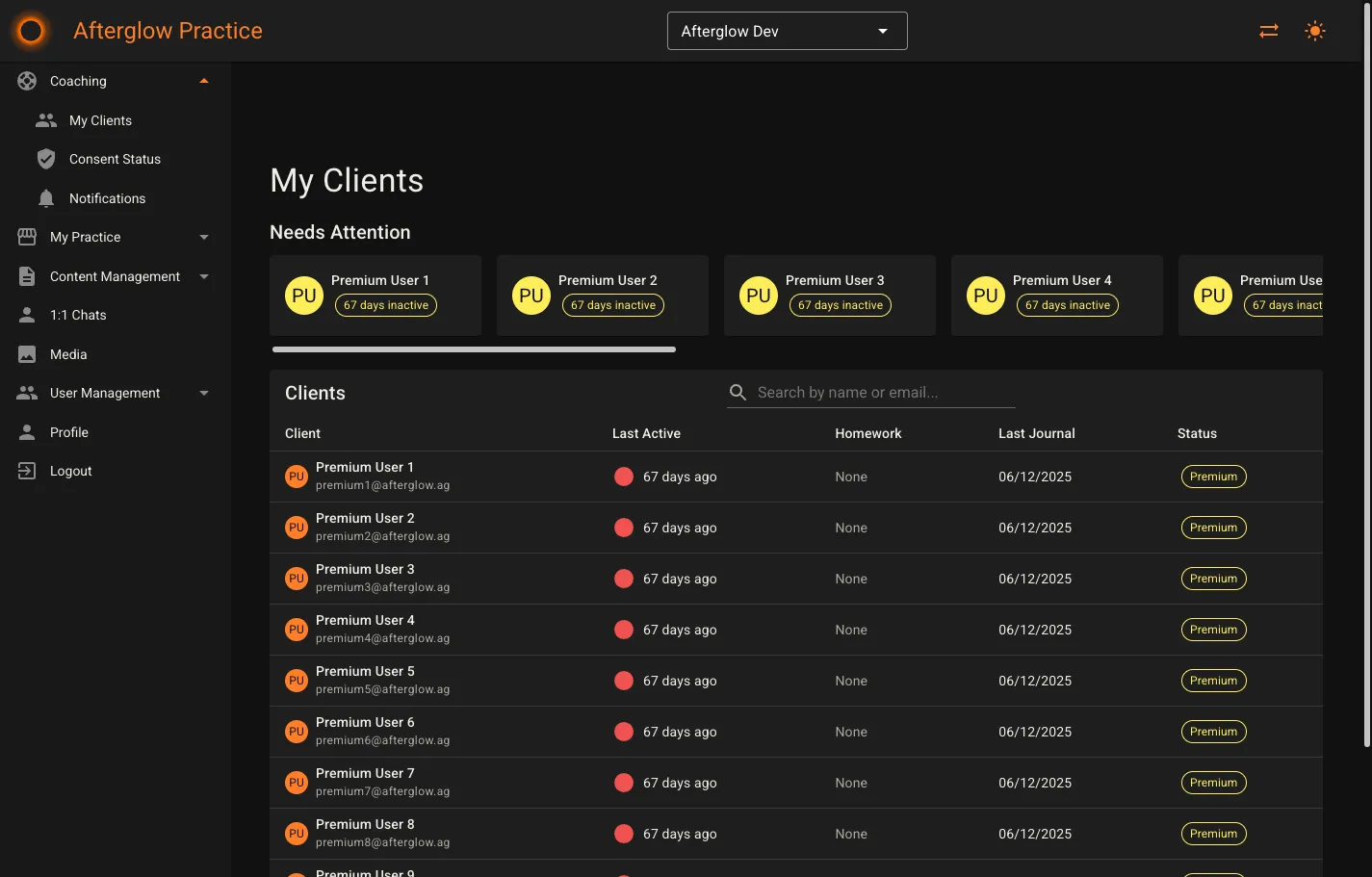
Section titled “My Clients”The My Clients page is the default landing page when you open Practice. It shows all clients who have granted you consent to view their data.
Needs Attention cards
Section titled “Needs Attention cards”At the top of the page, a horizontal row of cards highlights clients who have been inactive beyond your configured threshold. Each card shows the client’s name (or email), an avatar, and a badge indicating how many days they have been inactive. Click a card to open that client’s detail panel.
These cards only appear when at least one client has exceeded the inactivity threshold set in your alert settings.
Client table
Section titled “Client table”Below the attention cards, a searchable table lists all your clients. You can filter by name or email using the search field.
Each row displays:
- Client — Name, email, and avatar.
- Last Active — A color-coded indicator showing when the client was last online (green for today or yesterday, amber for up to five days, red for longer or never).
- Homework — The most recent homework status: Completed, Assigned, Due Today, Due Tomorrow, Overdue, or None.
- Last Journal — The date of the client’s most recent journal entry.
- Status — A Premium badge if the client holds a premium subscription.
Click any row to open the client detail panel on the right side of the screen.
Client detail panel
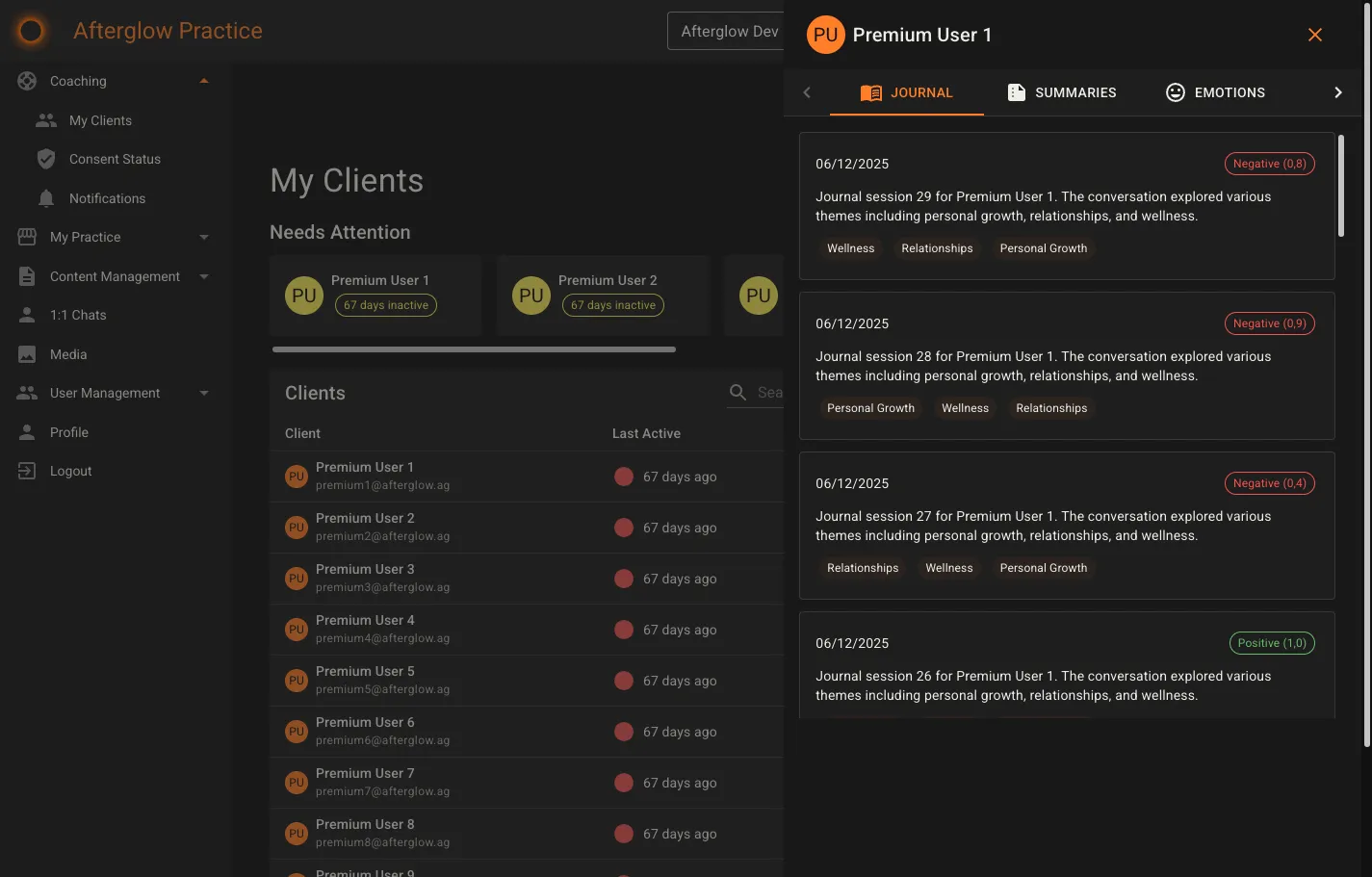
Section titled “Client detail panel”The detail panel is a slide-out drawer that appears on the right when you select a client. It shows the client’s name and avatar in the header and provides six tabs for exploring their data.
Journal
Section titled “Journal”Lists the client’s individual journal entries in reverse chronological order. Each entry card shows:
- The entry date.
- A sentiment chip indicating whether the entry was Positive or Negative, along with a numeric sentiment score.
- A short AI-generated summary of the entry.
- Theme tags extracted from the entry content.
Clicking a journal entry from the Activity tab automatically switches to this tab and highlights the selected entry.
Summaries
Section titled “Summaries”Displays AI-generated weekly summaries that consolidate multiple journal entries into a single overview. Each summary card includes:
- The summary date and the number of journals it covers.
- A written summary of the period.
- An emotion trend analysis describing how the client’s emotional state changed over the period.
- The date range of the journals included.
Use the Generate Summary button to request a new summary. This button is only enabled when the client has at least three analysed journal entries that have not yet been included in a summary.
Emotions
Section titled “Emotions”Visualizes the client’s emotion scores using interactive charts. The tab contains two chart sections:
- Last 15 Entries — A chart of emotion scores across the client’s most recent fifteen journal entries.
- Emotion Scores Over Time — A time-based chart with a toggle to switch between a 1 Week and 1 Month view.
Surveys
Section titled “Surveys”Shows the client’s completed survey submissions. Each submission card displays:
- The survey name and completion date.
- Each question with the client’s answer listed below it.
If the client has not submitted any surveys, an informational message is shown instead.
Homework
Section titled “Homework”Lists all homework (lesson assignments) for the client. The table displays:
- Lesson — The lesson title and its parent module.
- Assigned — The date the homework was assigned.
- Expires — The expiry date, or “No expiry” if none was set.
- Status — One of three states:
- Completed — The client finished the lesson.
- Assigned — The lesson is still pending.
- Overdue — The expiry date has passed without completion.
Assigning homework
Section titled “Assigning homework”Click the Assign Homework button to open a dialog where you can:
- Search for a lesson by name or module using the autocomplete field.
- Optionally set an expiry date (must be at least one day in the future).
- Click Assign to send the homework to the client.
The client table on the My Clients page updates automatically to reflect the new assignment.
Activity
Section titled “Activity”Presents a chronological timeline that merges all client activity into a single view. Each timeline entry is color-coded by type:
- Journal entries (blue) — Click to jump to the corresponding entry in the Journal tab.
- Lesson completions (green) — Lessons the client has finished.
- Lesson assignments (amber) — Homework that was assigned to the client.
- Survey submissions (light blue) — Surveys the client completed.
Each item shows a title, a short description (if available), and a timestamp.
Consent Status
Section titled “Consent Status”The Consent Status page lets you track which clients have granted, declined, or not yet responded to the data-sharing consent request. See Coaching — Client consent for background on how consent works.
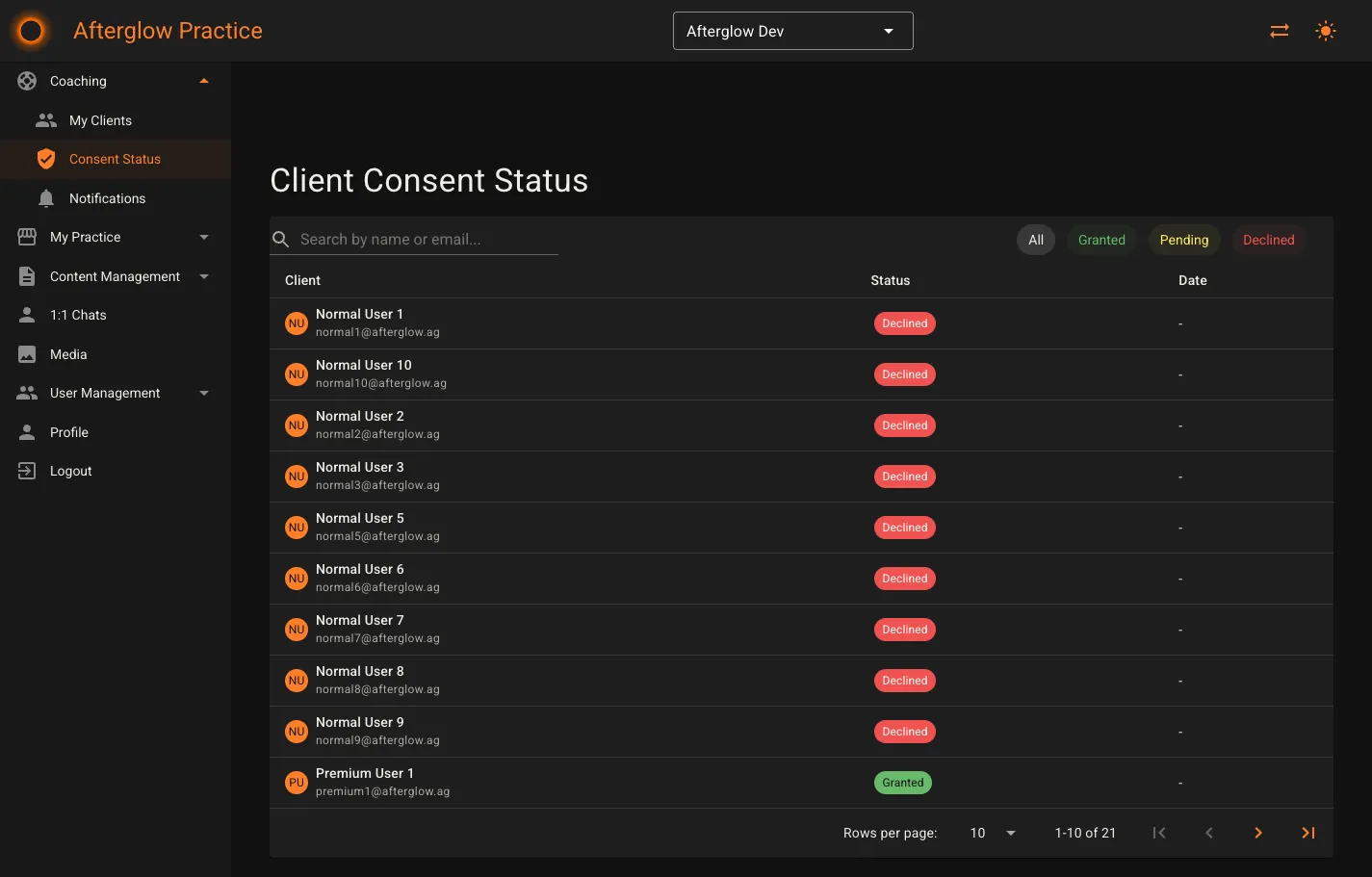
The page includes a search field and a set of filter chips:
- All — Shows every client.
- Granted — Clients who have opted in to sharing data with their coach.
- Pending — Clients who have not yet made a decision.
- Declined — Clients who have explicitly opted out.
The table displays each client’s name, email, consent status, and the date the status was last updated. Only clients with the Granted status will appear on your My Clients page.
Notifications
Section titled “Notifications”The Notifications page helps you stay on top of client engagement. It is split into two tabs.
Notifications tab
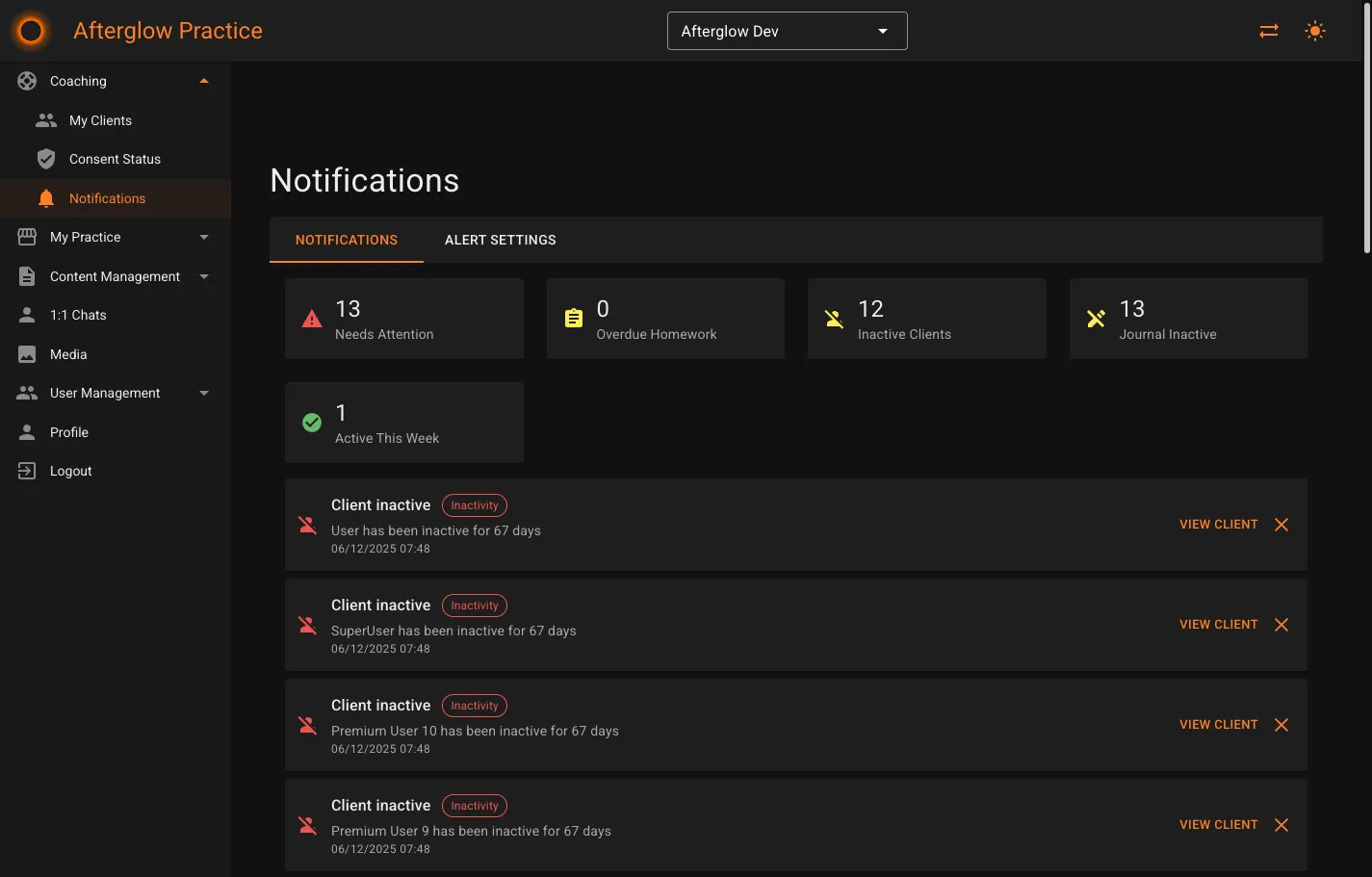
Section titled “Notifications tab”The Notifications tab opens with a stats grid showing five summary cards:
- Needs Attention — Number of clients flagged for inactivity.
- Overdue Homework — Number of homework assignments past their expiry date.
- Inactive Clients — Number of clients who have not logged in within your threshold.
- Journal Inactive — Number of clients who have not written a journal entry within your threshold.
- Active This Week — Number of clients who have been active in the past seven days.
Below the stats grid, an alert list shows individual engagement alerts. Each alert displays a title, category, severity level, message, and timestamp. You can:
- Click View Client to navigate directly to that client’s detail panel on the My Clients page.
- Click the dismiss button to remove the alert from the list.
When all clients are on track, a success message appears in place of the alert list.
Alert Settings
Section titled “Alert Settings”The Alert Settings tab lets you configure when alerts are generated. Three categories of alerts can be toggled independently:
- Inactivity Alerts — Enable or disable, and set the number of days of inactivity before a client is flagged.
- Homework Alerts — Enable or disable, and set the number of days past the expiry date before homework is marked as overdue.
- Journal Alerts — Enable or disable, and set the number of days without a journal entry before the client is flagged.
Click Save Settings to apply your changes. The stats grid and alert list update immediately to reflect the new thresholds.
Related topics
Section titled “Related topics”- Coaching — How coaching, consent, and payments work on the platform.
- Journaling — How journal entries, AI analysis, and emotion scoring work.
- Roles and Permissions — Which roles have access to Practice.
- Notifications and Alerts — How the notification system works across the platform.