

User Notifications
User Notifications lets you define rules that automatically send in-app (and optionally push) notifications to users when specific events occur, such as completing a lesson or being added to a circle.
Notification rules overview
Section titled “Notification rules overview”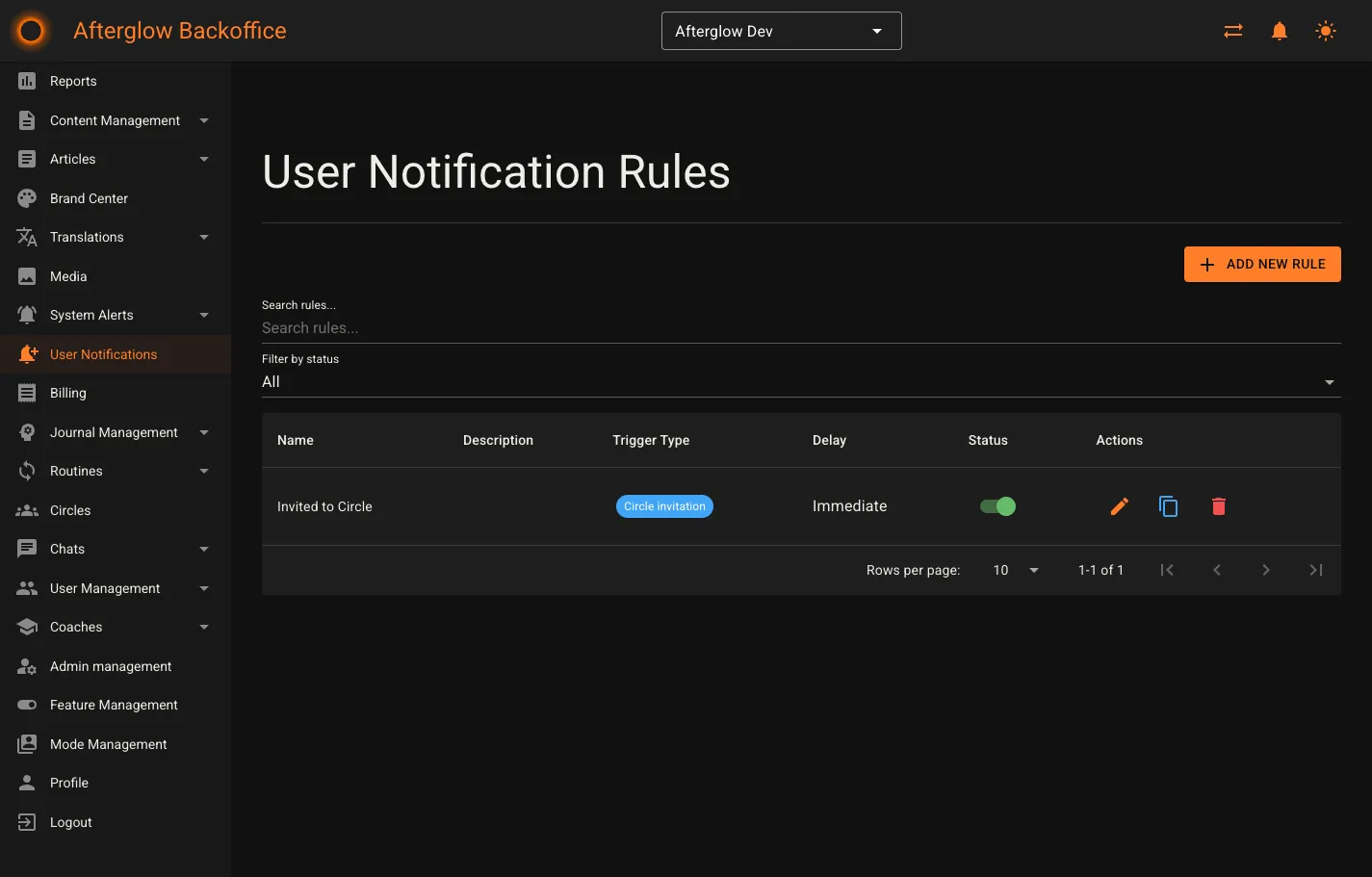
The overview page lists every notification rule in a searchable, sortable table. You can filter rules by status (enabled, disabled, or all) and search by name or description.
Each row shows:
- Name — the rule’s display name.
- Description — a short internal note explaining the rule’s purpose.
- Trigger Type — the event that fires the rule (shown as a chip).
- Delay — how long after the event the notification is sent, or “Immediate” if there is no delay.
- Status — an on/off toggle that enables or disables the rule without deleting it.
- Actions — edit, duplicate, or delete the rule.
Use the Add New Rule button in the top-right corner to create a new notification rule.
Quick actions
Section titled “Quick actions”- Enable / Disable — flip the status toggle in the row to start or stop a rule instantly.
- Duplicate — creates a copy of the rule with “(Copy)” appended to the name. The copy is disabled by default so you can adjust it before activating.
- Delete — permanently removes the rule after a confirmation prompt.
Creating and editing a rule
Section titled “Creating and editing a rule”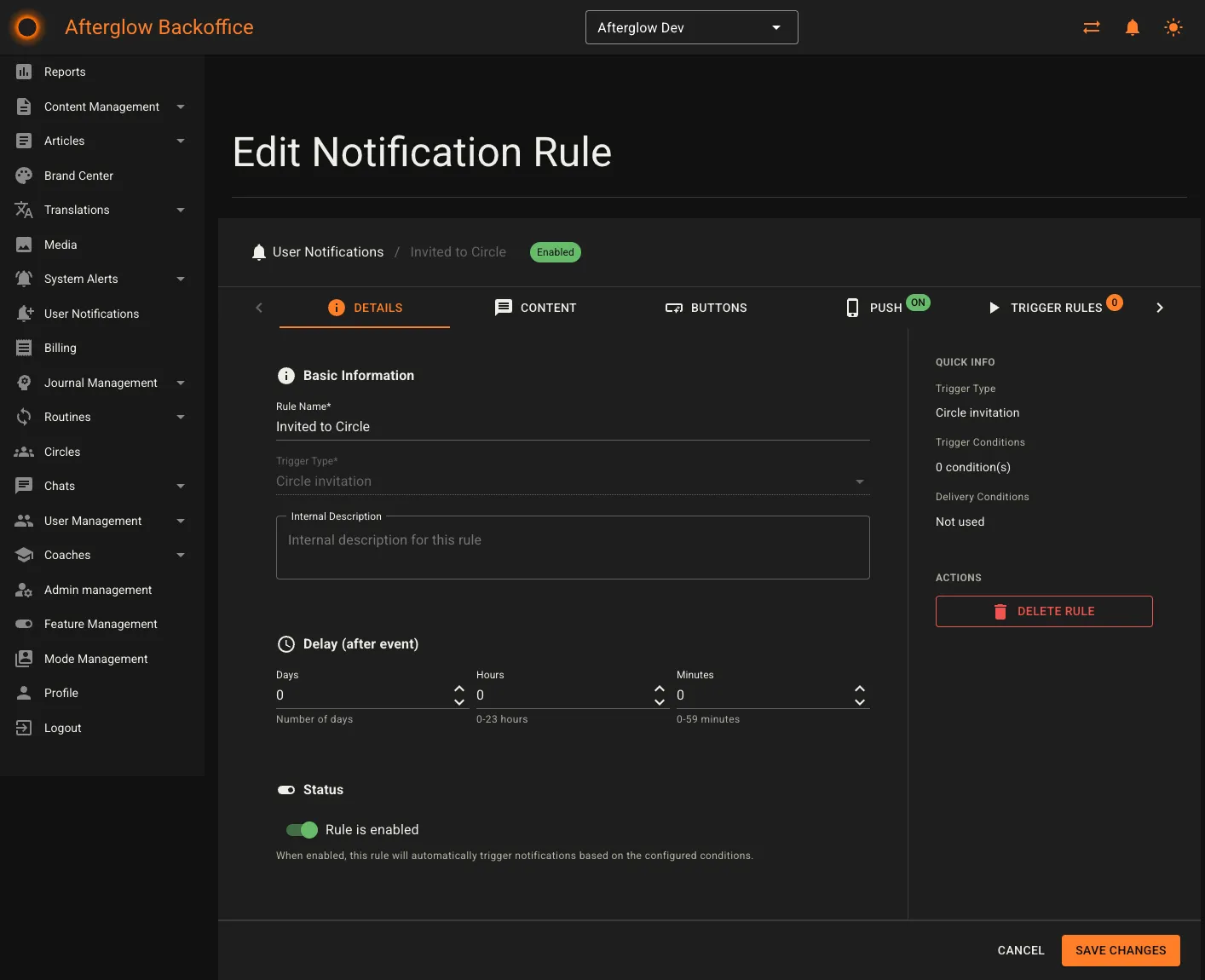
The rule editor is organized into six tabs: Details, Content, Buttons, Push, Trigger Rules, and Delivery Rules. Each tab focuses on a different aspect of the notification.
A breadcrumb bar at the top links back to the rules overview. When editing an existing rule a status chip (Enabled / Disabled) appears next to the breadcrumb. An “Unsaved changes” indicator appears in the footer whenever you modify a field.
Details tab
Section titled “Details tab”The Details tab holds the core settings for the rule.
- Rule Name — a required display name for the rule.
- Trigger Type — the event that fires this notification (see the list of trigger types below). The trigger type can only be set when creating a new rule; it cannot be changed afterward.
- Internal Description — an optional note visible only to administrators.
- Delay — how long to wait after the triggering event before sending the notification, expressed in days, hours, and minutes. Set all values to zero for immediate delivery.
- For the Manual Content Activation Reminder trigger type the delay label changes to “Reminder Time (before expiry)”, meaning the notification fires that amount of time before the activation expires rather than after the event.
- Status — a toggle that enables or disables the rule.
A sidebar on the right shows quick info for existing rules (trigger type, number of trigger conditions, and number of delivery conditions) and a Delete Rule button. For new rules the sidebar displays a getting-started message.
Trigger types
Section titled “Trigger types”When creating a rule you must select one of the following trigger types:
- Lesson Completed — fires when a user completes a lesson.
- Manual Content Activation — fires when content is manually activated for a user.
- Manual Content Activation Reminder — fires a set time before a manual content activation expires.
- Circle Added — fires when a user is added to a circle.
- Circle Removed — fires when a user is removed from a circle.
- Circle Blocked — fires when a user is blocked from a circle.
- Circle Invitation — fires when a user receives a circle invitation.
- Circle Request Approved — fires when a user’s request to join a circle is approved.
- Circle Request Rejected — fires when a user’s request to join a circle is rejected.
Content tab
Section titled “Content tab”The Content tab defines what the user sees inside the notification.
- Media (optional) — attach an image, video, or audio file from the media library. You can change or remove the attached media at any time.
- Title — the notification headline (required). Supports template variables.
- Message — the notification body text (required). Supports template variables and translation keys.
- Preview Notification — opens a dialog that shows a mobile-frame preview of the notification with sample data filled in for each template variable.
Template variables
Section titled “Template variables”Both the title and message fields support template variables. Wrap a variable name in double curly braces (for example {{CompletionCount}}) and it will be replaced with the real value at send time. Variables are case-insensitive. If a variable is not available in the notification context it remains unchanged in the text.
Common variables
{{EventType}}— the type of event that triggered the notification.
Lesson completion variables
{{CompletionCount}}— number of times this user completed this lesson.{{TotalLessonsCompleted}}— total number of lessons the user has completed.{{CompletedAt}}— date and time when the lesson was completed.
Manual content activation variables
{{LessonTitle}}— title of the lesson.{{LessonPublicId}}— public identifier of the lesson.{{ExpiryDate}}— date when the manual activation expires (if applicable).
Circle variables
{{CircleName}}— name of the circle.{{AddedAt}}— date and time when the user was added to the circle.{{InvitedByUserName}}— username of the person who sent the invitation (Circle Invitation trigger only).{{InvitationMessage}}— optional message included with the invitation.{{InvitedAt}}— date and time when the invitation was sent.
Buttons tab
Section titled “Buttons tab”Configure the action buttons that appear on the notification.
- Confirm button text — the label on the primary action button (required, max 50 characters).
- Confirm button behavior — choose where the user navigates when tapping the confirm button. The default behavior closes the notification window. Available navigation targets:
- Home
- Insights
- Content
- Journal
- Community
- Profile
- Show Cancel Button — toggle to display a secondary dismiss button.
- Cancel Button Text — the label on the cancel button (required when the cancel button is enabled).
Push tab
Section titled “Push tab”Control whether a push notification is also sent to the user’s device.
- Send Push Notification — toggle to enable or disable the push notification.
- Push Notification Title — the title shown in the device notification (required when push is enabled).
- Push Notification Message — an optional override message for the push notification. If left empty the main notification message is used.
When push notifications are enabled a green “ON” badge appears on the Push tab.
Trigger Rules tab
Section titled “Trigger Rules tab”Trigger rules define the conditions that must be met for the notification to fire. A badge on the tab shows the current number of conditions.
Use the condition builder to add one or more conditions. Each condition consists of:
- Logical operator (for the second condition onward) — AND or OR, controlling how conditions combine.
- Condition type — depends on the trigger type:
- For lesson-based triggers: Lesson (select a specific lesson) or Completion Count (a numeric value).
- For the Manual Content Activation Reminder trigger with delivery conditions: Activated Lesson Completed (checks whether the activated lesson has been completed).
- For circle-based triggers: Circle (select a specific circle).
- Comparison operator — Equals, Not Equals, Greater Than, Less Than, or Contains.
- Value — the value to compare against. For lessons and circles a dropdown lets you pick from existing items. For completion count you enter a number.
A Rule Preview below the conditions shows a human-readable summary of the combined rule (for example Lesson Equals 'Introduction to Mindfulness' AND Completion Count GreaterThan '2').
Delivery Rules tab
Section titled “Delivery Rules tab”Delivery rules are optional conditions checked just before sending. If any delivery condition is met the notification is not delivered. This is useful for suppressing notifications that are no longer relevant (for example, skipping a reminder if the user already completed the lesson).
- Use delivery conditions — toggle to enable delivery rule evaluation.
- When enabled, the same condition builder used for trigger rules appears, with the same condition types and operators.
- A badge on the tab shows the number of active delivery conditions.
Testing delivery conditions
Section titled “Testing delivery conditions”For saved rules you can click Test Delivery Conditions to open a test dialog. In the dialog:
- Search for and select a user.
- Click Run Test.
- The results show whether the notification would be sent or blocked, along with a pass/fail status for each individual condition and the evaluated values.
Notification preview
Section titled “Notification preview”The notification preview dialog, accessible from the Content tab, renders the notification in a mobile phone frame so you can see how it will look to end users. Template variables are replaced with sample data (for example, {{LessonTitle}} becomes “Introduction to Mindfulness”).
If a push notification is configured the preview dialog includes a second tab showing the push notification title and message.
Related topics
Section titled “Related topics”- Notifications and Alerts — How notifications and alerts fit into the broader platform.