

Translations
The Translations section lets you override and customize all user-facing text in the Afterglow mobile app. You can change wording to match your organization’s tone, fix translations for your audience, or add entirely new translation keys.
Who has access?
Section titled “Who has access?”Translations management is available to users with one of these roles:
- Admin — Full access to translation values and styling.
- SuperUser — Full access to translation values and styling.
See User Roles for a complete role comparison.
How translations work
Section titled “How translations work”Afterglow ships with a complete set of default translations in four languages: English, German, French, and Spanish. These defaults cover every piece of text in the mobile app.
When you edit a translation, your change is saved as a custom translation that takes priority over the default. This means:
- You only need to change the text you want to customize.
- Default translations continue to apply for everything you have not modified.
- You can reset any custom translation back to the platform default at any time.
Translation values
Section titled “Translation values”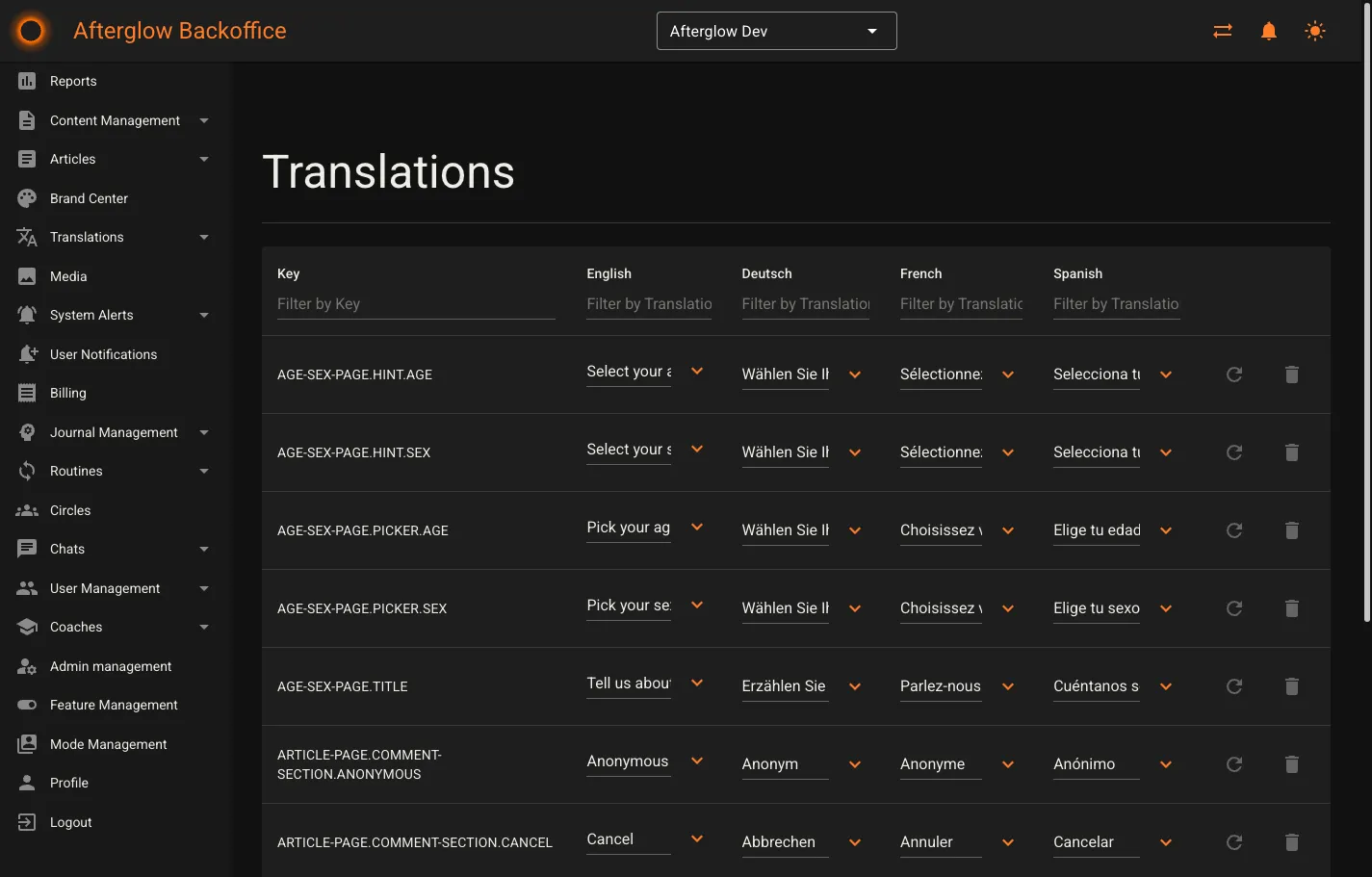
The Translations page displays all translation keys in a table with columns for:
- Key — The unique identifier for the translation (e.g.,
AGE-SEX-PAGE.TITLE). - English — The English translation text.
- Deutsch — The German translation text.
- French — The French translation text.
- Spanish — The Spanish translation text.
Filtering and sorting
Section titled “Filtering and sorting”Each column header includes a filter field. Type into a filter to narrow the table to rows that match your search term. Filters work across all columns independently, so you can combine them to find exactly the translation you need.
Click any column header to sort the table by that column.
Editing a translation
Section titled “Editing a translation”To edit a translation value, click into the text field for the language you want to change and type your new text. For longer translations, click the expand button next to the text field to open a larger editing dialog.
Modified rows are tracked automatically. The Save button becomes active once you have made changes.
Adding a custom translation
Section titled “Adding a custom translation”Click Add New Translation to add a new row at the bottom of the table. Enter a unique key and fill in the translation values for each language. New translations are useful when you need text for custom features or workspace-specific content.
Resetting and deleting
Section titled “Resetting and deleting”Each row has two action buttons:
- Reset — Reverts a customized translation back to the platform default. Only available for system-managed keys that you have customized.
- Delete — Permanently removes a custom translation key. Only available for keys you created (not system-managed keys).
Translation styling
Section titled “Translation styling”The Translation Styling page lets you customize the visual appearance of specific translation keys in the mobile app. Each row shows:
- Key — The translation key to style.
- Font Style — Choose between Normal or Italic, or leave as Default.
- Font Weight — Set the text weight (e.g., W300 for light, W700 for bold), or leave as Default.
- Font Family — Select from available fonts uploaded to the Media library.
- Color — Set a custom text color using the color picker, or leave unset.
Click Add custom color to apply a color to a key. Use the clear button next to the color picker to remove a custom color.
Saving and publishing
Section titled “Saving and publishing”Translation changes follow a two-step workflow:
- Save — Saves your changes. Click Save after editing values or styling. Use Revert changes to discard unsaved edits.
- Publish translations — Pushes saved changes live to all app users. Until you publish, your saved changes remain in the Backoffice only.
Related topics
Section titled “Related topics”- Brand Center — Customize your workspace’s visual identity including colors and typography.