

System Alerts
System Alerts let you define automated rules that monitor user activity and platform events, then notify your team when something important happens.
Alert Rules
Section titled “Alert Rules”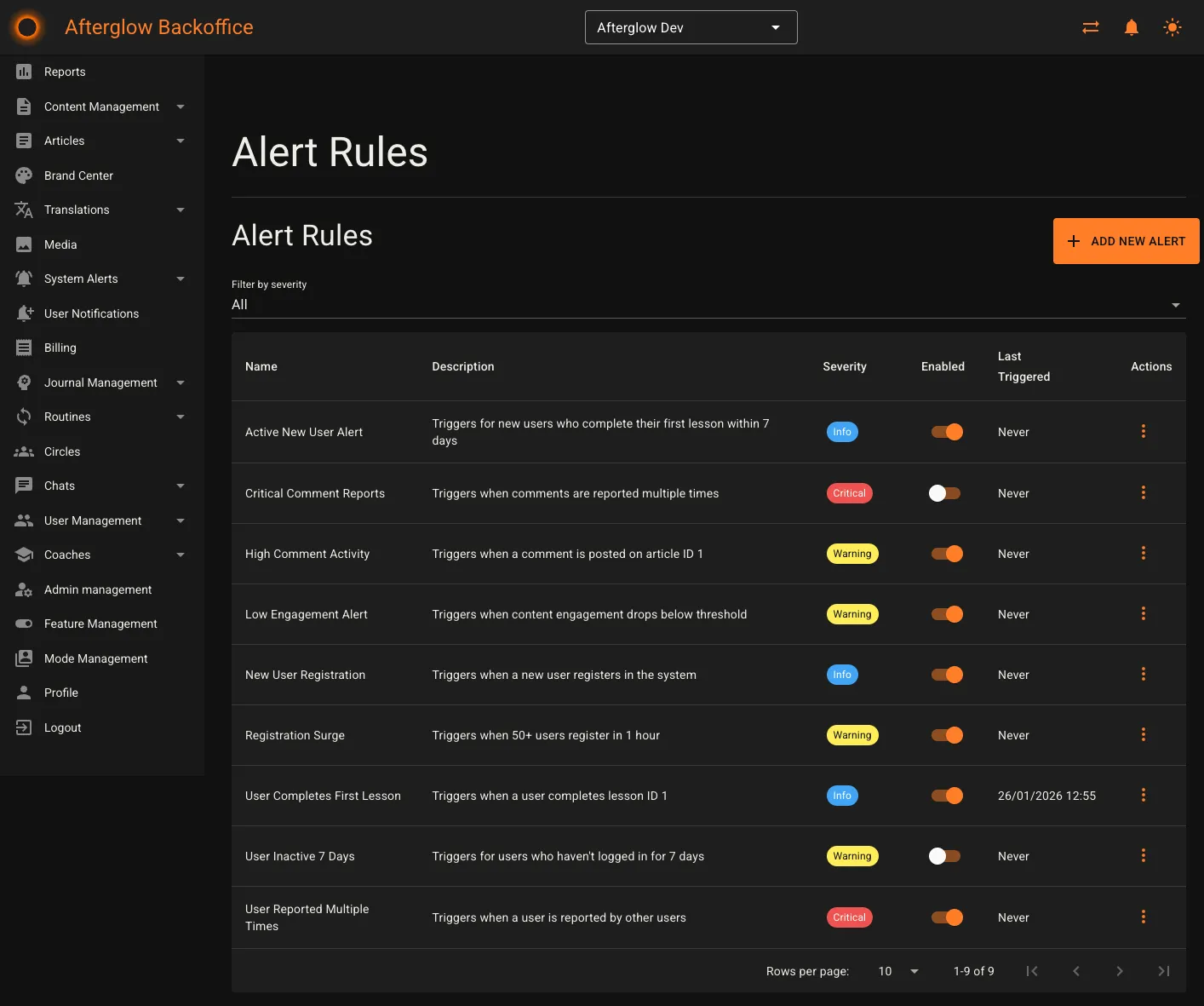
The Alert Rules page lists every rule configured for your workspace. The table displays:
- Name of the rule.
- Description (optional summary of what the rule monitors).
- Severity shown as a color-coded chip — blue for Info, orange for Warning, red for Critical.
- Enabled toggle that lets you activate or deactivate a rule directly from the list.
- Last Triggered timestamp, or “Never” if the rule has not fired yet.
You can filter the list by severity using the dropdown above the table.
Each row has an actions menu with three options:
- Edit — opens the rule for editing.
- Clone — creates a copy of the rule with “(Copy)” appended to the name.
- Delete — permanently removes the rule after a confirmation prompt.
Click Add New Alert to create a new rule.
Creating and editing alert rules
Section titled “Creating and editing alert rules”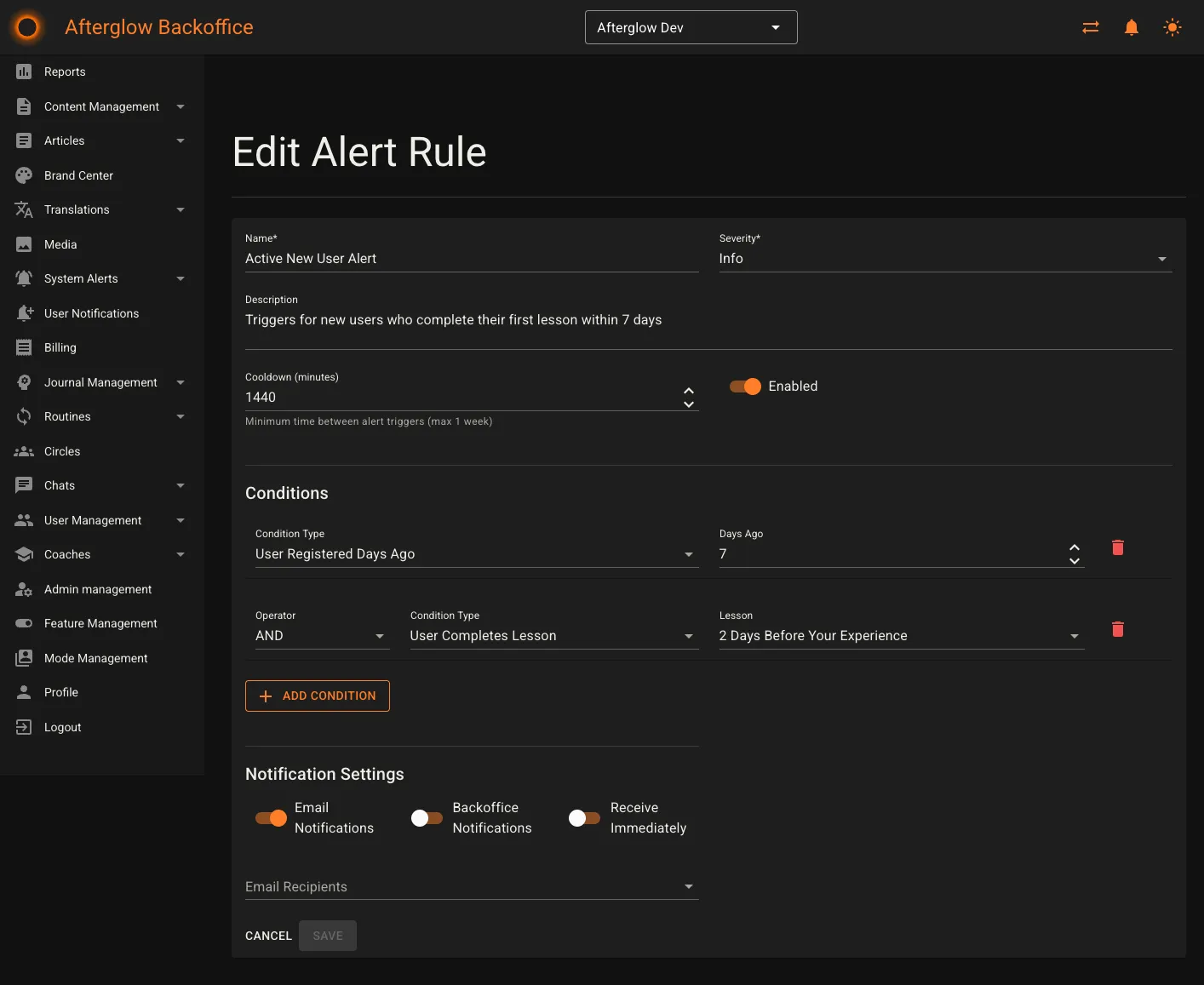
The alert rule form has the following fields:
- Name — a descriptive label for the rule (required, max 200 characters).
- Severity — choose Info, Warning, or Critical to indicate how urgent the alert is.
- Description — an optional longer explanation of the rule’s purpose (max 1,000 characters).
- Cooldown (minutes) — the minimum time that must pass before the same rule can trigger again. Set this to avoid duplicate alerts for recurring events. The maximum cooldown is one week (10,080 minutes).
- Enabled — toggle the rule on or off.
Conditions
Section titled “Conditions”Every rule needs at least one condition. Conditions define what event or threshold triggers the alert. Click Add Condition to add a row, then choose a condition type:
- User Completes Lesson — fires when a user finishes a specific lesson, or any lesson if you leave the lesson selector on “Any Lesson.”
- User Registered Days Ago — fires based on how many days ago a user registered. Enter the number of days.
- Comment on Article — fires when a comment is posted on a specific article, or on any article.
- User Inactivity Days — fires when a user has been inactive for the specified number of days.
- Threshold Registrations — fires when the number of new registrations reaches a threshold within a time window (in hours).
- Content Engagement — fires when a content engagement metric (Lessons Completed, Modules Started, or Surveys Completed) reaches a specified count.
- User Registers — fires whenever a new user registers. No additional parameters are needed.
- User Reports User — fires whenever one user reports another. No additional parameters are needed.
When a rule has more than one condition, you choose a logical operator (AND or OR) to combine each additional condition with the ones above it.
Notification settings per rule
Section titled “Notification settings per rule”Below the conditions, you configure how your team is notified when this rule fires:
- Email Notifications — toggle email delivery on or off.
- Backoffice Notifications — toggle in-app notifications on or off.
- Receive Immediately — when enabled, notifications are sent as soon as the alert triggers. When disabled, they are grouped into a daily digest delivered every morning.
- Email Recipients — visible when email notifications are enabled. Select one or more administrators from the multi-select dropdown. Only admins for your workspace appear in the list.
Alerts
Section titled “Alerts”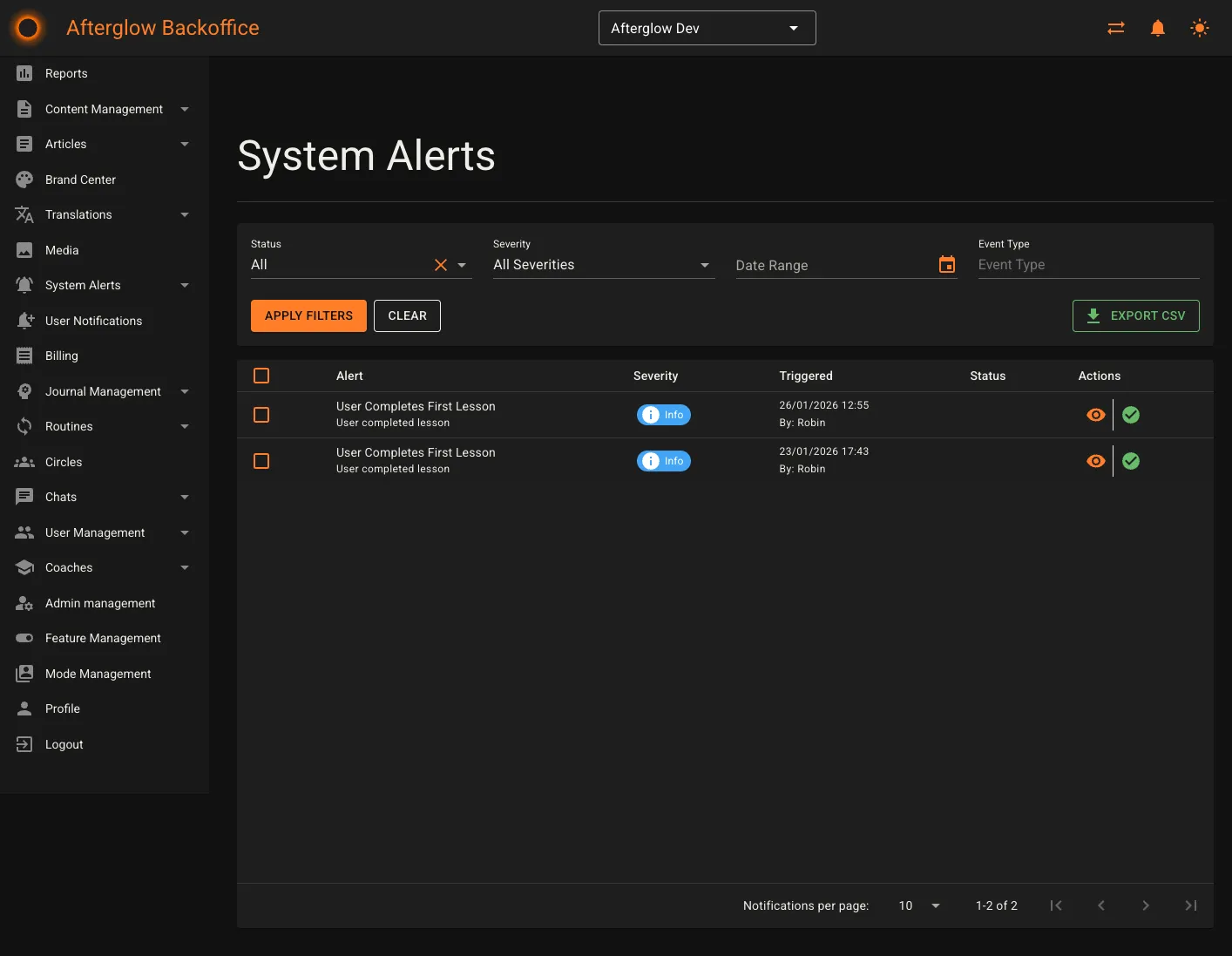
The Alerts page shows every notification that has been triggered by your alert rules. Each row displays:
- Alert — the rule name, event type, and a short message (if available).
- Severity — a color-coded chip with an icon.
- Triggered — the date and time the alert fired, plus the name of the user who caused the event (if applicable).
- Status — chips indicating whether the alert is Unread, Read, or Resolved.
Filtering
Section titled “Filtering”Use the filter bar at the top of the page to narrow results:
- Status — All, Unread, Read, Resolved, or Unresolved.
- Severity — All Severities, Info, Warning, or Critical.
- Date Range — pick a start and end date.
- Event Type — search by event type text.
Click Apply Filters to update the list, or Clear to reset all filters.
Bulk actions
Section titled “Bulk actions”Select one or more alerts using the checkboxes, then use the toolbar that appears:
- Delete — permanently removes the selected alerts after confirmation.
- Mark as Read — marks all selected alerts as read.
- Mark as Resolved — resolves all selected alerts.
- Clear Selection — deselects everything.
Exporting
Section titled “Exporting”Click Export CSV to download a file containing all alerts that match the current filters. The export includes the alert name, event type, severity, triggered timestamp, triggered-by user, status, resolved timestamp, and resolved-by user.
Individual actions
Section titled “Individual actions”Each alert row has quick-action buttons:
- View details — opens the notification detail page.
- Mark as Read — available when the alert is unread.
- Mark as Resolved — available when the alert is not yet resolved.
Notification detail
Section titled “Notification detail”Clicking an alert opens its detail page. The alert is automatically marked as read when you view it.
The detail page shows:
- Rule name and event type.
- Severity chip.
- Triggered at timestamp and the user or process that triggered it.
- Current status chips (Read/Unread, Resolved/Unresolved).
From this page you can:
- Mark as Read — if the alert is still unread.
- Mark as Resolved — closes the alert.
- Mark as Unresolved — reopens a previously resolved alert.
Notification data
Section titled “Notification data”A data table displays all key-value pairs associated with the event (for example, the user name, content title, or other contextual information).
Alert rule information
Section titled “Alert rule information”Below the data table, the detail page shows information about the rule that generated the alert, including the rule name, description, enabled status, and cooldown setting. Click View Alert Rule to navigate to the rule’s edit page.
Status timeline
Section titled “Status timeline”A visual timeline traces the alert through its lifecycle:
- Alert Triggered — shows when and by whom.
- Marked as Read — shows who read it.
- Resolved — shows when and by whom.
Preferences
Section titled “Preferences”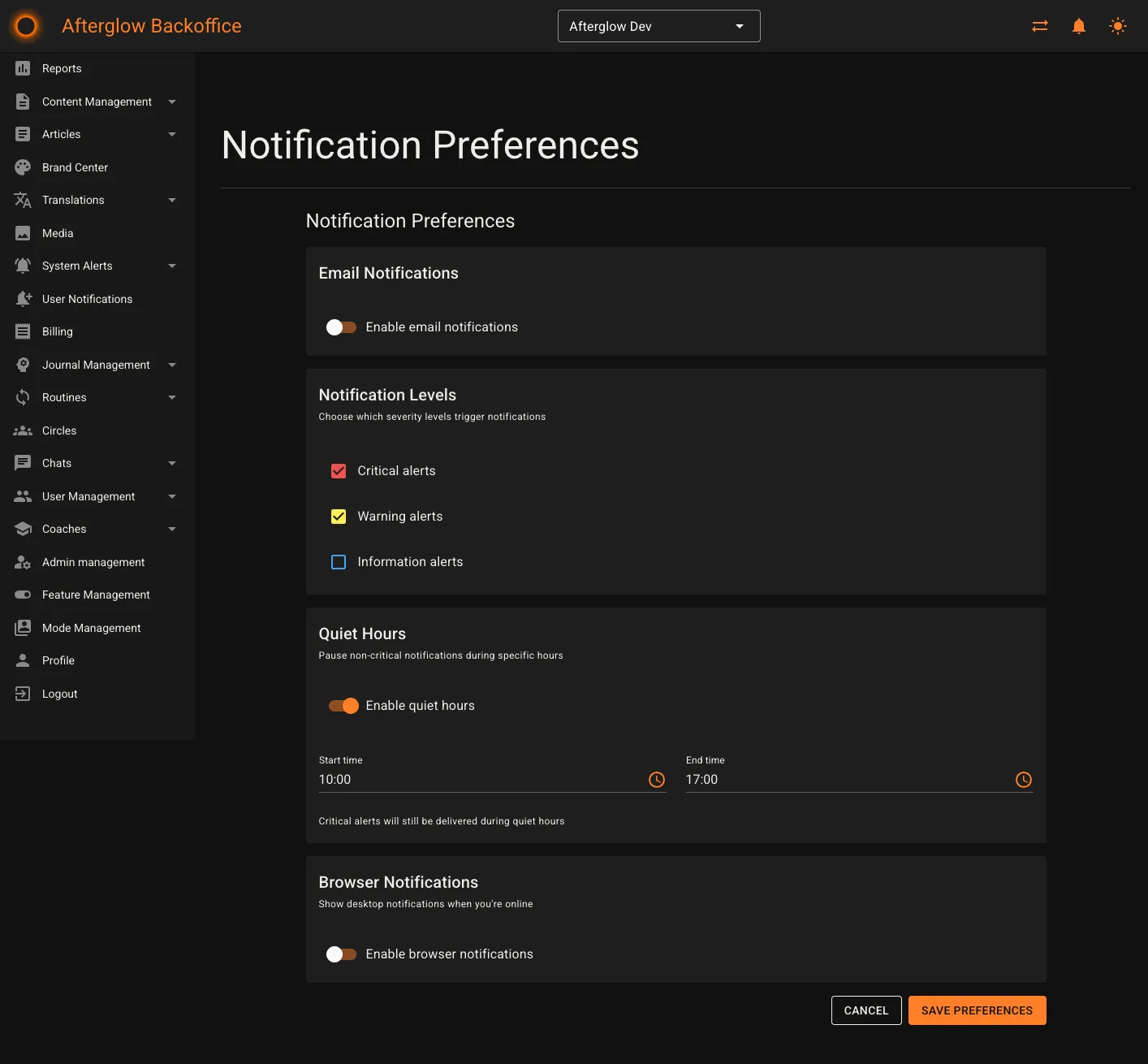
The Preferences page lets you control how you personally receive alert notifications. These settings apply to your account only and do not affect other administrators.
Email notifications
Section titled “Email notifications”- Enable email notifications — master toggle for all alert emails.
- Immediate — receive an email as soon as each alert triggers.
- Daily Digest — receive a single summary email once per day.
Notification levels
Section titled “Notification levels”Choose which severity levels you want to be notified about:
- Critical alerts
- Warning alerts
- Information alerts
Quiet hours
Section titled “Quiet hours”- Enable quiet hours — pauses non-critical notifications during a time window you define.
- Start time and End time — set the window during which notifications are suppressed.
Browser notifications
Section titled “Browser notifications”- Enable browser notifications — shows desktop notifications when you are online in the Backoffice. Your browser will ask for permission if it has not been granted yet.
- Play sound for critical alerts — plays an audio cue when a critical alert arrives.
After adjusting your preferences, click Save Preferences to apply the changes.
Related topics
Section titled “Related topics”- Notifications and Alerts — How the alert engine and notification delivery work behind the scenes.