

Routines
The Routines section lets you define recurring task templates and manage substances that users can track in their daily routines.
Task Templates
Section titled “Task Templates”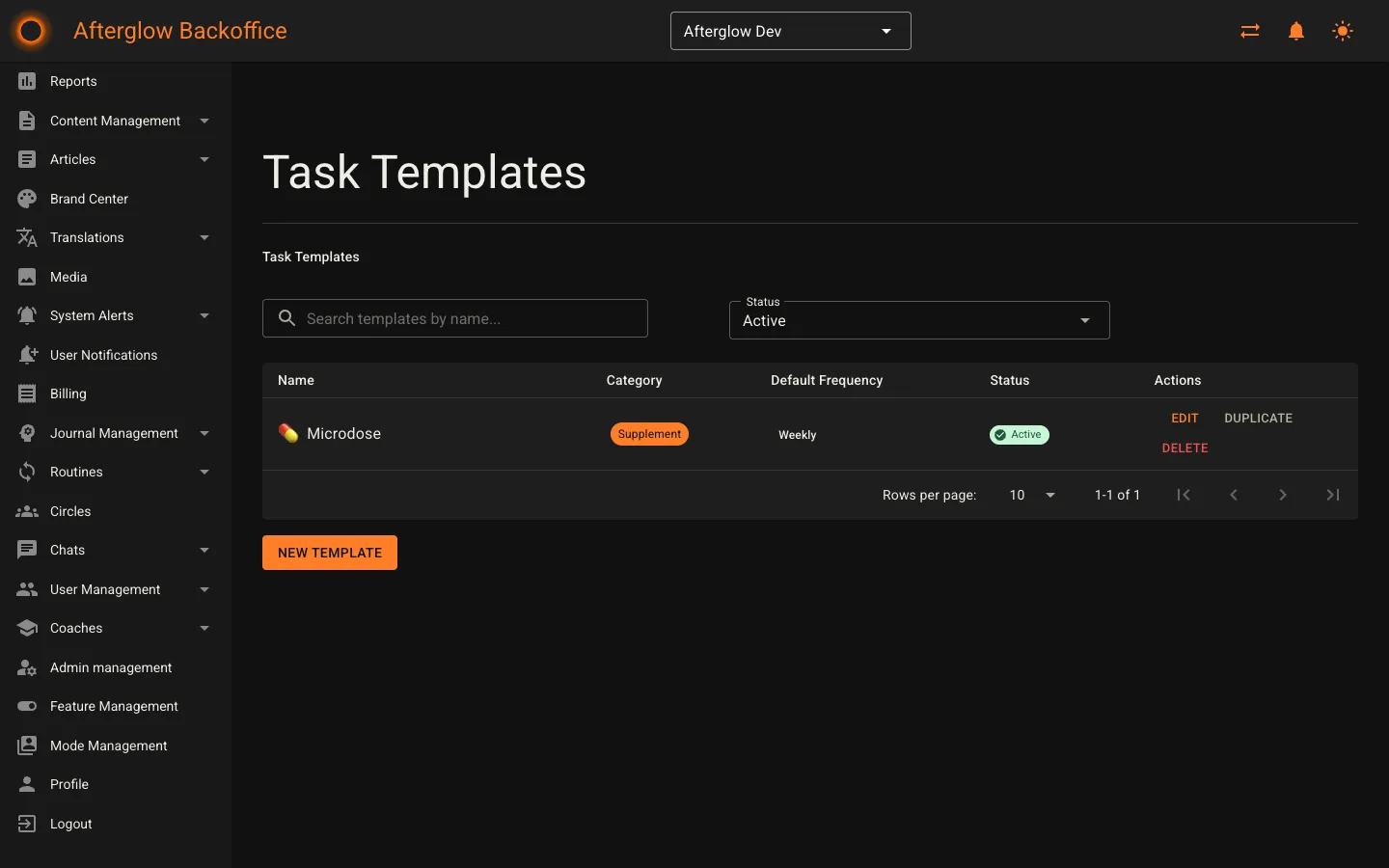
The Task Templates page lists all routine templates in a table. Each row displays:
- Name — The template name, with an optional emoji icon.
- Category — A color-coded label indicating the template type.
- Default Frequency — How often the task repeats by default.
- Status — Whether the template is active or inactive.
- Actions — Edit, Duplicate, or Delete the template.
You can filter templates by status (active, inactive, or all) and search by name using the search bar at the top of the page. Templates are sorted by their sort order, then alphabetically by name.
Creating a template
Section titled “Creating a template”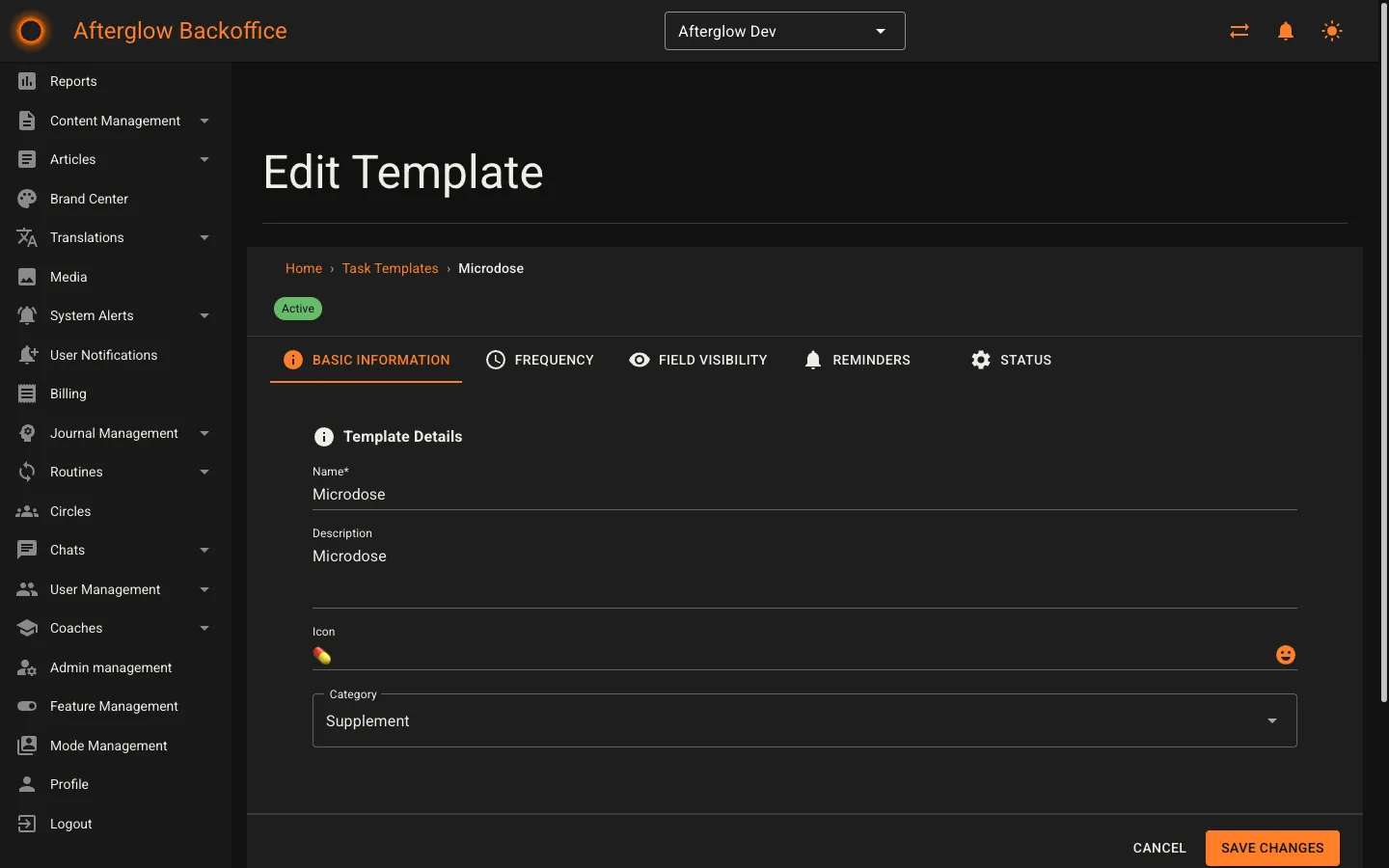
Click New Template to open the template editor. The editor is organized into five tabs described below. After filling in the details, click Save Changes to create the template. An “Unsaved changes” indicator appears whenever you have modified a field without saving.
Basic Information
Section titled “Basic Information”The first tab captures the core details of the template:
- Name — A short label for the template (required, max 100 characters).
- Description — A brief explanation of the template’s purpose (max 500 characters).
- Icon — An emoji that represents the template in lists and the app.
- Category — Choose one of the following:
- Supplement — For supplement-tracking tasks.
- Wellness — For general wellness activities.
- Check-In — For periodic self-assessment tasks.
- Custom — For anything that does not fit the other categories.
Frequency
Section titled “Frequency”The Frequency tab controls how often the task repeats:
- Allowed Frequencies — Select which frequency options users can choose from. At least one must be selected. The available options are:
- Daily — Every day.
- Weekly — Once per week.
- Monthly — Once per month.
- Every X Days — A custom interval in days.
- Custom Cycle — A repeating pattern of X days on, Y days off.
- Default Frequency — The frequency pre-selected for users. Must be one of the allowed frequencies.
- Allow Multiple Per Day — When enabled, users can complete the task more than once per day.
- Max Times Per Day — If multiple completions are allowed, set the upper limit (1-10).
Field Visibility
Section titled “Field Visibility”The Field Visibility tab determines which data-entry fields users see when they interact with the template:
- Show Substance Field — Toggle whether users can select a substance for this task. When enabled, you can also choose which substances are available for this specific template.
- Show Dosage Field — Toggle whether users can enter a dosage amount.
- Show Time Field — Toggle whether users can record the time they completed the task.
- Default Times — Pre-configured time options that users can pick from.
Reminders
Section titled “Reminders”The Reminders tab configures notification behavior:
- Show Reminder Toggle — Controls whether users see the option to enable reminders for this task.
- Default Reminder Type — The pre-selected reminder setting:
- None — No reminder.
- Once Daily — A single daily reminder.
- Per Occurrence — A reminder for each scheduled occurrence.
Status
Section titled “Status”The Status tab manages the template’s availability:
- Active — Controls whether the template is visible to end users. Inactive templates are hidden from the app but preserved in the Backoffice.
- Sort Order — A number that determines the display position. Lower numbers appear first.
Duplicating a template
Section titled “Duplicating a template”On the template list, click Duplicate next to any template to create an exact copy. The copy opens in the editor so you can adjust its details before saving. This is useful when you need several templates that share most of their settings.
Deleting a template
Section titled “Deleting a template”Click Delete on a template to permanently remove it. A confirmation dialog appears before deletion. Templates that have existing user tasks assigned to them cannot be deleted until those tasks are removed first.
Substances
Section titled “Substances”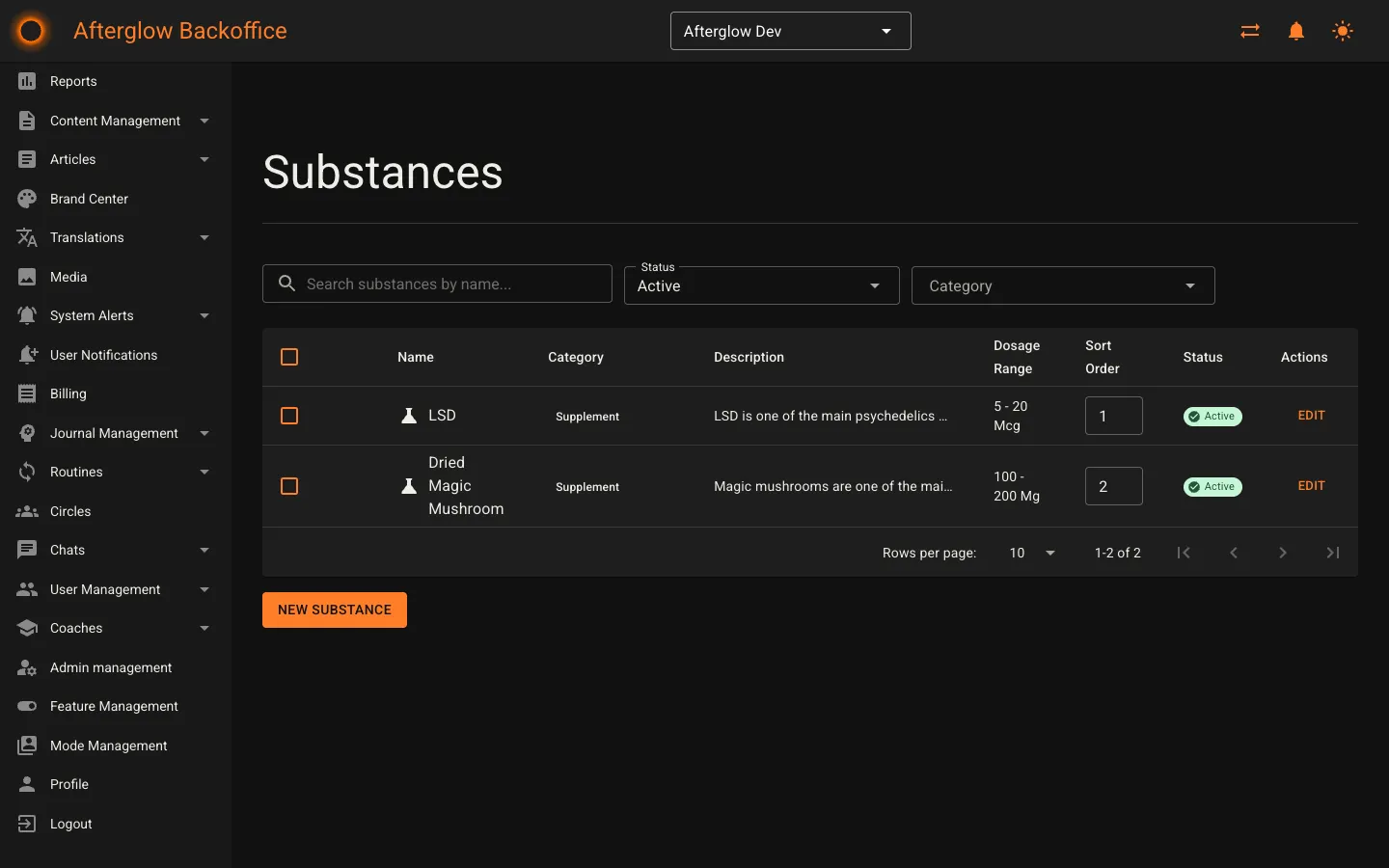
The Substances page manages the catalog of substances available for routine tracking. The table shows:
- Name — The substance name, with a category-specific icon.
- Category — The substance classification.
- Description — A short summary of the substance.
- Dosage Range — The typical minimum and maximum dosage with unit, if configured.
- Sort Order — Editable directly in the table for quick reordering.
- Status — Active or inactive.
You can search substances by name, filter by status, and filter by category using the dropdown next to the search bar.
Creating and editing substances
Section titled “Creating and editing substances”Click New Substance to open the substance dialog, or click Edit on an existing substance. The dialog includes the following fields:
- Name — The substance name (required, max 100 characters).
- Category — Choose from Vitamin, Mineral, Medication, Supplement, Herb, or Other.
- Description — An optional summary (max 500 characters).
- Typical Dosage Range — Optional minimum and maximum values that guide users toward safe amounts.
- Unit — The measurement unit for the dosage (e.g. mg, mcg, IU, ml, tablets, capsules, drops).
- Interactions — Known interactions with other substances (max 1000 characters).
- Warnings — Important precautions or safety information (max 1000 characters).
- Image URL — An optional link to an image of the substance.
- Sort Order — Display position within the substance’s category.
- Active — Whether the substance is available for selection.
Bulk actions
Section titled “Bulk actions”Select multiple substances using the checkboxes in the table, then use the bulk action toolbar to activate or deactivate them all at once. Click Clear Selection to deselect.
Sort order
Section titled “Sort order”You can edit the sort order of any substance directly in the table without opening the edit dialog. Type a new number into the sort order field and the change is saved automatically. Lower numbers appear first within each category.
Related topics
Section titled “Related topics”- Routines — How routines work from the end-user perspective.