

Coaches
The Coaches section lets you manage coaching professionals, configure the services they offer, oversee bookings, and connect external scheduling and payment integrations.
Coach list
Section titled “Coach list”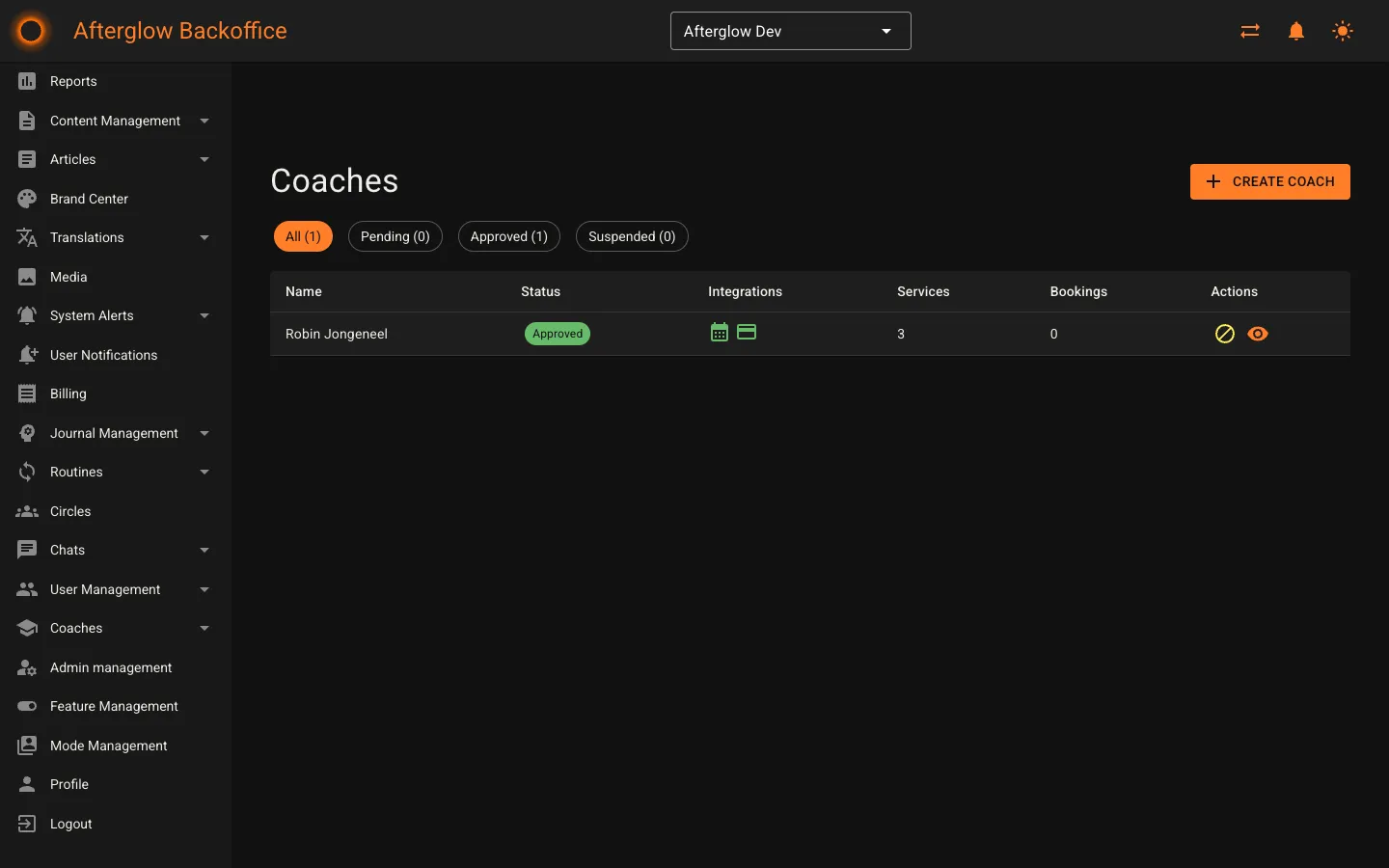
The coach list displays all coaches in a sortable table. Each row shows:
- Name — the coach’s display name.
- Status — a badge indicating Pending, Approved, or Suspended.
- Integrations — icons for Cal.eu (calendar) and Stripe (payments), coloured green when connected.
- Services — the number of active services the coach offers.
- Bookings — the total number of bookings for the coach.
Use the status filter chips at the top of the page to narrow the list to All, Pending, Approved, or Suspended coaches.
Quick actions
Section titled “Quick actions”Each row provides action buttons based on the coach’s current status:
- Pending coaches can be approved (checkmark) or rejected (cross).
- Approved coaches can be suspended (block icon).
- Suspended coaches can be reactivated (play icon).
Every coach row also has a View Details button that opens the coach detail page.
Status workflow
Section titled “Status workflow”Coaches follow a defined status lifecycle:
- A newly created coach starts as Pending.
- A pending coach can be Approved or Rejected. Rejection requires a reason, which is visible to the coach.
- An approved coach can be Suspended. Suspension requires a reason and hides the coach from the directory and prevents new bookings.
- A suspended coach can be Reactivated, returning them to Approved status.
Before a coach can be approved or reactivated, the system checks that all prerequisites are met (for example, required integrations). If any requirements are missing, you will see a warning listing what still needs to be configured.
Creating a coach
Section titled “Creating a coach”Click Create Coach to open the creation dialog. Fill in:
- Select User — search for an existing user by name or email. Only users that already have an account can be linked as a coach.
- Display Name — the name shown publicly for the coach (required).
- Bio — a short biography or introduction (optional).
A user can only be assigned as a coach once. After creation, the coach starts in Pending status and must be approved before they appear in the directory.
Coach detail page
Section titled “Coach detail page”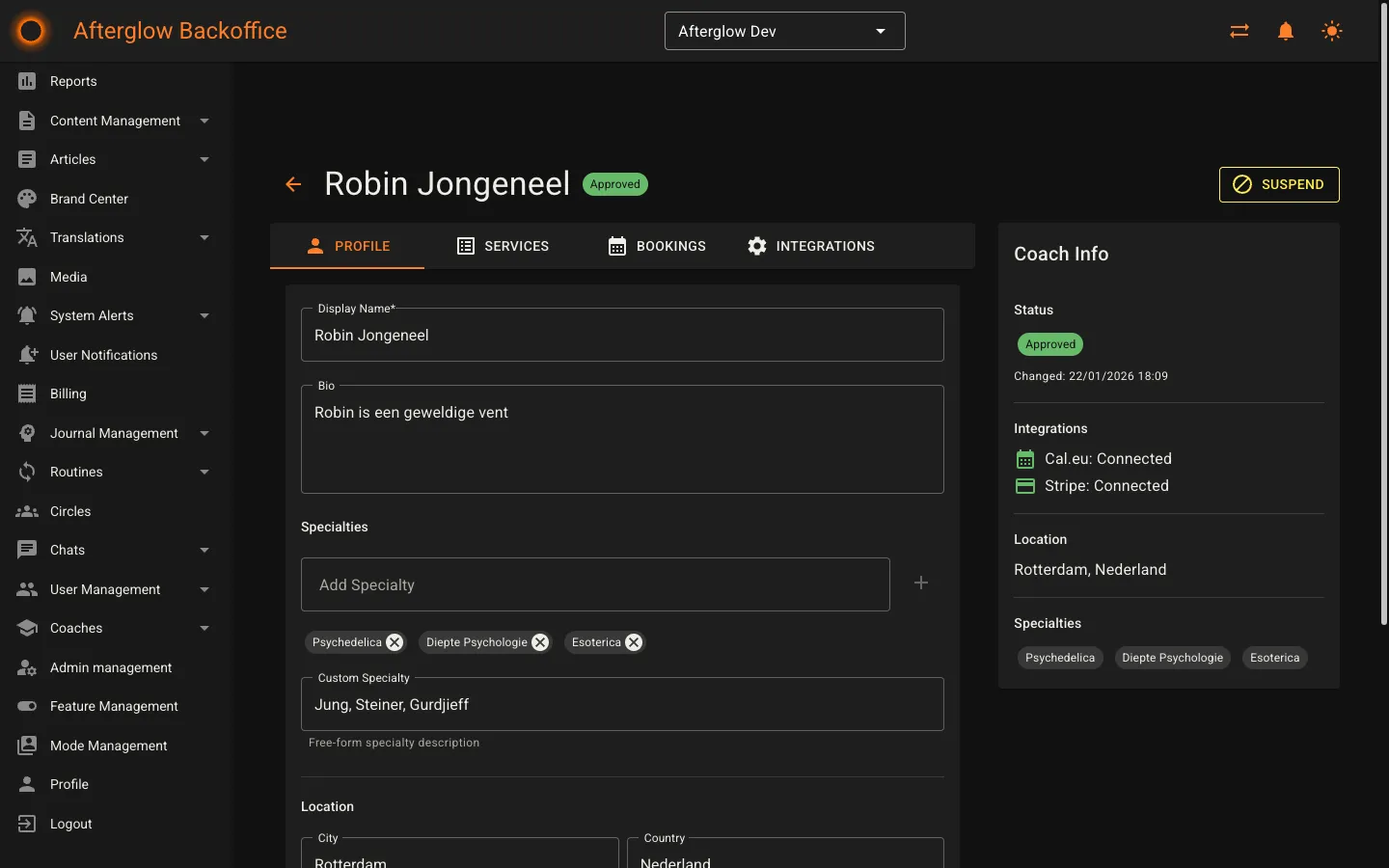
Click any coach row to open the detail page. The page header shows the coach’s name and status badge, along with status action buttons matching the current workflow state.
The detail page is organized into four tabs and a sidebar info card.
Profile
Section titled “Profile”The Profile tab manages the coach’s public information:
- Display Name — the coach’s public-facing name (required).
- Bio — a longer biography or description.
- Specialties — add specialties one at a time by typing and pressing Enter. Specialties appear as removable chips. You can also enter a Custom Specialty as free-form text.
- Location — city and country fields for the coach’s location.
- Profile Picture — select an existing image from the media library or upload a new one directly.
Click Save Changes to persist edits, or Reset to discard unsaved changes.
Services
Section titled “Services”The Services tab lists all services the coach offers. Each service row shows the name, type (Online or In Person), price, duration, and active status.
Adding a service
Section titled “Adding a service”Click Add Service to open the service creation dialog with the following fields:
- Name — the service title (required).
- Description — a summary of what the service includes.
- Price (EUR) — the price in euros. A minimum price may apply depending on your configuration.
- Duration (minutes) — session length, between 15 and 480 minutes in 15-minute increments.
- Service Type — choose Online or In Person.
- Premium users only — when enabled, only premium subscribers can book this service. This option only appears if the Premium Coach Services feature is active.
- Cal.eu Integration — if the coach has a Cal.eu API key configured, you can auto-create a matching Cal.eu event type, or manually enter an existing event type ID and slug.
Editing a service
Section titled “Editing a service”Click the edit icon on any service row to modify its properties. In addition to the fields above, you can toggle the Active status to show or hide the service from users.
Deleting a service
Section titled “Deleting a service”Click the delete icon to remove a service. If the service has existing bookings, it will be deactivated instead of permanently deleted.
Bookings
Section titled “Bookings”The Bookings tab shows all bookings for this specific coach, including:
- Scheduled — the date and time of the session.
- Service — which service was booked.
- Duration — session length in minutes.
- Status — Pending, Confirmed, Completed, Cancelled, or No Show.
- Price — the booking price.
Bookings with a Pending or Confirmed status can be cancelled by clicking the cancel icon. When cancelling, you must provide a reason. If the booking was paid through Stripe, you also have the option to initiate a refund.
Integrations
Section titled “Integrations”The Integrations tab manages two external service connections.
Cal.eu
Section titled “Cal.eu”Cal.eu provides calendar and scheduling functionality. To connect:
- Enter the coach’s Cal.eu API key (a unique code found in the coach’s Cal.eu account under Settings > Developer > API Keys).
- Click Save to store the key.
- Once connected, the system checks the calendar sync status. If the sync is not set up, click Create Webhook or Update Webhook to configure it.
You can clear the API key to disconnect the integration. A link to open Cal.eu directly is provided for convenience.
Stripe Connect
Section titled “Stripe Connect”Stripe Connect enables payment processing for coach services. The onboarding flow works as follows:
- Click Start Onboarding to create a Stripe Express account for the coach. This redirects to Stripe’s guided setup for identity verification and bank account details.
- If onboarding is incomplete, the status shows Action Required and you can click Continue Onboarding to resume.
- Once fully onboarded, the status shows Connected with badges confirming that charges and payouts are enabled. You can then open the Stripe Dashboard for the coach.
To remove the Stripe connection, click Disconnect. This stops payment processing until a new account is connected.
All Bookings page
Section titled “All Bookings page”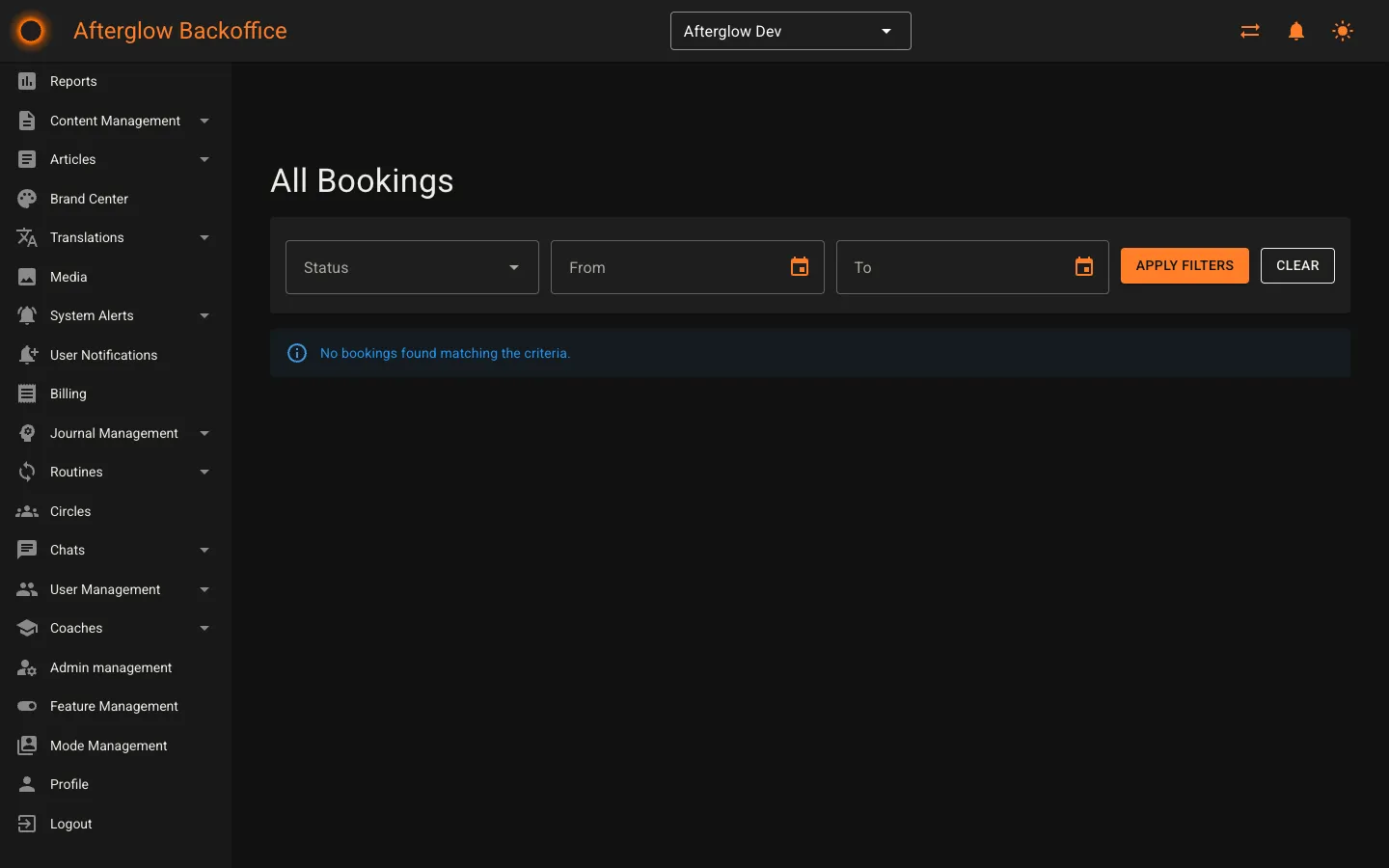
The All Bookings page (accessible from the sidebar) shows bookings across all coaches. You can filter by:
- Status — select a specific booking status from the dropdown.
- From / To — pick a date range to narrow results.
Click Apply Filters to update the list, or Clear to reset all filters. Each booking row shows the scheduled time, coach name (linked to their detail page), service, duration, status, and price. Pending or confirmed bookings can be cancelled from this page as well.
Related topics
Section titled “Related topics”- Coaching — How the coaching system works end-to-end.