

Circles
Circles let you organize users into groups with shared content and communication channels.
Circle overview
Section titled “Circle overview”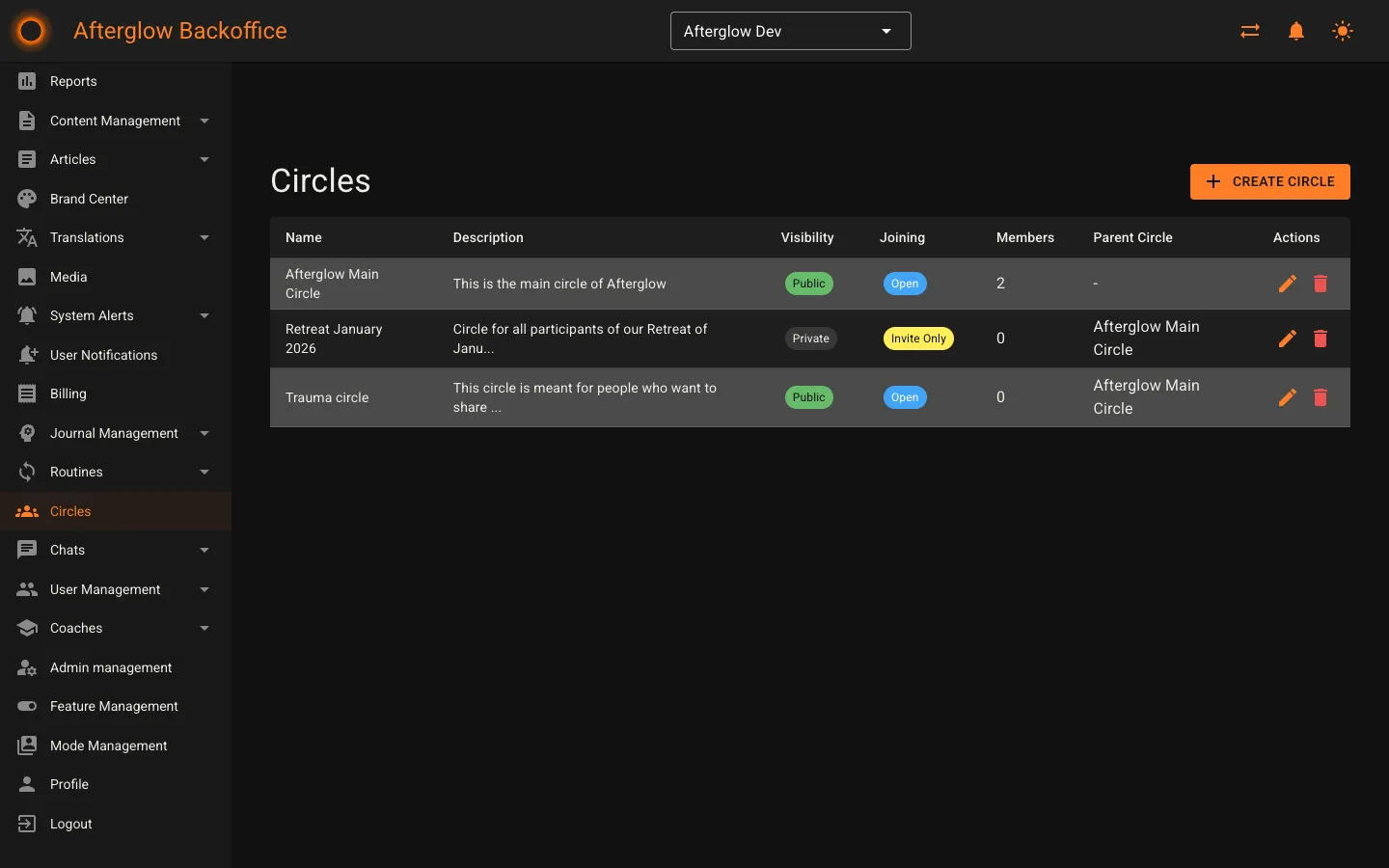
The circles overview displays all circles in a table. Each row shows:
- Name of the circle.
- Description (truncated if longer than 50 characters).
- Visibility — Public or Private.
- Joining — Open (anyone can join) or Invite Only.
- Members count.
- Parent Circle, if the circle is nested under another circle.
From each row you can click the edit icon to open the circle detail page, or the delete icon to permanently remove the circle.
Creating a circle
Section titled “Creating a circle”Click Create Circle on the overview page to open the creation dialog. You can configure:
- Name — Required, up to 200 characters.
- Description — Optional, up to 2000 characters.
- Public — When enabled, the circle is visible to all users. When disabled, only members can see it.
- Open — When enabled, users can join without an invitation. When disabled, users must be invited or have their join request approved.
- Parent Circle — Optionally nest this circle under an existing circle.
Editing a circle
Section titled “Editing a circle”Open a circle from the overview to reach its detail page. Click Edit Circle to change any of the settings listed above. The detail page also shows an info card with the circle’s current description, visibility, joining mode, and parent circle (if any).
Circle detail tabs
Section titled “Circle detail tabs”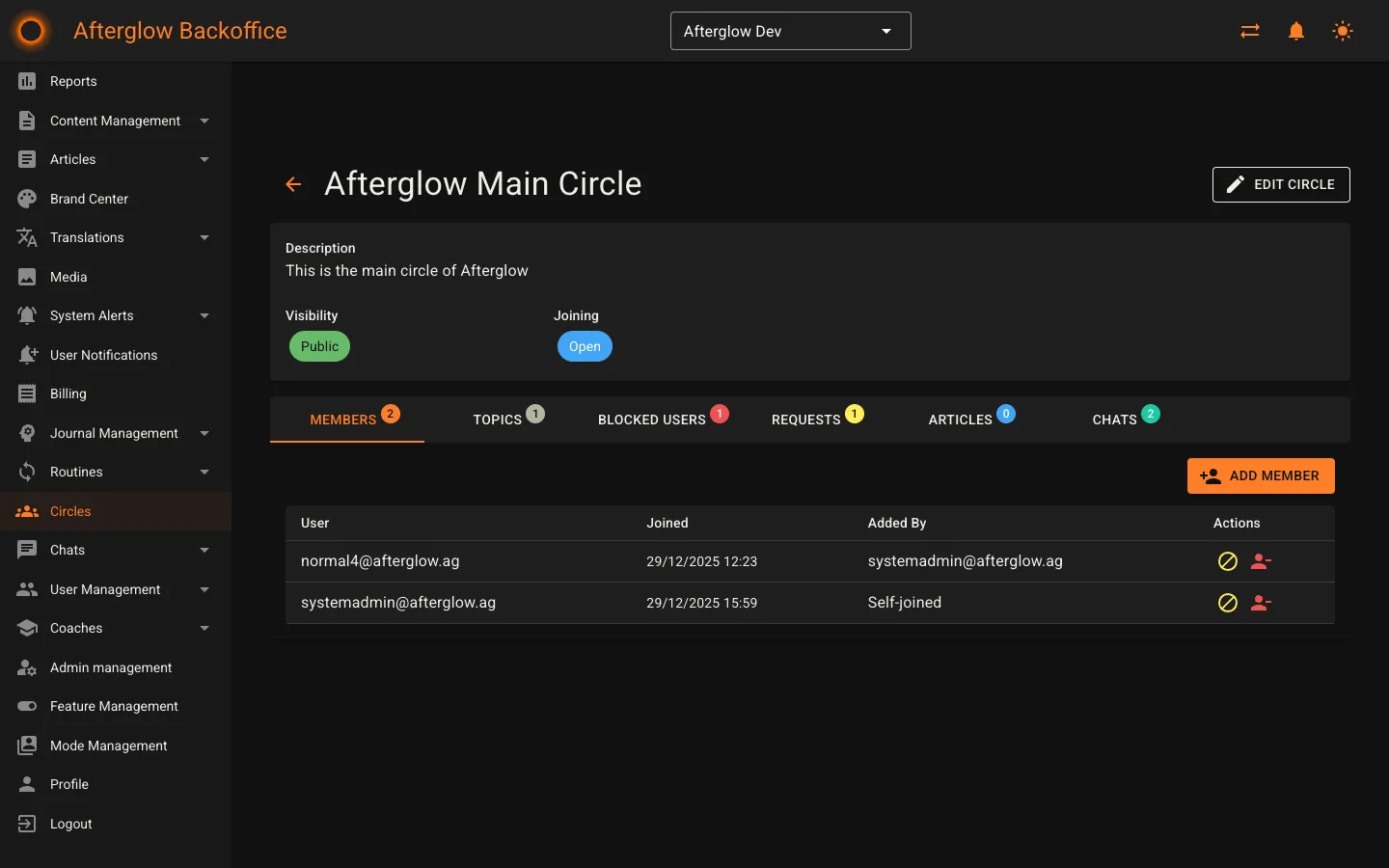
The detail page organizes circle management into six tabs.
Members
Section titled “Members”The Members tab lists all current circle members. From here you can:
- Add a member — Search for a user by name or email and add them directly. Users who are already members or blocked are excluded from the search.
- Remove a member — Remove a user from the circle after confirming.
- Block a member — Block a current member from the circle (see Blocked Users below).
Topics
Section titled “Topics”The Topics tab lets you link topics to the circle. Topics control which articles are visible to circle members. Select one or more topics from the list of all available topics and click Save to update.
Blocked Users
Section titled “Blocked Users”The Blocked Users tab shows all users who have been blocked from the circle. When you block a user:
- They are automatically removed from the circle if they are a current member.
- They cannot join or be added to the circle in the future.
- You can provide an optional reason for the block.
You can block a user in two ways: from the Members tab (to block an existing member) or from the Blocked Users tab (to block any user by searching for them). To restore access, click Unblock next to the blocked user.
Requests
Section titled “Requests”The Requests tab manages both join requests and invitations. It shows:
- Join requests — Submitted by users who want to join the circle. You can Approve or Reject each request.
- Invitations — Sent by you to specific users. While the invitation is pending, you can Cancel it.
To send a new invitation, click Send Invitation, search for a user, and optionally include a personal message.
Articles
Section titled “Articles”The Articles tab appears only when the Articles feature is also enabled for your workspace. It lists all articles linked to this circle.
- Link an article — Search for an available article by title or topic and link it to the circle. Articles already linked to the circle are excluded from the search.
- Unlink an article — Remove the association between an article and the circle.
The Chats tab appears only when the Chat feature is also enabled for your workspace. It lists all chats associated with this circle.
You can connect chats to a circle in two ways:
- Create a chat — Creates a brand-new chat for the circle. All current circle members are automatically added as participants. You can set a chat title (defaults to the circle name) and choose a permission level: All Members or Admins Only.
- Link an existing chat — Search for an unlinked chat and associate it with the circle. All circle members are added as participants when the chat is linked.
To disconnect a chat, click Unlink. Circle members will be removed as chat participants.
Related topics
Section titled “Related topics”- Circles concept — How circles work from a user perspective.