

Chats
The Chats section lets you communicate directly with individual users or with groups through circle-based conversations, all from within the Backoffice.
1:1 Chats
Section titled “1:1 Chats”Chat list
Section titled “Chat list”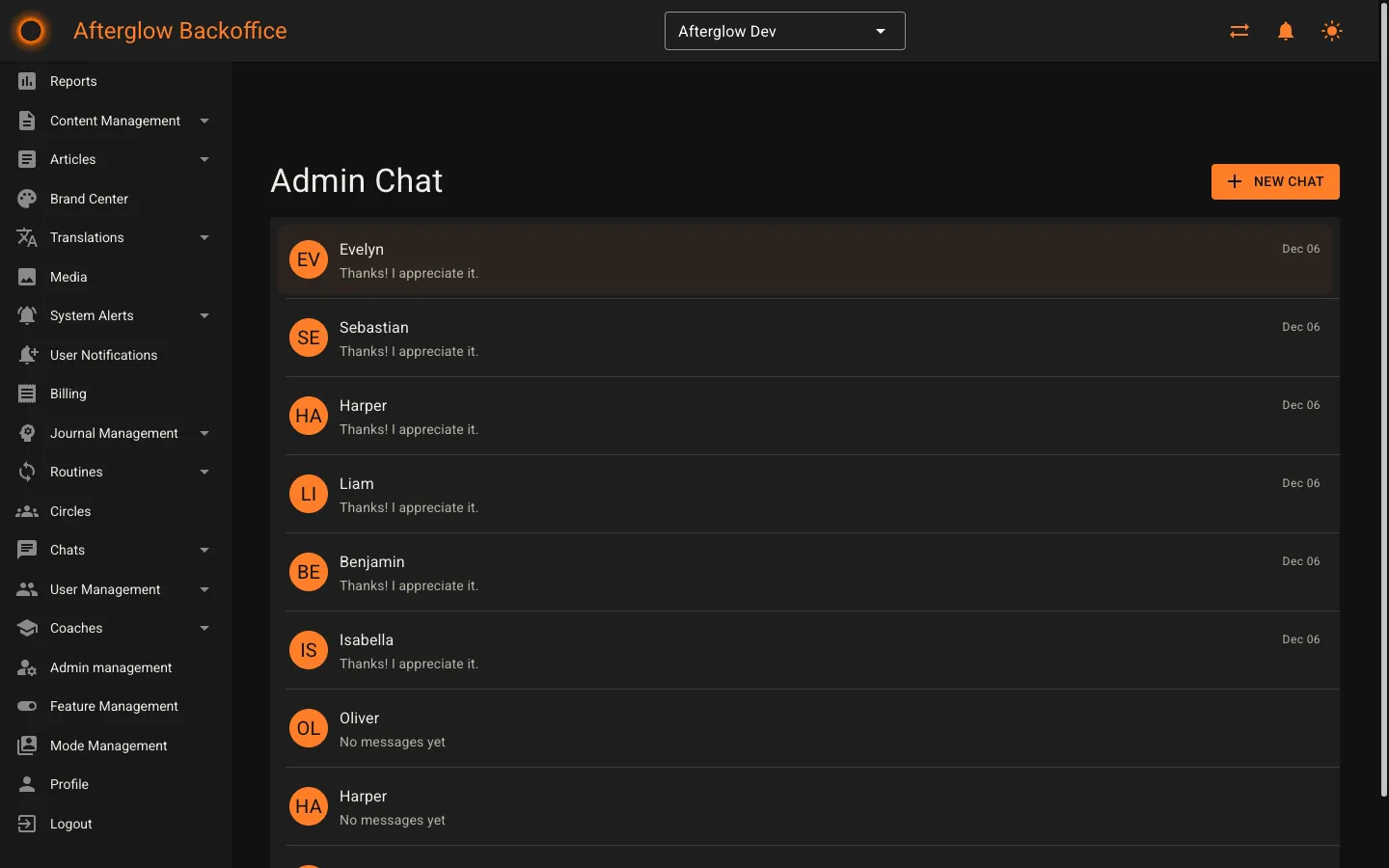
The Admin Chat page displays all your active 1:1 conversations in a list. Each conversation shows:
- The other user’s avatar and name.
- A preview of the most recent message.
- A timestamp indicating when the last message was sent.
- An unread badge if there are messages you have not yet read.
Conversations with unread messages display the user’s name in bold so you can quickly spot them.
Starting a new chat
Section titled “Starting a new chat”Click the New Chat button at the top of the page to open the start-chat dialog. In the dialog:
- Search for a user by name. The autocomplete field shows matching users along with their email address.
- Select the user you want to message.
- Click Start Chat to create the conversation.
You are taken directly into the new conversation once it is created. If a conversation with that user already exists, you will be directed to the existing one.
Conversation view
Section titled “Conversation view”Clicking a conversation from the list opens the full message view. The header shows the other user’s avatar, name, and email address.
Messages are grouped by date, with a date separator shown between messages from different days. Your own messages appear on the right side in a coloured bubble, while the other user’s messages appear on the left with their avatar.
To send a message, type in the text field at the bottom and press Enter or click the send icon. Messages are delivered with live updates — you will see incoming messages appear automatically without needing to refresh the page.
Circle chats
Section titled “Circle chats”Circle chat list
Section titled “Circle chat list”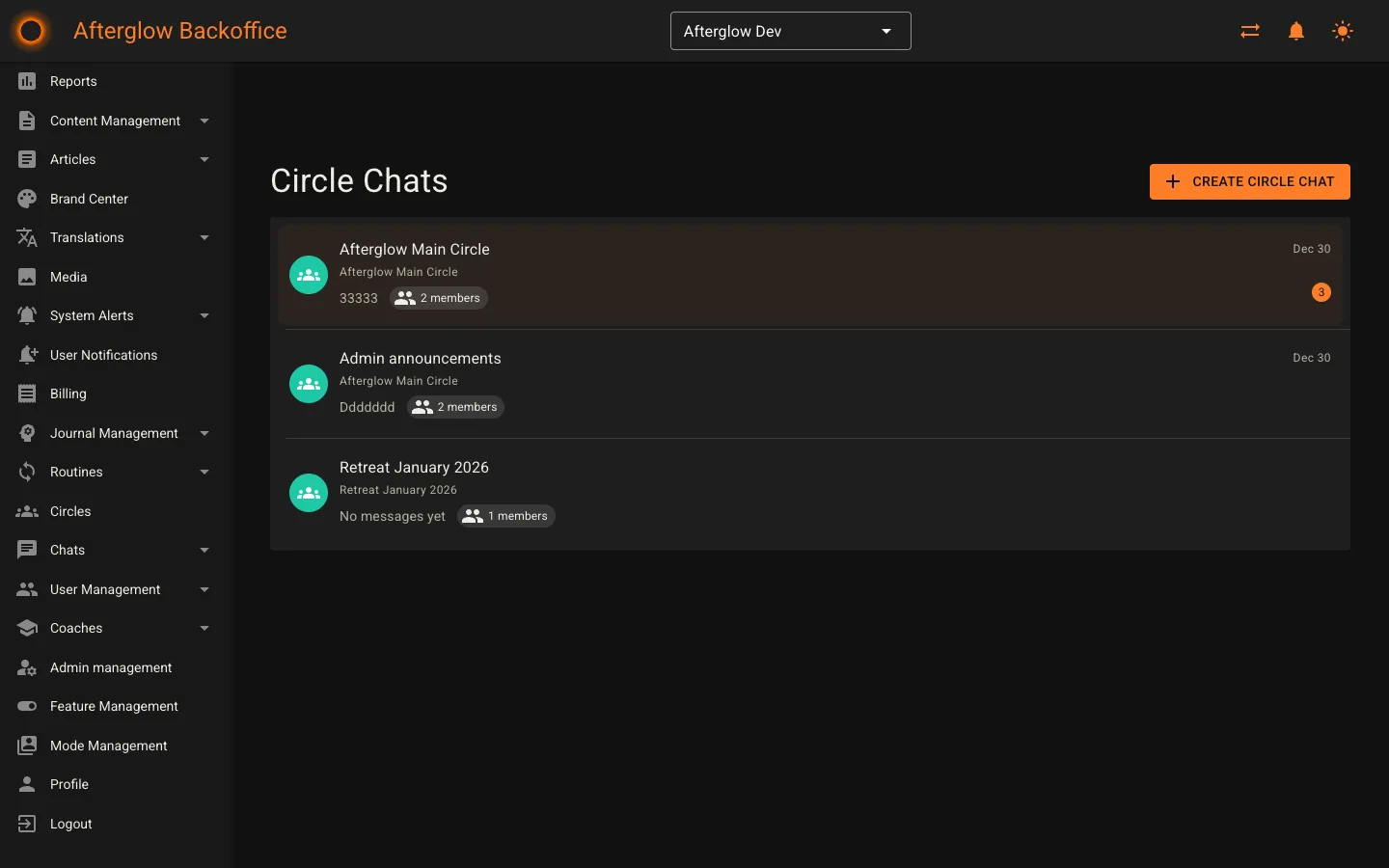
The Circle Chats page displays all group conversations tied to circles. Each entry shows:
- The circle name and an optional custom chat title.
- The number of members in the conversation.
- A preview of the most recent message and its timestamp.
- An unread badge if there are messages you have not read.
- An Admin Only badge if the chat is configured so that only admins can send messages.
Creating a circle chat
Section titled “Creating a circle chat”Click the Create Circle Chat button to open the creation dialog. In the dialog:
- Search for a circle by name. Only circles that do not already have a chat are shown.
- Select the circle. All members of that circle are automatically added as participants.
- Optionally enter a Chat Title. If you leave this blank, the circle name is used.
- Choose who can send messages:
- All Members — everyone in the circle can participate.
- Admins Only — only admins can send messages, turning the chat into an announcement channel. Members can still read all messages.
- Click Create Chat to finalize.
You are taken directly into the new circle chat once it is created.
Circle conversation view
Section titled “Circle conversation view”The circle conversation view works similarly to a 1:1 chat, with a few differences. The header displays the circle name, member count, and a View Circle link that takes you to the circle’s detail page.
Each message shows the sender’s name and avatar, making it easy to follow who said what in a group setting. Messages are grouped by date, and live updates ensure you see new messages as they arrive.
If the chat is set to Admins Only, non-admin members see a notice that only admins can send messages. As an admin, you can still send messages normally.
Related topics
Section titled “Related topics”- Circles — How circles organize users into groups.