

Billing
The Billing section gives you a central place to review invoices, update your organization’s billing information, manage invoice recipients, and monitor costs.
Tabbed layout
Section titled “Tabbed layout”The Billing page uses a tabbed interface. The first four tabs are always visible:
- Invoices — View and export your invoices.
- Billing Details — Edit the company information that appears on invoices.
- Contacts — Manage the people who receive invoice emails.
- Workspace Codes — Browse and export the access codes linked to your invoices.
Two additional tabs appear when the matching pricing model is configured for your workspace:
- Pricing — Visible when code-based pricing is active. Shows per-code prices and cost estimates.
- MAU Tiers — Visible when MAU (Monthly Active Users) pricing is active. Shows flat-fee tiers based on user counts.
Which pricing model your workspace uses depends on your feature configuration. Contact your Afterglow representative if you are unsure which model applies.
Invoices
Section titled “Invoices”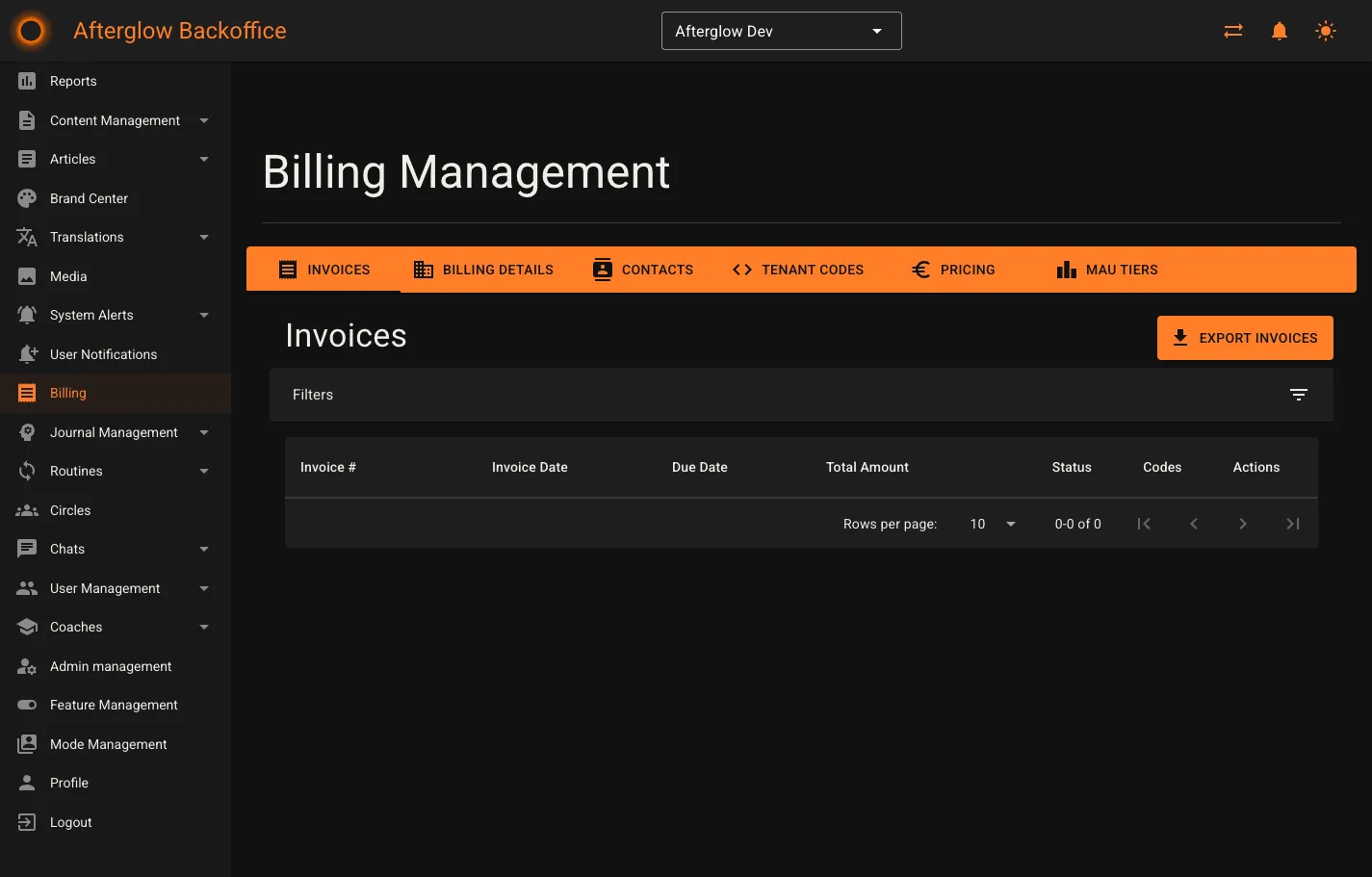
The Invoices tab lists all invoices for your workspace in a paginated data grid sorted by invoice date (newest first).
Columns
Section titled “Columns”- Invoice # — The unique invoice number.
- Invoice Date — The date the invoice was generated.
- Due Date — The payment due date.
- Total Amount — The invoice total including VAT.
- Status — A colored badge showing Sent (green) or Not Sent (amber).
- Codes — The number of workspace codes associated with the invoice.
Filtering
Section titled “Filtering”Expand the Filters panel to narrow results by:
- Start Date / End Date — Limit to a date range.
- Sent Status — Show only sent or not-sent invoices.
- Min Amount / Max Amount — Filter by total amount.
- Search Invoice Number — Search by invoice number text.
Click Apply Filters to update the grid. Filters reset to the first page automatically.
Exporting
Section titled “Exporting”Click Export Invoices above the grid to download all invoices matching the current filters as a CSV file.
Viewing an invoice
Section titled “Viewing an invoice”Click any row (or the eye icon) to open the invoice detail page.
Invoice detail
Section titled “Invoice detail”The invoice detail page shows complete information for a single invoice.
Invoice details card
Section titled “Invoice details card”Displays the invoice number, invoice date, due date, status badge, and the sent date (if the invoice has been sent).
Billing information card
Section titled “Billing information card”Shows the company name, address, and VAT number that were on file when the invoice was generated.
Line items
Section titled “Line items”A table of all charges on the invoice with columns for description, quantity, unit price, and line total. Below the table you will see the subtotal, VAT amount (with the percentage), and the grand total.
Associated workspace codes
Section titled “Associated workspace codes”If the invoice has linked workspace codes, a separate card lists them with columns for code, type, user, created date, and redeemed date. Click a user link to navigate to their profile. You can also click Export Codes to download the codes as a CSV file.
Download
Section titled “Download”Click Download to open the invoice as a PDF in a new browser tab for saving or printing.
Billing Details
Section titled “Billing Details”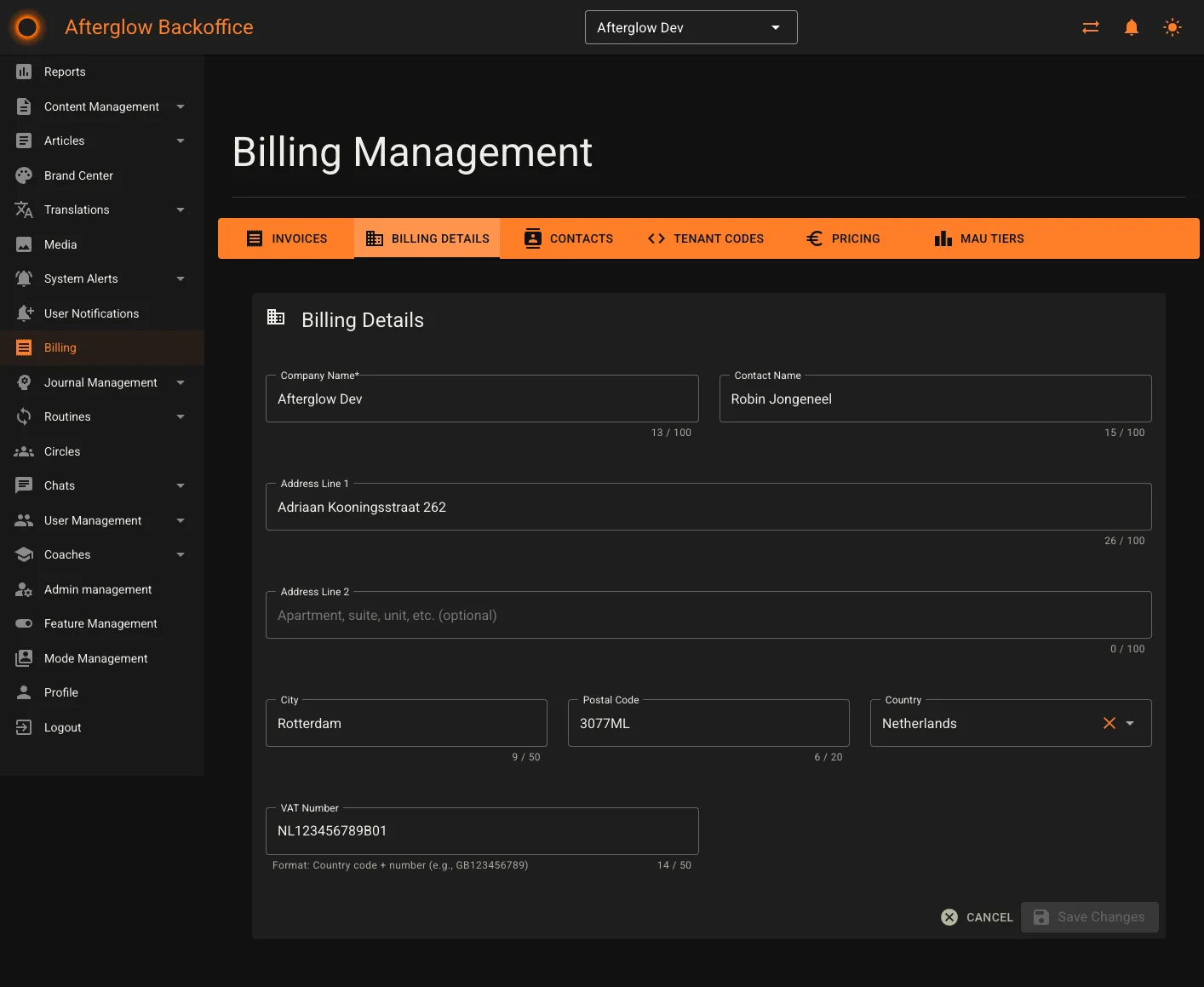
The Billing Details tab lets you view and edit the company information that appears on your invoices.
Fields
Section titled “Fields”- Company Name (required) — Your organization’s legal name.
- Contact Name — The billing contact person.
- Address Line 1 — Street address.
- Address Line 2 — Apartment, suite, or unit (optional).
- City — City or town.
- Postal Code — Postal or ZIP code.
- Country — Select from the country dropdown.
- VAT Number — Your tax identification number. Must follow the format of a two-letter country code followed by digits (for example,
GB123456789).
Click Save Changes when you are done. The button is disabled until you change at least one field and all validation passes. Click Cancel to discard unsaved edits and return to the Invoices tab.
Contacts
Section titled “Contacts”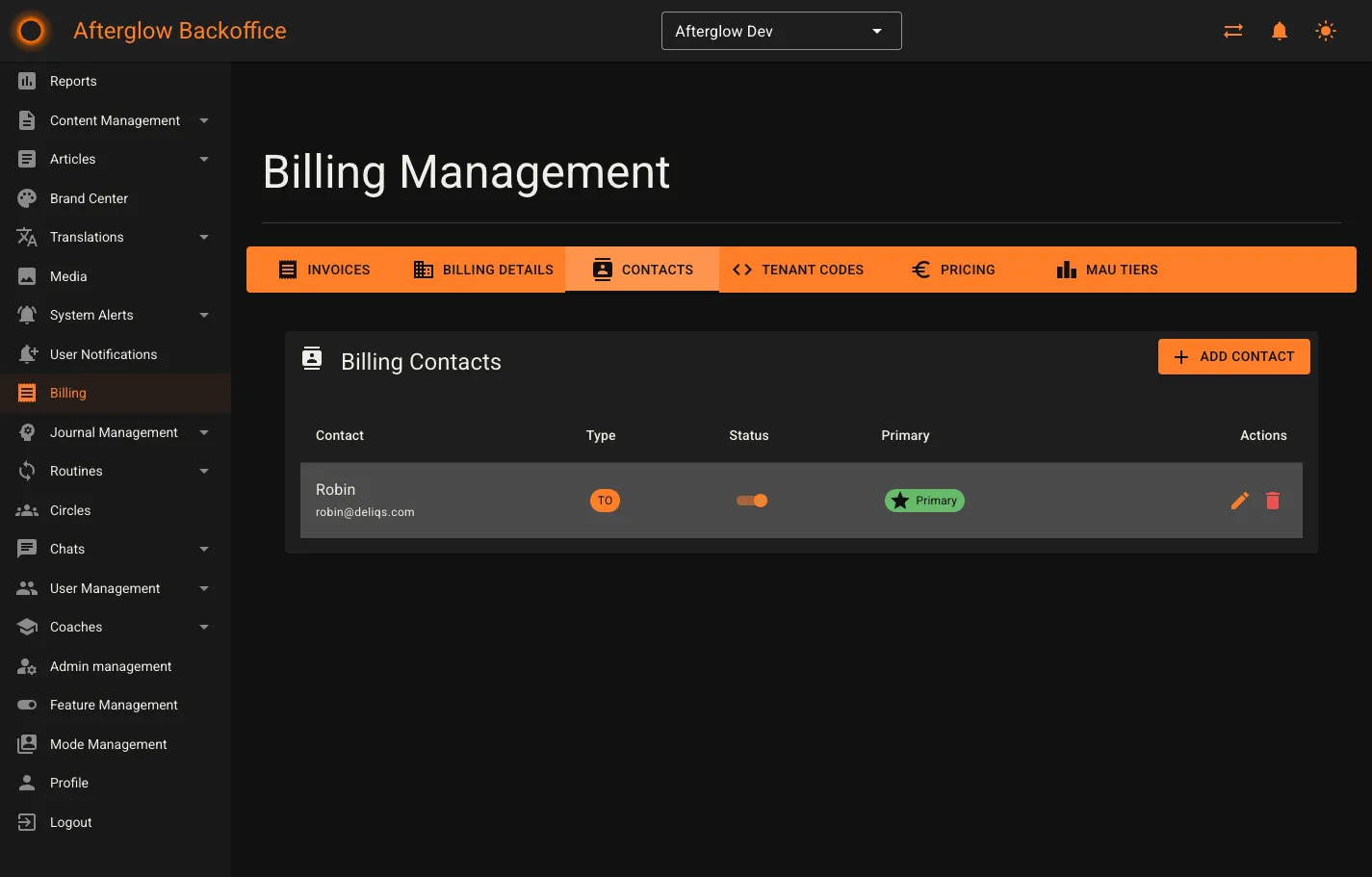
The Contacts tab manages the email recipients who receive invoice communications.
Contacts table
Section titled “Contacts table”Each contact row shows:
- Contact — Name and email address.
- Type — A badge indicating TO (primary recipient), CC (carbon copy), or BCC (blind carbon copy).
- Status — A toggle switch to activate or deactivate the contact.
- Primary — A badge for the primary contact. Only one active TO contact can be primary at a time.
- Actions — Edit and delete buttons.
Adding a contact
Section titled “Adding a contact”Click Add Contact to open a dialog with the following fields:
- Email Address (required) — Must be a valid email.
- Contact Name — Optional display name.
- Recipient Type — Choose To, CC, or BCC.
Editing a contact
Section titled “Editing a contact”Click the edit icon on a contact row. The dialog shows the same fields as the add dialog, plus an Active toggle.
Setting a primary contact
Section titled “Setting a primary contact”The first active TO contact is automatically considered primary. To change the primary contact, click Set as Primary on a different active TO contact.
Deleting a contact
Section titled “Deleting a contact”Click the delete icon and confirm the deletion in the dialog that appears.
Workspace Codes
Section titled “Workspace Codes”The Workspace Codes tab provides a full view of all access codes associated with your workspace.
Columns
Section titled “Columns”- Code — The code string.
- Type — The code type (Normal, Premium, or Upgrade).
- User Name — The user who redeemed the code (links to their profile).
- Email — The user’s email address (links to their profile).
- Active — A badge showing Active or Inactive.
- Billed — A badge showing Billed or Unbilled.
- Invoice # — The invoice number the code was billed on (links to the invoice detail).
- Created — When the code was created.
- Redeemed — When the code was redeemed (blank if not yet redeemed).
Filtering
Section titled “Filtering”Expand the Filters panel to narrow results by:
- Start Date / End Date — Filter by code creation date range.
- Code Type — Filter by Normal, Premium, or Upgrade.
- User Search — Search by user name, email, or code text.
- Invoice Number — Filter by associated invoice number.
- Active Only — Three-state checkbox to show active, inactive, or all codes.
- Billed Only — Three-state checkbox to show billed, unbilled, or all codes.
Click Clear All to reset all filters at once.
Exporting
Section titled “Exporting”Click Export CSV to download the codes matching the current filters as a CSV file.
Pricing
Section titled “Pricing”The Pricing tab is only visible when your workspace uses code-based pricing.
Current billing cycle card
Section titled “Current billing cycle card”At the top of the page a summary card displays:
- Cycle Period — The current monthly billing window (first to last day of the month).
- Total Unbilled Codes — How many redeemed codes have not yet been invoiced.
- Estimated Cost — The projected total for the current cycle based on unbilled codes and configured prices.
Price per code type
Section titled “Price per code type”Below the summary, a card for each code type (Normal, Premium, Upgrade) shows:
- Price per code — The configured unit price.
- Unbilled codes — The number of redeemed but not-yet-billed codes of this type.
- Current subtotal — Price multiplied by unbilled codes.
How billing works
Section titled “How billing works”- Billing cycles run monthly from the 1st to the last day of each month.
- Invoices are generated automatically at the end of each cycle.
- Only redeemed codes are included in billing calculations.
- Cost estimates update in real time as codes are redeemed.
MAU Tiers
Section titled “MAU Tiers”The MAU Tiers tab is only visible when your workspace uses MAU-based (Monthly Active Users) pricing.
Current billing period card
Section titled “Current billing period card”A summary card at the top displays:
- Period — The current monthly billing window.
- Current MAU — The number of unique non-admin users who have accessed the platform this period.
- Current Tier Fee — The flat fee for the tier that matches your current MAU count.
Pricing tiers table
Section titled “Pricing tiers table”A table lists every configured tier with columns:
- User Range — The minimum and maximum user count for the tier (for example, “1 - 500 users” or “5,001+ users”).
- Flat Fee — The monthly charge if your MAU falls within this range.
- Status — Shows Current Tier for the matching tier, Active for other enabled tiers, or Inactive for disabled tiers.
The row for your current tier is highlighted so you can see where your organization falls at a glance.
How MAU tier billing works
Section titled “How MAU tier billing works”- MAU is the count of unique users who accessed the platform during the billing period. Admin users are excluded from this count.
- Pricing tiers define a flat fee based on your MAU count falling within a specific range.
- Only one tier applies per billing period — the one matching your MAU count.
- Tiers are evaluated at the end of each billing cycle when generating invoices.