

Admin management
Admin Management lets you control who has administrative access to your workspace’s Backoffice and what they can do within it.
Who has access?
Section titled “Who has access?”Only users with the Admin role can access Admin Management. This ensures that administrative access is controlled by a trusted group of people.
Page layout
Section titled “Page layout”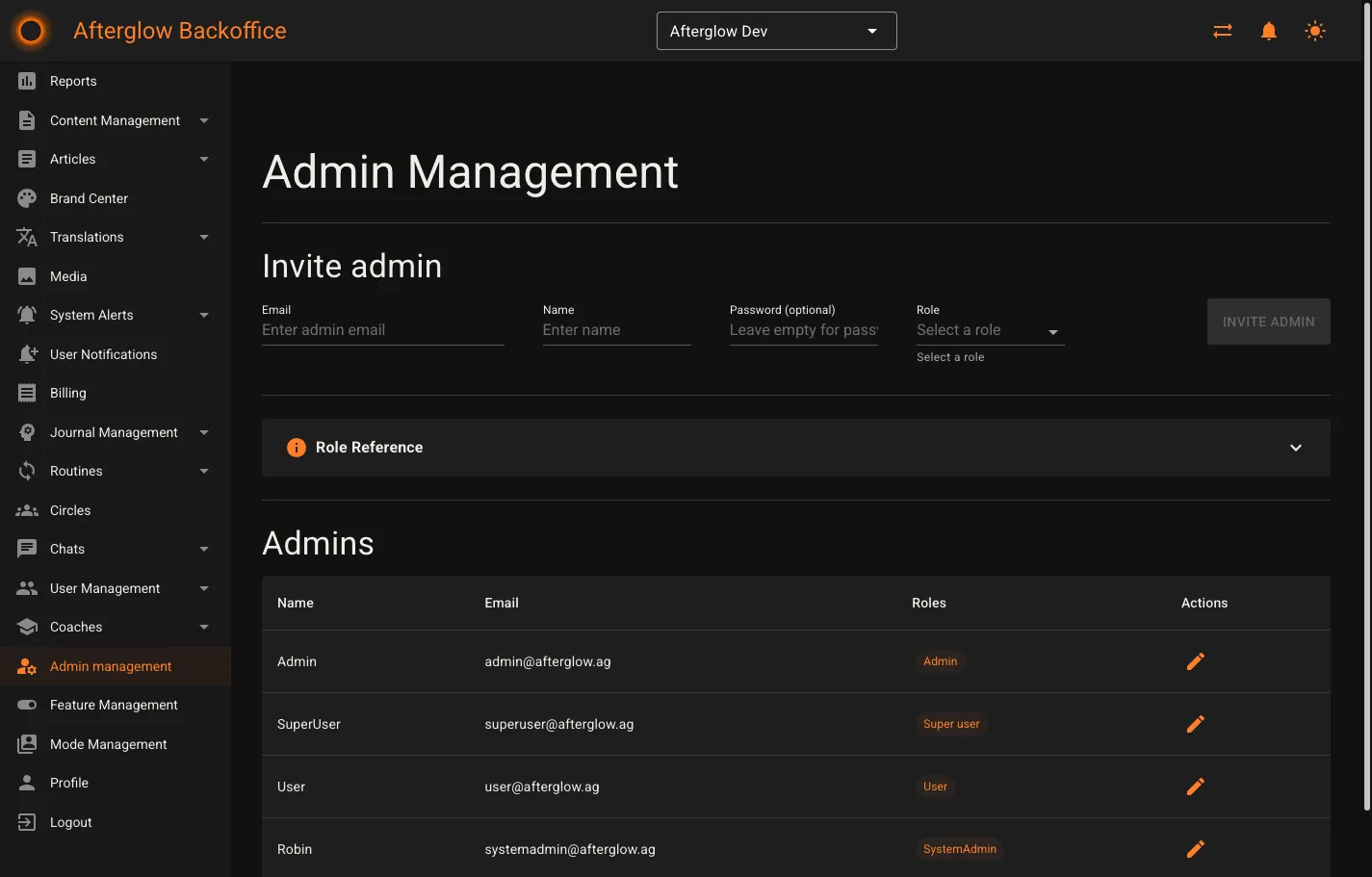
The Admin Management page has three sections:
- Invite admin — Add a new administrator to your workspace.
- Role Reference — A collapsible panel explaining what each role grants.
- Admins — A table listing all current administrators and their roles.
Available roles
Section titled “Available roles”Each administrator can have one or more of the following roles:
| Role | Access | Description |
|---|---|---|
| Admin | Backoffice + Coach Portal | Full workspace management. Can manage content, users, coaches, admin accounts, and access the Coach Portal. |
| Super user | Backoffice | Content and user management. Can manage content, media, translations, user accounts, and system alerts. |
| User | Mobile App only | Mobile app access. Creates a user account for the app. Does not grant Backoffice access. |
| Coach | Coach Portal | Coach Portal access. Can manage clients, view coaching data, and handle bookings. |
Inviting a new admin
Section titled “Inviting a new admin”To add a new administrator to your workspace:
- Enter their email address.
- Enter their name.
- Optionally set a password. If you leave this blank, the person receives a password reset email to set their own.
- Select a role from the dropdown.
- Click Invite admin.
The person receives an invitation email with instructions to sign in.
Viewing current admins
Section titled “Viewing current admins”The Admins table lists all administrators for your workspace. Each row shows:
- Name — The administrator’s display name.
- Email — Their email address.
- Roles — One or more role badges showing their current assignments.
- Actions — An edit button to change their roles.
You can sort the table by name or email by clicking the column headers. Use the pagination controls at the bottom to navigate through larger lists.
Editing admin roles
Section titled “Editing admin roles”To change an administrator’s role assignments:
- Click the edit button in the Actions column for the administrator you want to update.
- In the dialog, check or uncheck roles to adjust their access.
- Click Save.
At least one role must remain selected. You cannot remove all roles from an administrator.
Related topics
Section titled “Related topics”- Roles and Permissions — A detailed explanation of all platform roles.
- User Roles — A quick role comparison for new users.
- Backoffice Overview — An overview of all Backoffice feature areas.